Why your internet “works” (until it doesn’t)
Most days, the internet feels like a single, always-on utility: you tap a link, a video plays, a call connects. That smooth experience hides a chain of handoffs—your phone to Wi‑Fi, Wi‑Fi to your router, router to the modem or ONT, then into your ISP’s network, and finally out to the wider internet.
When anything in that chain is busy, misconfigured, or down, the symptom looks the same: “the internet is slow.” The tricky part is that the weakest point can change hour by hour. Evening congestion, a flaky cable, a crowded Wi‑Fi channel, or a problem beyond your ISP can all produce buffering, lag, and dropped connections.
The ISP’s core job: getting your traffic on and off the internet
When you pay for internet service, you’re mainly paying for one job: your ISP carries your traffic from your home to the rest of the internet, and brings responses back. Inside the ISP, your connection is aggregated with many others, routed through neighborhood equipment, and moved across faster links toward places where the ISP can hand your traffic off. That handoff might be to a big backbone provider (called “transit”) or directly to another network or major service (called “peering”).
This is why “my Wi‑Fi shows full bars” doesn’t guarantee the internet will feel fast. Your local link can be fine while the ISP’s shared paths are congested or a handoff is overloaded. ISPs also have practical constraints: building capacity is expensive, outages happen, and busy-hour slowdowns can be a normal trade-off of cheaper plans.
The “last mile” options: fiber, cable, DSL, fixed wireless, satellite
You usually notice the “last mile” only when it’s the bottleneck: that’s the physical link from your home to the ISP’s first neighborhood equipment. Fiber uses light in glass, tends to deliver the most consistent speeds (especially uploads) and low latency, but it isn’t available everywhere and installation can involve drilling, new conduit, or building approval. Cable internet shares capacity with nearby homes on the same coax segment, so it can feel great at noon and sluggish at 8 p.m. DSL runs over phone lines and is highly distance-sensitive; if you’re far from the provider’s equipment, speeds drop fast.
Fixed wireless uses a nearby tower or rooftop radio; line-of-sight and weather can matter, and performance varies by local load. Satellite reaches almost anywhere, but it has higher latency and can struggle with heavy use or bad conditions—often a last resort when wired options don’t exist.
From your neighborhood to the world: backhaul, peering, and transit
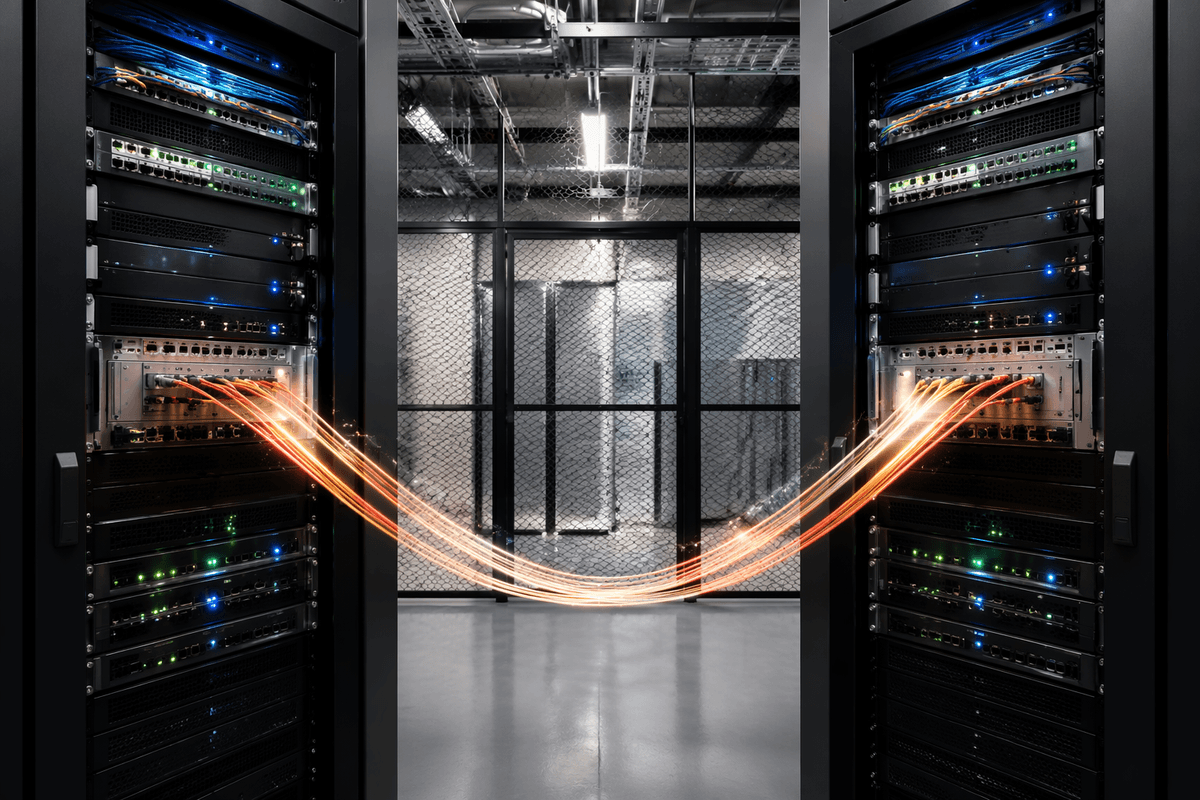
You can picture your neighborhood node or tower as the on-ramp. After that, your traffic has to ride “backhaul”—higher-capacity links that carry many neighborhoods into the ISP’s regional network. If those links are undersized or a piece of equipment along the way is overloaded, you’ll feel it as slowdowns that hit lots of customers at once, often most noticeably during evening busy hours.
At the edge of the ISP’s network, your traffic has to leave for the rest of the internet. Sometimes it goes through “peering,” where two networks connect directly (often in a data center) to exchange traffic, which can lower latency and reduce costs. Other times it goes via “transit,” where the ISP pays a larger backbone provider to reach everyone else. These handoffs aren’t free or infinite: ports cost money, upgrades take time, and a congested or poorly located handoff can mean one service buffers while others feel fine.
The gear you control: modem/ONT, router, Wi‑Fi, and cabling
You can’t change your ISP’s backhaul, but you can control the “front end” of your connection. The modem (for cable/DSL) or ONT (for fiber) is the handoff point where your home wiring meets the provider’s network. If it’s aging, overheating, or stuck on an older standard, it can cap speeds or drop out under load. Some ISPs also push firmware updates, so the same box can behave differently over time.
Your router decides how devices share the link, and it’s often the real bottleneck—especially cheap all-in-one units. Wi‑Fi is its own mini “last mile”: walls, distance, and neighboring networks can cut speed and add lag even when the ISP is fine. A simple test is plugging one computer directly into the router with Ethernet; if that’s stable but Wi‑Fi isn’t, focus on placement, bands, or wiring. Long, kinked, or poorly crimped cables can quietly ruin an otherwise good plan.
Speed claims vs real experience: latency, jitter, upload, and congestion

You’ve probably seen “up to 500 Mbps” and still watched a call stutter or a page hang. That’s because advertised speed is mostly about raw download capacity, not how quickly the connection responds. Latency is the delay before anything starts loading; jitter is how much that delay varies from moment to moment. Both matter more than download speed for gaming, video calls, remote desktops, and anything “live.”
Upload is another common mismatch. Many cable and fixed-wireless plans have much lower upload than download, so sending a big file, backing up photos, or hosting a Zoom can saturate upstream and make everything else feel laggy. Congestion adds the final twist: your link might test fast at 10 a.m. but slow at 8 p.m. when neighborhood capacity and ISP handoffs are busy. Low-latency performance usually costs more because it requires extra headroom and upgrades.
Rules and limits: data caps, throttling, prioritization, and filtering
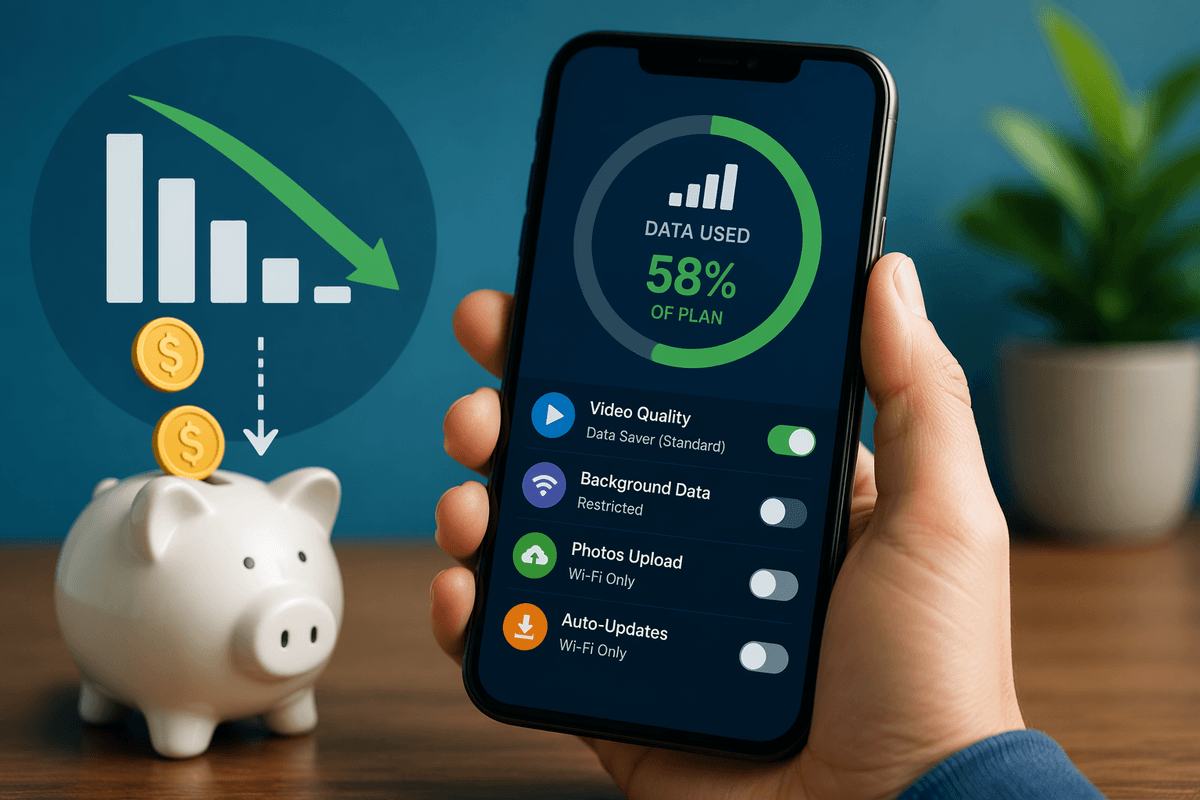
You notice these “rules” when nothing is broken, yet performance changes based on what you do. A data cap is a monthly allowance; after you hit it, some ISPs charge overage fees or drop you to a much slower speed for the rest of the billing cycle. That matters if you stream 4K, run cloud backups, or have multiple people working and gaming at once. Even without caps, some plans quietly rely on “busy-hour” management, so a speed test at noon can’t predict a Friday night.
Throttling is a deliberate slowdown for certain kinds of traffic, while prioritization decides what gets a clean path when links are crowded. Mobile and fixed wireless often use “deprioritization,” where heavy users get pushed back during congestion. Filtering shows up as blocked ports, restricted hotspot use, or optional “security” features that can interfere with VPNs or gaming. The trade-off is cost: fewer limits usually means paying for a higher-tier plan or business-class service.
Choosing an ISP and plan that fits your household
You’re usually choosing between trade-offs: stability vs availability, and consistent performance vs a lower price. If fiber is an option, it’s often the simplest “set it and forget it” choice, especially if you upload a lot or work from home. If it’s cable, ask neighbors about evening slowdowns and look closely at upload, not just the download number. If it’s fixed wireless or satellite, plan around higher latency and weather sensitivity.
Match the plan to how you actually use the link. A household with video calls, cloud backups, and gaming benefits more from solid upload, low latency, and no cap than from a huge “up to” download tier. Budget for the hidden costs: modem rental, install fees, longer contracts, and the time it can take to get a line issue fixed.