One controller for four cloud services: what really matters
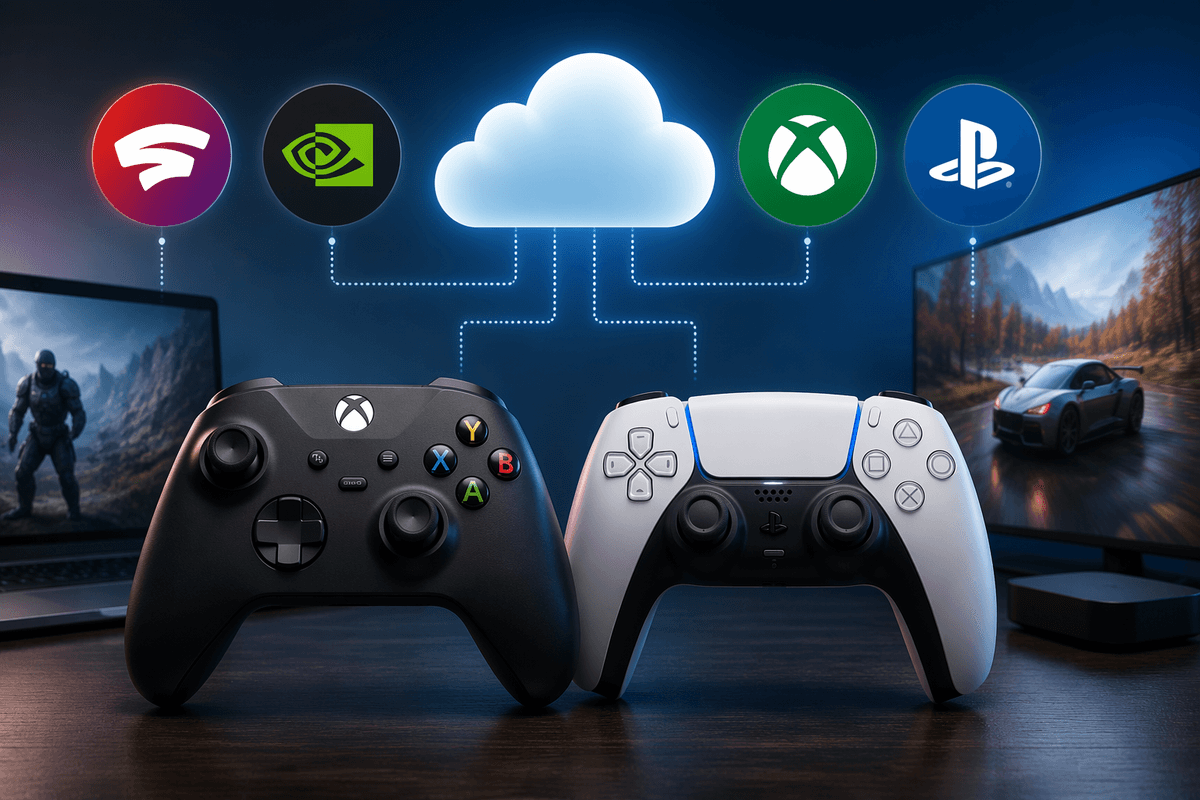
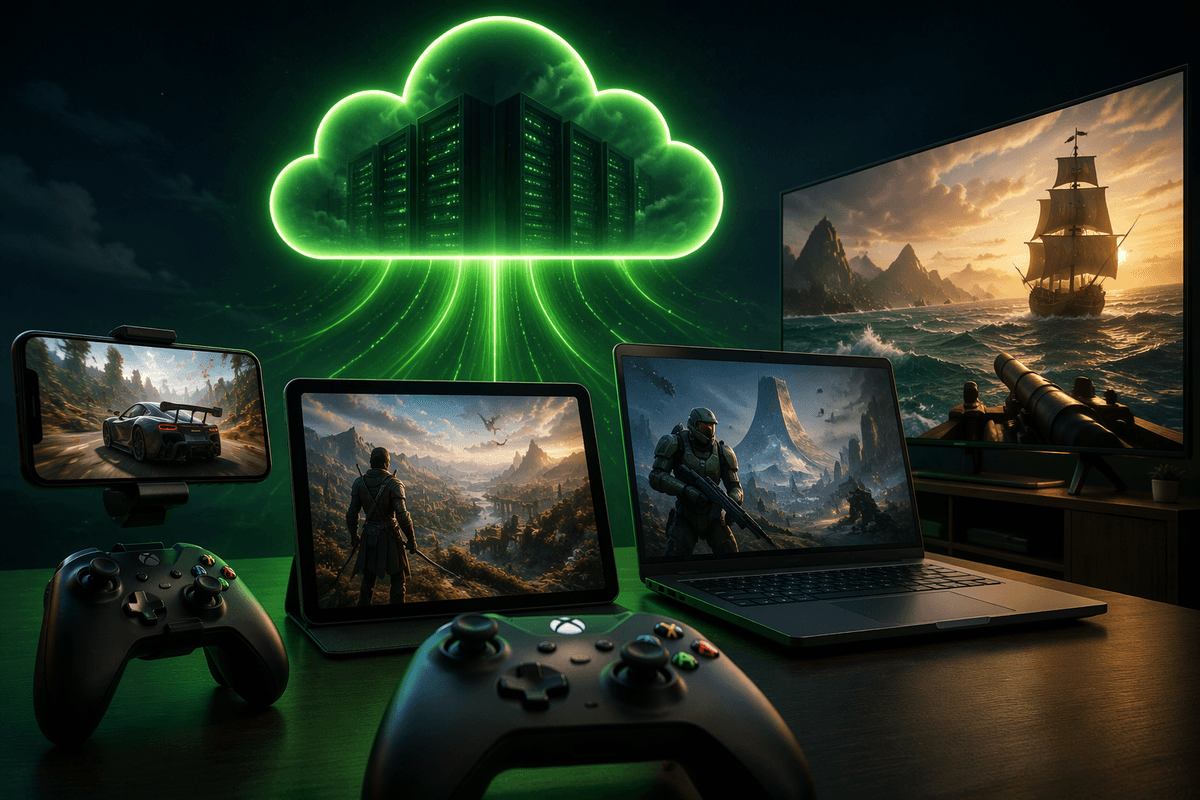
You can usually make one controller work across Stadia, GeForce Now, xCloud, and PS Now, but “works” can mean three different things: it pairs, the buttons map correctly, and it stays responsive. Most buying mistakes happen because people focus on brand instead of connection mode (Bluetooth vs USB), the device you’re playing on (phone vs PC vs TV), and the app layer (native app vs browser). A controller that’s perfect on Windows over USB can be flaky over Bluetooth on Android, or recognized in a browser but blocked in a TV app.
Also plan for a practical cost: solving edge cases often means keeping a USB cable, a USB-C adapter, or a small dongle around. That’s not exciting, but it’s usually cheaper than buying a “cloud” controller that only behaves well on one platform.
Start with your device: phone, PC, browser, or TV
The fastest way to avoid a bad controller purchase is to pick the device you’ll actually use most. On a Windows PC, almost anything solid works over USB, and that wired fallback matters because it sidesteps Bluetooth lag, sleep bugs, and occasional “paired but not detected” moments. Browsers add a second filter: a controller can be fine in Windows and still behave differently in Chrome versus Edge, especially with older Bluetooth stacks or when the tab loses focus.
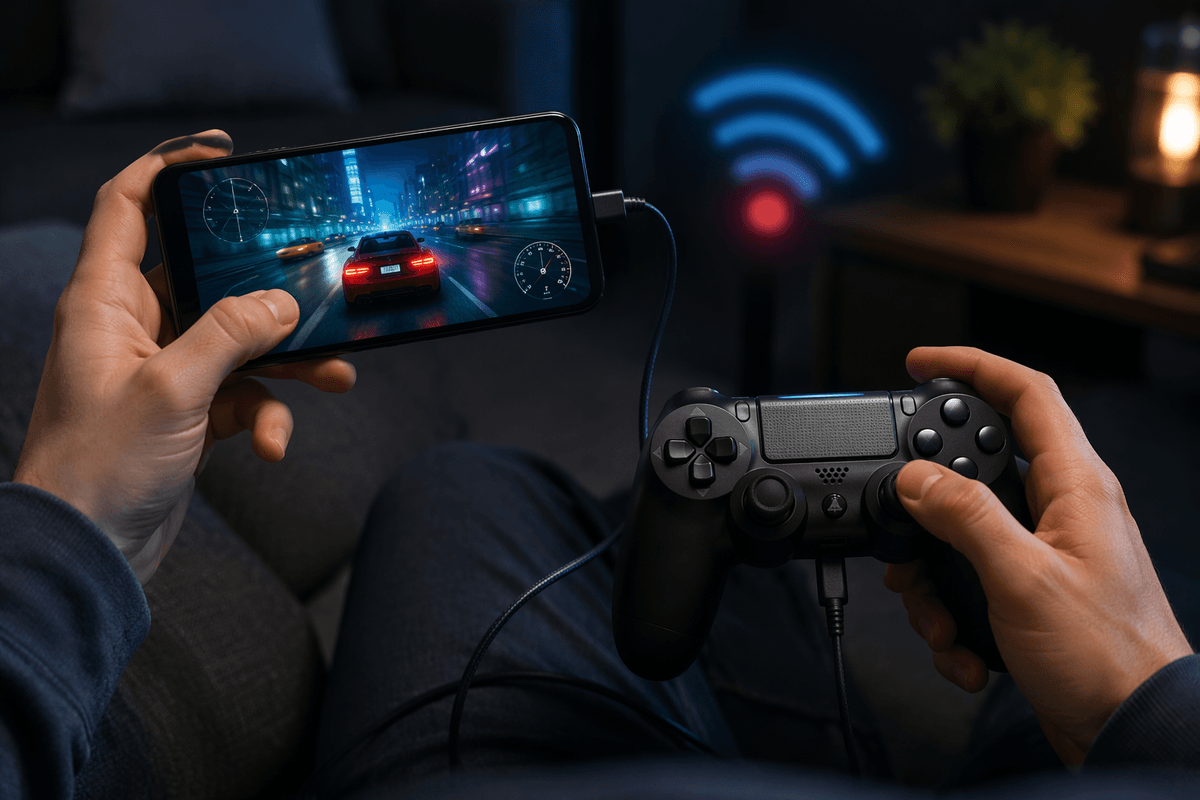
Phones and tablets are where “Bluetooth compatible” turns into a real test. Some controllers pair but expose the wrong profile, which can lead to swapped buttons, missing triggers, or odd stick ranges in certain apps. Budget for a USB-C cable or adapter anyway, because many mobile issues disappear when you go wired.
Smart TVs and streaming boxes are the most restrictive. Even when Bluetooth pairing works, the TV’s OS may only fully support a short list of gamepads, and updates can quietly change what maps correctly.
Controller basics that decide compatibility in practice
The basics that decide real-world compatibility are the controller’s “language” and how it presents itself to the device. On Windows, XInput is the safe default because most games and cloud apps expect it; DirectInput pads can connect but end up with odd button prompts or missing vibration. On Android and many TV platforms, the same controller might show up as a generic HID device, which is where you’ll see swapped A/B buttons, inverted triggers, or sticks that never hit full range.
Wireless mode matters, too. Bluetooth is convenient, but it’s also where you’re most likely to run into wake-from-sleep failures, input delay spikes, or a controller that pairs but won’t reconnect without forgetting and re-pairing. A wired USB fallback isn’t just “more reliable”; it can change the driver path entirely, which is why the exact same gamepad can feel fine on a PC cable and frustrating over Bluetooth on a tablet.
Stadia and GeForce Now: generally flexible, with caveats
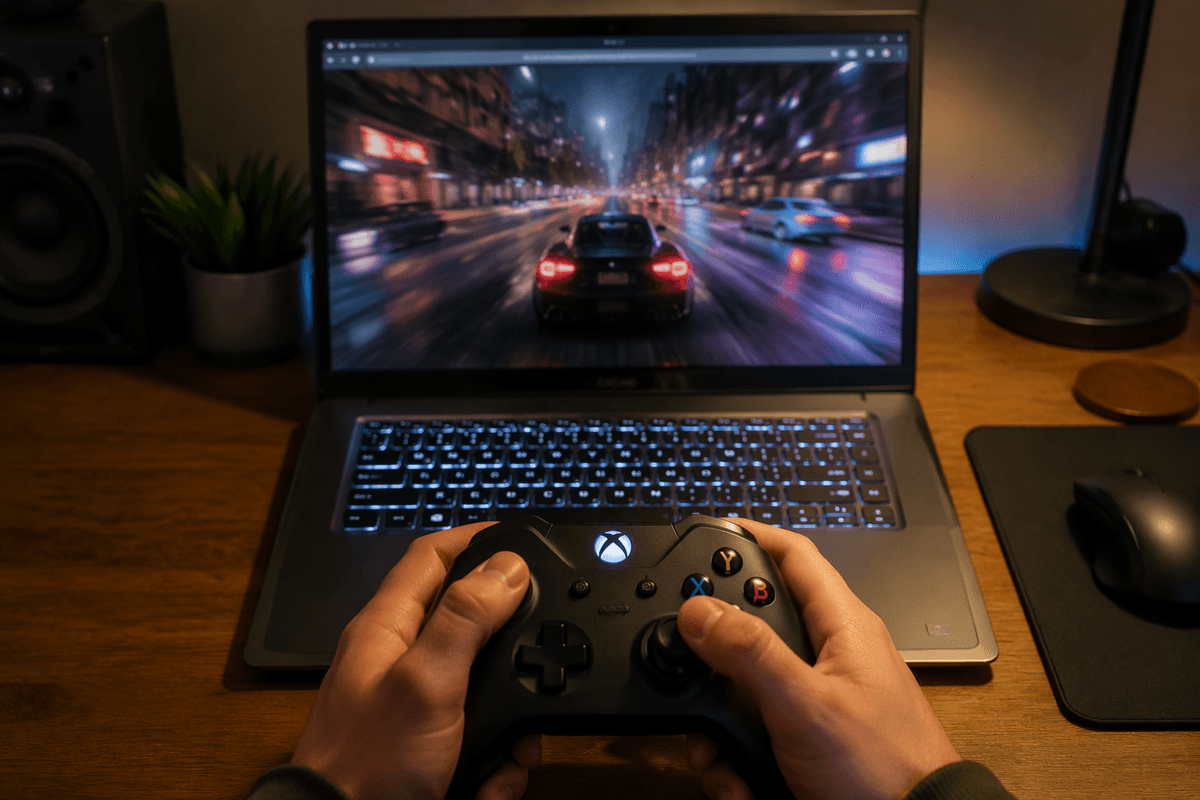
On paper, Stadia and GeForce Now are the “least picky” because they mostly inherit whatever your device and app layer can accept. In practice, that usually means an Xbox-style XInput controller on Windows (USB or Bluetooth) is the low-drama choice, and many Bluetooth HID pads also work on Android and tablets. The caveat is that the same controller can feel “compatible” but still land with wrong button prompts, missing vibration, or flaky reconnect behavior when you switch between browser sessions and native apps.
GeForce Now also exposes a common gotcha on TVs and streaming boxes: pairing succeeds, but the TV OS maps buttons differently or drops triggers under load. Keeping a short USB cable (and a USB-C adapter for phones) is the cheap fix. Stadia itself is no longer an active service as of January 18, 2023, so any “Stadia compatibility” claims today mainly reflect how well a controller works in Chrome and on Android devices.
xCloud and PS Now: where official preferences matter more
xCloud (Xbox Cloud Gaming) is where “any Bluetooth controller” stops being a safe assumption, because Microsoft’s apps and devices tend to behave best with Xbox-family pads. On Windows, an Xbox controller over USB is the most consistent path for correct prompts, working triggers, and fewer “connected but ignored” moments; Bluetooth can be fine, but it’s also where you’ll notice occasional latency spikes or reconnect weirdness after sleep. On Android and iOS, the service is still dependent on the OS’s controller layer, so third-party pads that present themselves as generic HID can work, but you’re more likely to run into swapped face buttons or missing features.
PS Now (now folded into PlayStation Plus streaming) is stricter in a different way: DualShock 4 or DualSense usually gives you the cleanest experience, especially when a game expects PlayStation-style inputs. A non-PlayStation controller may technically function on PC, but touchpad and motion features won’t translate, and some games feel awkward when prompts don’t match. If you want one controller to “just behave,” expect to use a USB cable more often here than with GeForce Now.
Quick buy list: safest controllers for all four services
If you want the lowest-risk “one controller” purchase, start with the current Xbox Wireless Controller (Series X|S). It speaks XInput cleanly on Windows, behaves predictably over USB, and is widely supported on Android and most streaming apps. If you mostly play PlayStation Plus streaming titles, a DualSense is the safer single choice than a third-party pad because it reduces prompt mismatches and avoids the “missing touchpad feature” problem some streamed PS games run into; it also works fine on PC, especially wired.
If you want something that travels well, an 8BitDo pad that offers XInput over Bluetooth and USB is usually the best “third option,” because you can force the mode you need instead of hoping the device guesses right. The practical catch is that TVs and streaming boxes still vary a lot: you may end up using USB more often than you planned, and a USB-C cable plus a small USB-C-to-A adapter can be the difference between “pairs but feels wrong” and “just works.”
Pairing and troubleshooting: the issues people mistake for incompatibility
You’ll see the same failure patterns across services, and most are pairing-state or mode problems, not true incompatibility. If a controller “connects” but nothing responds in-game, first verify it’s in the right input mode (many third-party pads can be XInput, DirectInput, or Switch mode) and that the cloud app is the active window; browsers in particular can drop input when focus changes. On Windows, remove duplicate entries in Bluetooth devices (old pairings can win priority), then re-pair and test wired to separate Bluetooth issues from mapping issues.
On phones and tablets, the common trap is a controller that pairs as a generic HID profile, leading to swapped face buttons or dead triggers. If the app has no remap, your cheapest fix is often switching to USB-C wired, because it can expose a different, more complete driver path. On TVs, “paired but weird” usually means the TV OS is translating inputs; try a different USB port, disable other Bluetooth accessories, and accept that some boxes need a specific controller model to map triggers correctly.
Choosing once and being done: a practical wrap-up
The “buy once” move is choosing a controller that matches the strictest part of your setup, then treating wireless as optional. If you play mostly on Windows, the Xbox Wireless Controller is still the least argumentative default because XInput is what most apps expect, and USB solves the weirdest Bluetooth cases fast. If PlayStation Plus streaming is a priority, a DualSense reduces prompt and feature mismatches, but plan to use it wired more often. Either way, budget for a good cable and a small USB-C adapter—those two cheap pieces prevent most “incompatible” moments.