When stick drift turns gameplay into a fight
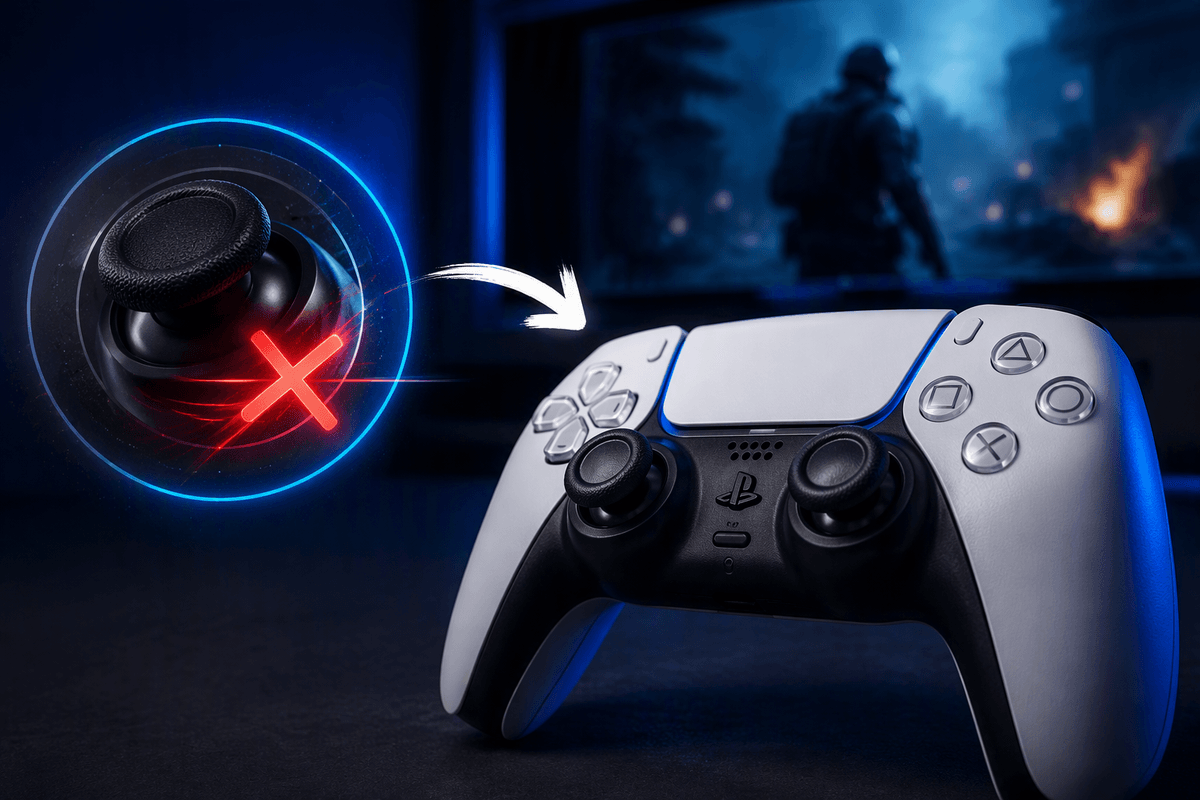
You notice it first in menus: the selection creeps up on its own, or your character slowly walks without you touching anything. In shooters it’s worse—your crosshair drifts off a headshot, you over-correct, and every gunfight turns into a wrestling match with the right stick. Sometimes it feels like “input lag,” but drift has a tell: the controller is sending a direction even when you’re hands-off.
Stick drift usually comes from grime around the stick’s internal sensors, normal wear in the thumbstick module, or settings that make tiny movements register too easily. The frustrating part is the timing: it can start intermittently, then become constant. Quick fixes are worth trying first because opening the controller risks damage and can void warranty coverage.
Confirm it’s drift, not lag, dead zones, or settings
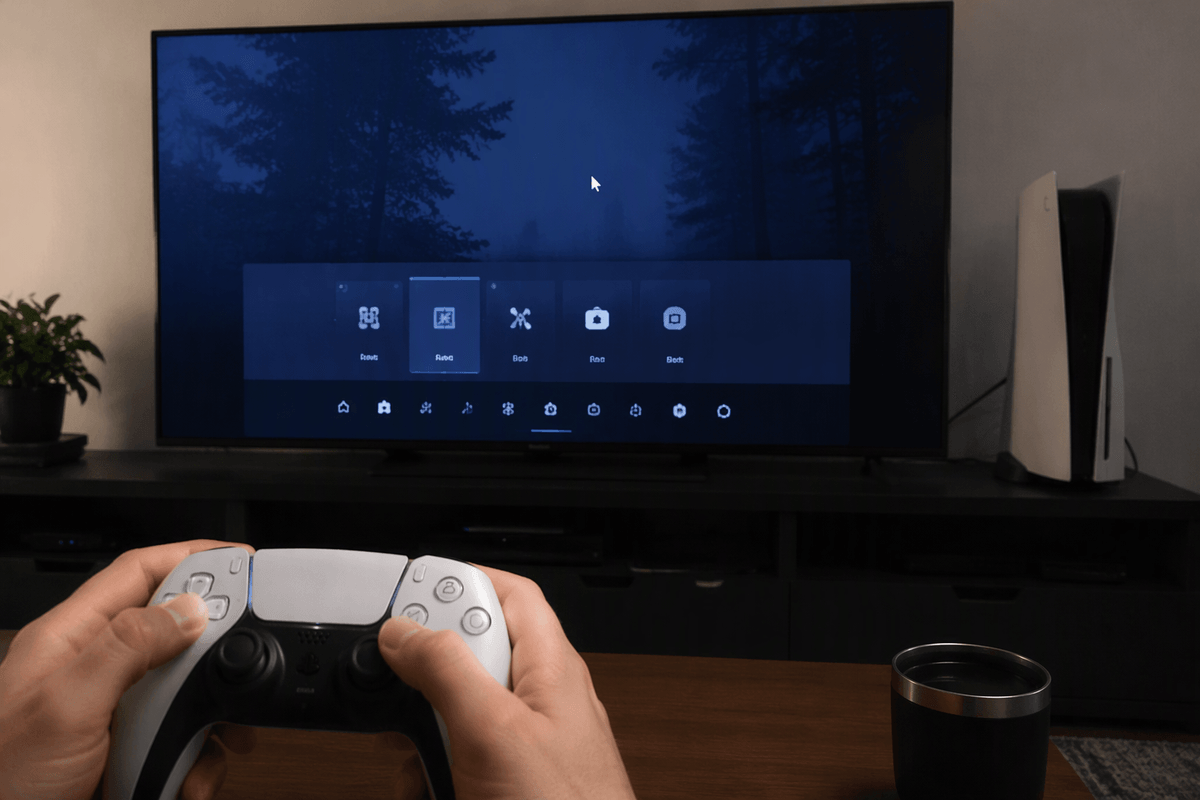
Before you blame the stick module, separate “ghost input” from timing issues. If the camera or character only misbehaves when online, try an offline mode or a different game—network lag won’t move your cursor in the PS5 home screen, but drift will. Check whether the problem shows up in menus, text entry, or the Control Center; if it does, that’s strong evidence the controller is reporting movement with no touch.
Then rule out settings that can mimic drift. In the game’s controller options, look for dead zone and sensitivity sliders—an ultra-low dead zone can make tiny sensor noise look like movement. If you use custom profiles or accessibility remaps, switch back to default briefly. Finally, try a different DualSense (or connect via USB) as a comparison. The cost here is time: you’re testing variables before you “fix” the wrong thing.
Fast no-tools resets: power cycle, re-pair, update firmware
If the drift is intermittent or started after a system update, try the quick “software and connection” fixes before you assume the stick hardware is failing. Fully shut down the PS5 (not Rest Mode), unplug it for 60 seconds, then boot back up and reconnect the DualSense. If you’ve been on Bluetooth, plug the controller in with a known data-capable USB cable and play for a few minutes—this helps you tell “wireless weirdness” from true stick noise.
Then re-pair cleanly: on PS5 go to Settings > Accessories > General > Bluetooth Accessories, select the controller, and Remove it. Restart the console and pair again using USB, then switch back to Bluetooth if you want. Finally, update controller firmware at Settings > Accessories > Controller (General). Updates can improve input handling, but they won’t fix worn sensors, and you’ll need enough battery (or stay plugged in) to complete the update.
Adjust in-game dead zones without making aim feel worse
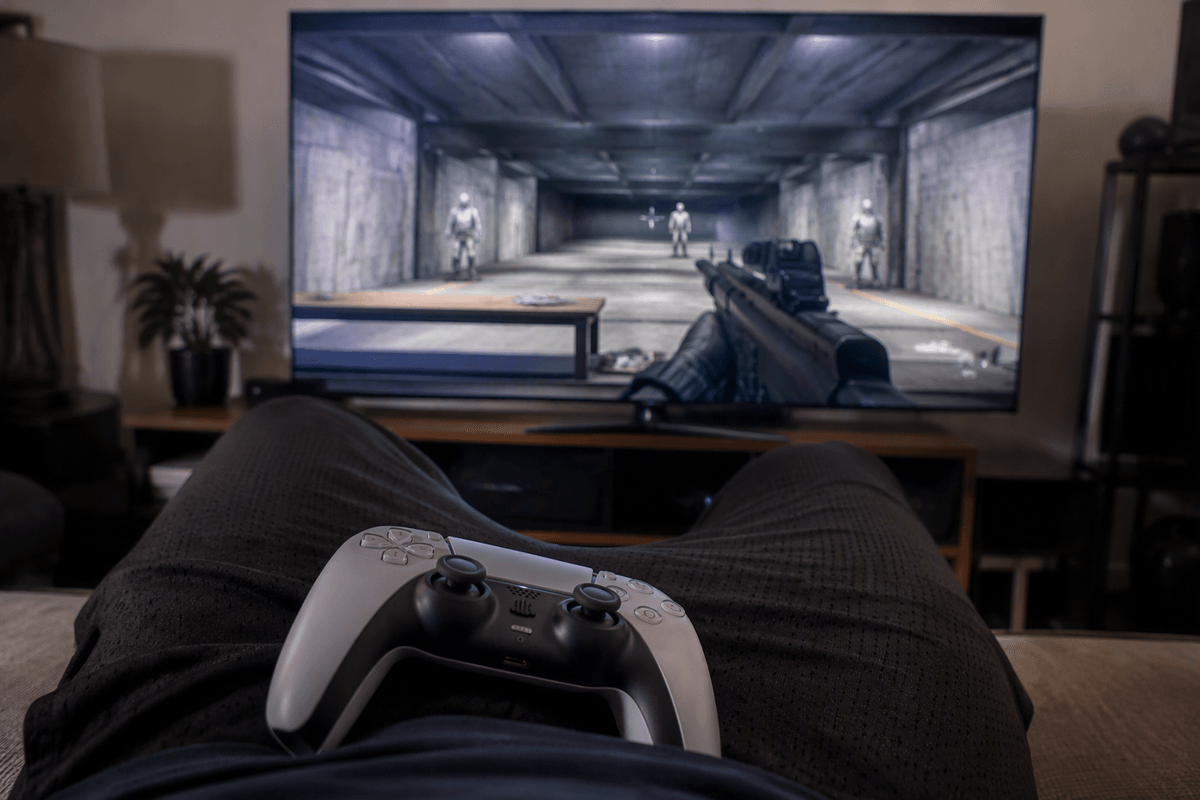
You can often “hide” mild drift by increasing the dead zone a little, but the goal is the smallest change that stops movement when you’re hands-off. Start in a game’s controller settings and find the stick dead zone (sometimes split into “inner” and “outer”). Raise the inner dead zone one notch at a time, then stop and watch your aim or camera while the controller sits on your lap. If the drift disappears, don’t keep going—too much dead zone makes the first part of stick movement feel mushy and can ruin fine aim.
Keep sensitivity where it was while you tune dead zone. Changing both at once makes it hard to tell what helped. If the game has an aim response curve (linear vs dynamic), leave it on your usual option until drift is controlled. Some games lack dead zone sliders, and PS5 system settings don’t offer a universal stick dead zone, so this fix is game-by-game and won’t help in the home menu.
Cleaning the stick module safely: dust, grime, and wear
If the drift shows up even in the PS5 home screen, a careful clean is the last “easy” step before repair. Power off the controller, unplug it, and don’t spray anything directly into the stick. Use a dry, soft brush (or compressed air in short bursts) around the base while you slowly rotate the stick and click L3/R3 a few times to shake loose dust. If you have 90%+ isopropyl alcohol, put a small amount on a cotton swab (not dripping) and wipe the ring and seam around the stick, then work the stick through full circles for 30–60 seconds. Let it fully dry before turning it back on.
Two practical limits: cleaning can’t fix worn potentiometers or a loose stick module, and too much liquid can creep inside and make things worse. If drift improves for a day and returns quickly, that’s a strong sign you’re dealing with wear rather than grime, and you’re nearing the point where service or a parts swap is the real fix.
Decide between warranty service, DIY repair, or replacement
You’re usually choosing between time, cost, and risk. If your DualSense is still within warranty (or you bought an extended plan), start there. Warranty service costs you shipping time and you may be without a controller for days or weeks, but it avoids the “I fixed one thing and broke another” problem. Before you send it in, remove it from your PS5 accessories list, note the serial number, and test drift in the home screen so you can describe it clearly.
DIY makes sense when the controller is out of warranty and cleaning only buys you temporary relief. The most common repair is replacing the entire thumbstick module, which requires opening the shell, handling ribbon cables, and desoldering/soldering connections. That’s not hard for someone with the tools and practice, but it’s easy to lift a pad or melt plastic if you rush. Quick “contact cleaner through the gap” hacks can help briefly, but they can also wash grime deeper inside.
Replacement is the cleanest call when drift is severe, you don’t want soldering, or you need reliability immediately. It costs more upfront, but it also stops the cycle of repeated cleaning and missed shots.
Keep drift from coming back: habits that actually help
Drift usually returns because grit keeps getting worked into the stick or because wear accelerates with rough handling. Wash hands before long sessions, don’t eat greasy snacks while playing, and store the DualSense somewhere closed (a drawer beats a coffee table). When you’re done, set it down so the sticks aren’t pressed against a couch cushion or shoved in a bag; that constant sideways pressure matters over time.
Use a silicone grip or thumbstick caps if your hands run sweaty, and do a quick dry-brush around the stick bases every couple weeks. Avoid blasting cleaner or compressed air hard into the seam—it can push debris deeper. The practical limit is simple: no habit stops normal wear forever, so if drift keeps returning faster each time, plan for service or replacement instead of repeated “mini-fixes.”