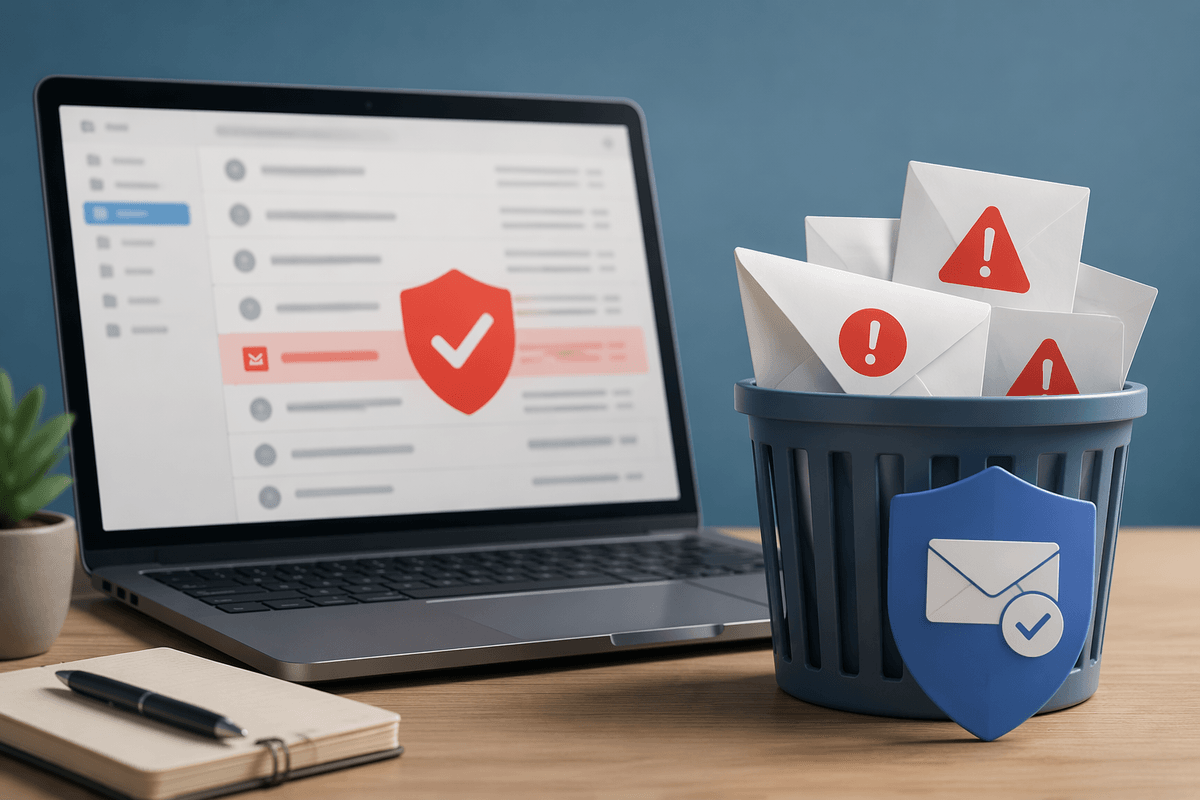
Why ransomware keeps winning against otherwise healthy businesses
A common pattern is a business that runs fine day to day—sales are up, payroll goes out on time, customers are happy—until one bad click or one reused password turns into a week of downtime. Ransomware keeps winning because it doesn’t need to “beat” your whole company. It only needs one reliable path to admin access, a few hours to spread, and a backup it can encrypt or delete.
Most small-to-midsize teams are optimized for uptime and speed, not for containing a breach. Patching gets delayed to avoid disruptions, remote access gets left open for convenience, and everyone shares a handful of “important” accounts. The hard part is that “normal IT” work already fills the week, and the best defenses are unglamorous: inventory, fast fixes, locked-down logins, and practiced recovery.
What attackers look for first: money, access, and time
If you want to prioritize defenses, think like an attacker for five minutes. They’re not admiring your network design. They’re looking for a fast payout (money), a reliable foothold (access), and enough quiet time to expand before anyone notices (time).
Money shows up as invoice workflows, finance shared mailboxes, stored customer data, and whatever systems keep revenue moving. Access usually starts with the easiest credential path: a reused password on email, a remote desktop, a helpdesk tool, or a “temporary” admin account that became permanent. Time comes from weak monitoring and slow response—alerts going to an unchecked inbox, no clear owner after hours, and endpoints that can’t be isolated quickly. Cutting their options often costs convenience: extra login steps, stricter permissions, and scheduled patch windows.
Step 1–2: Know what you have and patch fast
You can’t patch what you don’t know exists, and most ransomware crews count on that gap. In a typical SMB, “IT inventory” lives in purchase emails, a spreadsheet from last year, and whatever shows up in the helpdesk. Start with a plain list that’s good enough to act on: every laptop and server, your core cloud apps (Microsoft 365/Google Workspace, accounting, CRM), network gear, and anything exposed to the internet (remote access portals, web apps). Add who owns it, how it’s managed, and whether it holds sensitive data. The goal isn’t perfection—it’s to stop being surprised.
Once you can see your estate, patching becomes a speed problem, not a mystery problem. Set a 7–14 day patch window for “high risk” items: internet-facing systems, email, browsers, remote tools, and anything that runs with admin rights. Use automatic updates where you can, and standardize on one endpoint management approach (Intune, RMM, or even a disciplined process) so updates don’t depend on someone remembering. The real cost is operational: reboots interrupt work, line-of-business apps break sometimes, and you’ll need a tested rollback plan. Pick a weekly maintenance window, communicate it, and treat missed patches like missed invoices—something that compounds quickly.
Step 3–5: Shut the easy doors—logins, remote access, email

Watch how work actually happens on a Monday morning: people sign into email, they reset passwords, they remote into a server “just for a minute,” and they approve invoices from their phones. Ransomware crews love these routines because they’re common, predictable, and often underprotected. Start with logins. Turn on phishing-resistant MFA where you can (security keys or passkeys), at minimum MFA for every email account and any admin access, and ban shared accounts. Move day-to-day users out of local admin, and use separate admin accounts that are only used for admin tasks. This adds friction and some support tickets, but it sharply reduces the blast radius of a stolen password.
Lock down remote access like it’s an external door to your office—because it is. Disable direct RDP from the internet, remote tools, and restrict access by device compliance (managed laptop only) and by geography where feasible. For email, turn on modern protections (SPF/DKIM/DMARC, attachment scanning, and safe links), and tighten rules around auto-forwarding to external addresses. Expect a real cost: a few legitimate emails will be quarantined, and someone must own the process of releasing and tuning them.
Step 6–8: Limit damage when something inevitably slips through
Assume one laptop will get popped anyway. The goal shifts from “prevent everything” to “keep it from becoming an org-wide event.” Start by shrinking what any one account or device can touch: remove broad access to file shares, split shared drives by department, and stop mapping “everyone” to the same giant folder. Put servers and backups on separate network segments/VLANs, and block workstation-to-workstation traffic where you can. If a compromised machine can’t talk to everything, ransomware can’t encrypt everything.
Make detection and isolation practical, not perfect. Use an endpoint security tool that can quarantine a device with one click, and confirm you know who can do that after hours. Turn on centralized logging for sign-ins and admin actions (Microsoft 365/Azure AD, firewalls), then set a few high-signal alerts: impossible travel, MFA resets, new admin creation, mass file changes. There’s a cost here: tuning alerts takes time, segmentation can break “it just works” workflows, and someone will need to approve exceptions. That friction is often the difference between one bad day and a month-long outage.
Step 9: Backups that ransomware can’t reach—and restores you’ve practiced
Most backups fail during ransomware because they’re too reachable. If the attacker gets admin, they find your backup console, encrypt the backup repository, or delete snapshots. Build at least one “can’t-touch-it-from-here” copy: immutable cloud backups, write-once storage, or an offline copy that’s disconnected and rotated. Keep backup admin separate from domain/admin accounts, protect it with strong MFA, and don’t allow backup systems to browse or share credentials with the rest of the network. If your backup software can’t support immutability or separate credentials, that’s a real constraint—and it may be the highest-ROI upgrade you make.
Then prove you can restore. Pick two systems (a file share and one key app server), and practice a full restore to a clean location. Time it, document the steps, and verify you can log in and use the data. A backup you haven’t restored from is a hope, not a plan.
Step 10: Your incident playbook, vendors, and decision roles
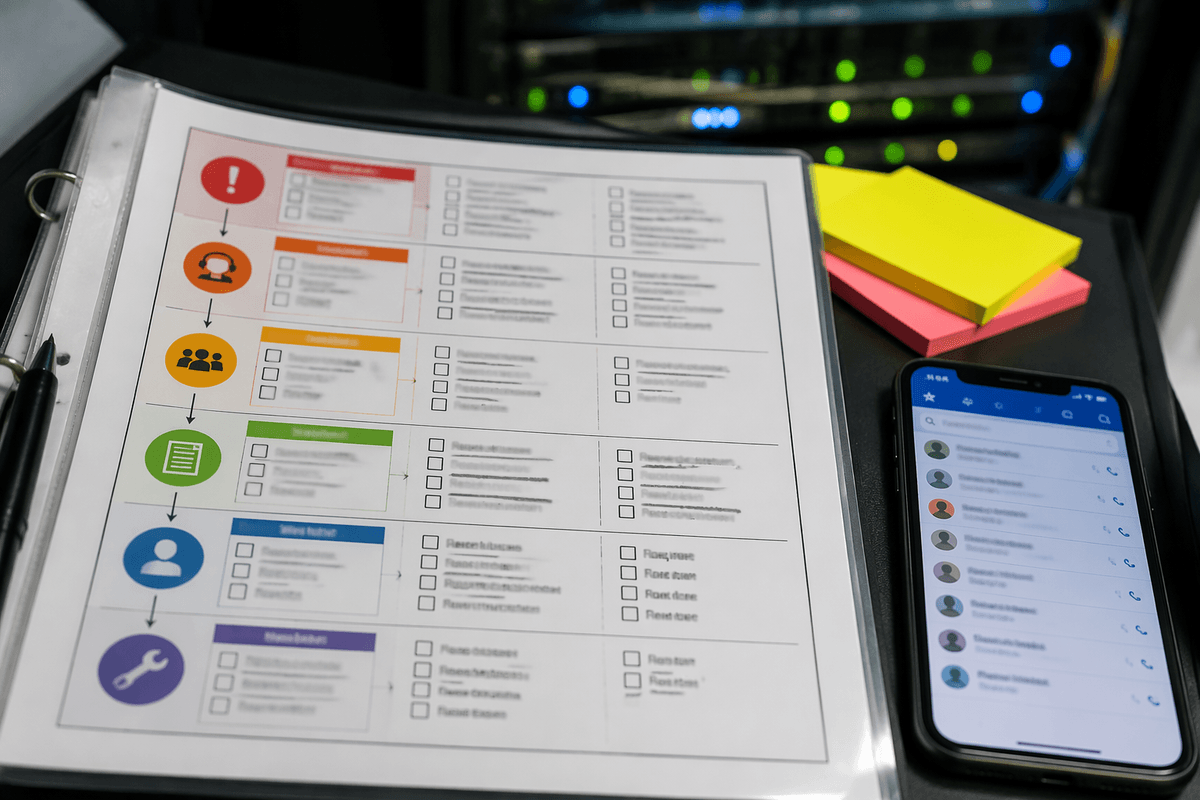
The first hours after you suspect ransomware are mostly coordination problems: who’s allowed to pull the plug on a server, who can isolate endpoints, who talks to staff, and who calls customers if operations are down. Write a one-page playbook that names roles (not just titles) and includes phone numbers outside email, plus three “go/no-go” decisions: isolate affected machines, disable compromised accounts, and pause risky workflows like invoice approvals. Keep it simple enough that someone can follow it at 2 a.m.
Line up vendors before you need them: an incident response firm, your managed IT/RMM provider, your cyber insurance contact, and legal counsel familiar with breach notification. Ask how fast they can engage and what they’ll need (logs, admin access, backups). The constraint is real: retainers and after-hours response cost money, so prioritize one capable IR partner and make sure your internal decision-maker can authorize spend quickly.
A workable 30-day plan to start reducing risk immediately
Start with a simple calendar. Week 1: confirm MFA on every email and admin login, remove shared accounts, and disable internet-exposed RDP. Week 2: finish a “good enough” asset list, set a weekly patch window, and patch anything internet-facing and all browsers. Week 3: turn on endpoint isolation in your security tool, restrict who has local admin, and split your biggest file share so one account can’t reach everything. Week 4: set up one immutable/offline backup copy, run one full restore test, and publish a one-page incident playbook with after-hours contacts. Expect disruption: patch reboots, quarantined email, and access exceptions.