Why people are switching to Signal right now
A lot of people switch to Signal after a privacy “wake-up” moment: a policy update they don’t like, a news story about data sharing, or a reminder that their chats live inside a bigger ad-tech ecosystem. Others move because their groups are splitting across platforms, and they want one default app that doesn’t require trusting a large parent company’s business model.
Signal also benefits from being simple to explain: messages are end-to-end encrypted by default, with fewer tracking incentives built in. The trade-off is practical, not theoretical: you still have to convince friends to install it, and some conveniences (like easy cloud backups across devices) are more limited if you want strong privacy.
What Signal is (and what it isn’t)
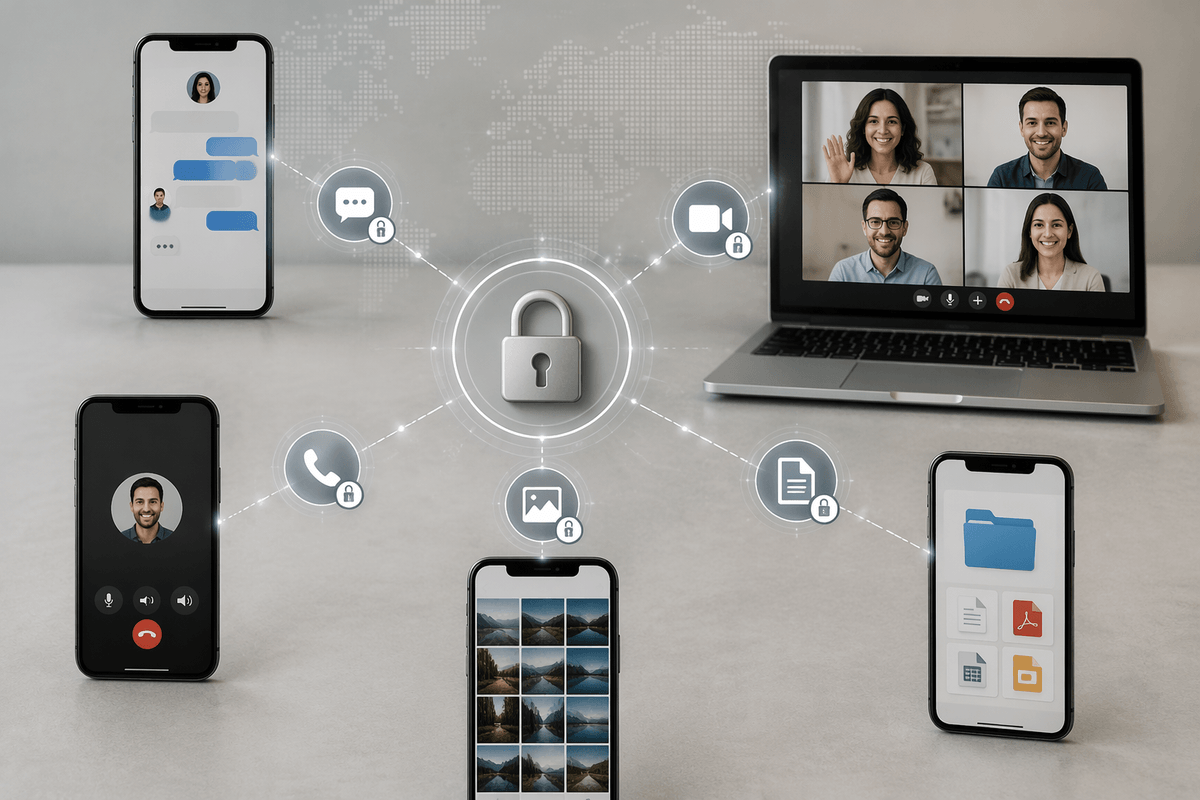
Picture what you want from a “private messenger”: a normal texting app experience, but without the app also serving as a data collection layer. Signal is that kind of tool. It’s an end-to-end encrypted messaging app for one-to-one and group chats, voice and video calls, and sharing photos, videos, files, and voice notes. It works on iOS, Android, and desktop, and it’s designed so the service can’t read your messages in transit.
It isn’t a general anonymity system, a “burner identity,” or a magic shield against everything a phone can leak. You still sign up with a phone number (though some people use secondary numbers), and Signal can’t protect you if someone has your unlocked device, your notification previews, or access to your chat exports or screenshots. It also isn’t built to be the most frictionless “sync everywhere” messenger: strong privacy means fewer convenient backup options, and moving chat history between devices can take extra steps.
How Signal protects messages: encryption and what it covers
Most people judge a messenger by one simple test: if the company running it got served a legal demand or suffered a breach, could your chat content be read anyway? Signal’s main protection is end-to-end encryption (E2EE), which means your phone encrypts the message before it leaves, and only the recipient’s device can decrypt it. The server is mostly a delivery system, not a place where readable copies of your messages sit waiting to be accessed.
That coverage is broad in everyday use. Your one-to-one and group messages are encrypted, as are voice and video calls, photos, videos, files, and voice notes. Even newer participants joining a group can’t retroactively read earlier messages, because they never had the keys for that history. The limitation is practical: encryption protects data in transit, not what happens on your devices. If your phone is compromised, if you allow notification previews, or if you create unencrypted backups or exports, the “private chat” can still end up readable somewhere else.
What Signal can still learn about you (metadata reality check)
Even with end-to-end encryption, a messenger can still learn “outer layer” facts about your communication. Signal is built to minimize this, but it can’t make metadata disappear. Your phone number is still your account identifier, and the service has to route messages and calls, which means it can observe things like when your account connects, basic delivery timing, and what device types are active on your account. It may also learn who is in your contacts if you grant contact access (Signal uses privacy-preserving techniques to match contacts, but it’s still a permission you’re choosing to hand over).
The bigger reality check is that a lot of metadata leaks happen outside Signal’s servers. Your cellular provider knows you’re using Signal. Your phone’s OS can show notification previews. Your screenshots, forwarded messages, and device backups can recreate a readable record. Reducing metadata usually means accepting costs: fewer integrations, more manual device moves, and more attention to settings.
Is Signal safe day-to-day? Threats that matter most
In daily use, Signal is “safe” in the way most people actually mean: your messages and calls aren’t readable to Signal, your carrier, or a random network snooper. The threats that matter more are the ones that bypass encryption entirely. If someone can unlock your phone, they can open Signal. If your lock screen shows notification previews, your “private” chats can still appear in plain text. If you make unencrypted device backups, export chats, or let photos auto-save, you may quietly create a second copy of your conversations outside Signal’s protection.
The other day-to-day risk is account takeover and social engineering. SIM swaps and stolen verification codes can let an attacker re-register your number, and convincing “support” messages can trick people into sharing codes or clicking malicious links. Signal can’t stop screenshots, and it can’t prevent a friend from forwarding messages. The practical constraint is friction: better safety means tighter device locks, fewer notifications, and more deliberate backup choices, which can feel less convenient than mainstream defaults.
Signal vs WhatsApp vs Telegram: choosing based on your needs
You’ll feel the differences between Signal, WhatsApp, and Telegram most when you ask, “What am I trusting, besides encryption?” Signal is the cleanest choice when your priority is minimizing what the service can learn and keeping message content end-to-end encrypted by default across chats and calls. The trade-off is convenience: fewer backup and multi-device “it just works” options, which can make phone upgrades and history transfers more manual.
WhatsApp is often the practical middle ground: it’s widely used, and most personal chats get strong end-to-end encryption without you thinking about it. The cost is ecosystem trust and metadata collection at the account and product level (even if message content stays protected in transit), plus more ways your account can be tied to a broader social graph.
Telegram fits best when you care about large public channels, bots, and flexible communities. For private one-to-one conversations, it’s a weaker default unless you deliberately use its end-to-end encrypted “Secret Chats,” and those don’t cover every use case (like all group chats). If you want “private by default,” Signal is the simplest rule to live by.
Simple setup checklist to get Signal’s best privacy
You’ll get most of Signal’s real-world privacy by tightening a few defaults. Set a Signal PIN (registration lock) and keep it somewhere you won’t forget; losing it can make re-registration and account recovery painful. Turn on screen lock inside Signal, and hide message previews on your lock screen (or disable notifications for sensitive chats). Enable disappearing messages for groups where chatter piles up, and use View Once for truly one-off images.
Be deliberate about “copies”: disable auto-save to photos, avoid chat exports, and think twice before enabling device backups that aren’t encrypted. On desktop, review linked devices and remove anything you don’t recognize. When security numbers change, treat it like a cue to confirm you’re still talking to the right person.