Get oriented: what WhatsApp does and why it’s different
Most messaging apps look similar at first, but WhatsApp is built around your phone number and your existing contacts. Once you set it up, you can message anyone who has WhatsApp without needing a separate username, and you’ll usually see new messages appear fast, even on slower connections. It also handles group chats, photo sharing, document sending, and voice/video calls in the same place, so you don’t have to juggle multiple apps.
The main trade-offs are practical: it uses your internet data (or Wi‑Fi), and it may prompt you to access your contacts so it can show who’s already on WhatsApp. You’ll also want to get comfortable ignoring unexpected messages, because scammers often start with a simple “Hi” from an unknown number.
Install WhatsApp and set up your account safely
The safest start is simple: install “WhatsApp Messenger” from the Apple App Store or Google Play Store, then open it and verify your phone number. WhatsApp will text you a one-time code (SMS), or it may offer an automated call. Enter the code yourself—don’t share it with anyone, even if a message claims to be “support.” If you’re moving from an old phone, take a minute to decide whether you want to restore a backup; it can bring back chat history, but it also takes time and storage.
When it asks for permissions, be deliberate. Contacts access makes it easier to find people, but you can skip it and add numbers manually. Turn on two-step verification (a PIN) right away, and choose a profile photo that’s comfortable to share with groups. If you use cellular data, check that auto-download for photos and videos is set to Wi‑Fi only.
Start a chat, reply, and keep conversations manageable
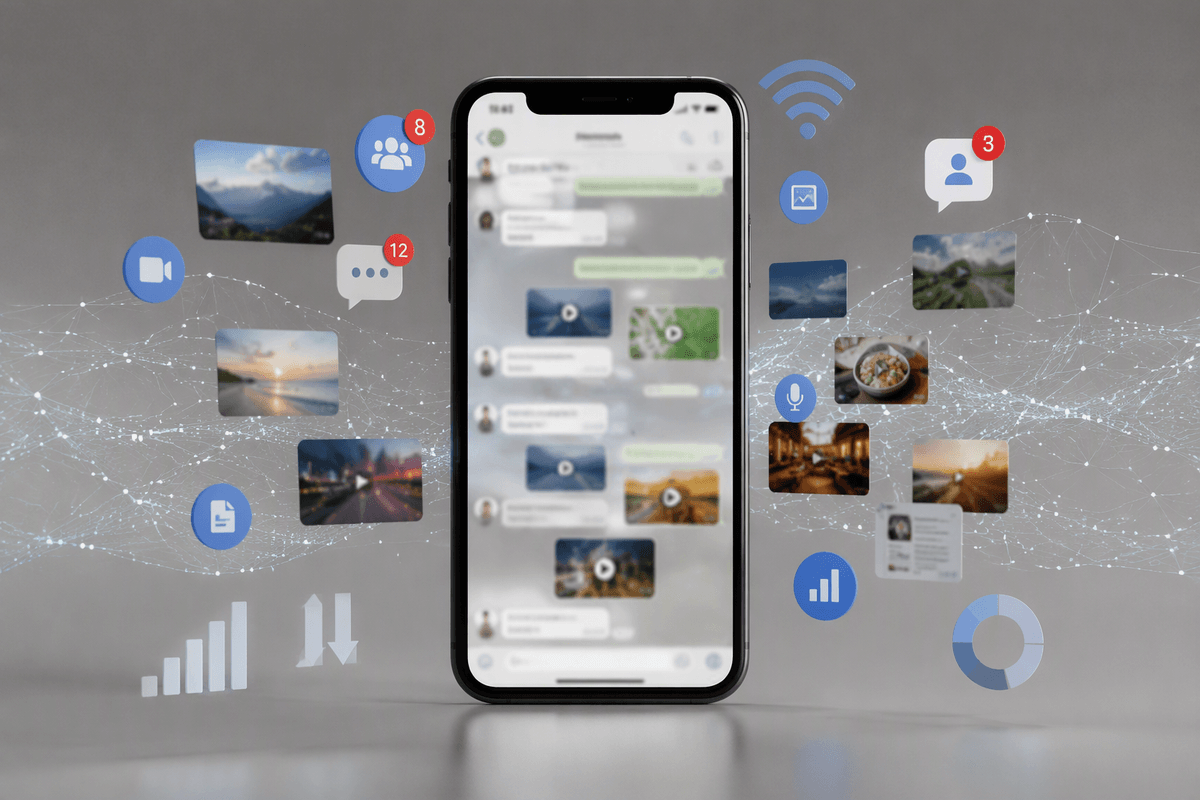
You’ll spend most of your time on the Chats tab. To start a new conversation, tap the New Chat button, pick a contact, and type your message. If you skipped contacts permission, you can start a chat by entering a phone number (just make sure it includes the correct country code). When you reply, long-press a message and choose Reply so your response stays connected to the right point—especially helpful in busy chats.
To keep things manageable, use a few habits early: swipe left (or long-press) on a chat to archive it instead of deleting it, pin your most important conversations to the top, and mute noisy chats for 8 hours, a week, or always. Be aware that large group chats can create a lot of notifications and use data if media is flying around.
Send photos, documents, voice notes, and your location
The attachment button (paperclip on Android, “+” on iPhone) is where sharing lives. Choose Camera or Photo/Video Library to send a picture; before you hit send, you can crop, add a caption, and double-check you’re in the right chat. Photos and videos can be large, so on cellular data it may upload slowly or fail if your signal is weak.
For documents, pick Document so you send the actual file (PDF, Word, etc.) instead of a blurry screenshot. Voice notes are the microphone: press and hold to record, or swipe up to lock recording hands-free. Location sharing is best used sparingly—send “Current location” for a one-time pin, or “Live location” only when you truly need it, and stop sharing when you’re done.
Groups, Status, and Broadcasts: which one fits your goal
You’ll usually face three choices: a Group, a Status update, or a Broadcast, and they behave very differently. A Group is a shared conversation—everyone sees everyone’s replies—so it’s best for planning (family events, a class, a team) but it can get noisy fast. Before you join or create one, check the group name and participants, and consider muting it if people share lots of photos.
Status is more like a simple “story”: you post a photo, video, or text that your contacts can view for a limited time, without starting a full chat. It’s useful for updates (travel, a quick announcement) but remember screenshots are possible. A Broadcast sends one message to many people privately; recipients don’t see each other, and it only reaches contacts who have your number saved—great for updates, but it takes more list maintenance.
Make voice and video calls without surprises
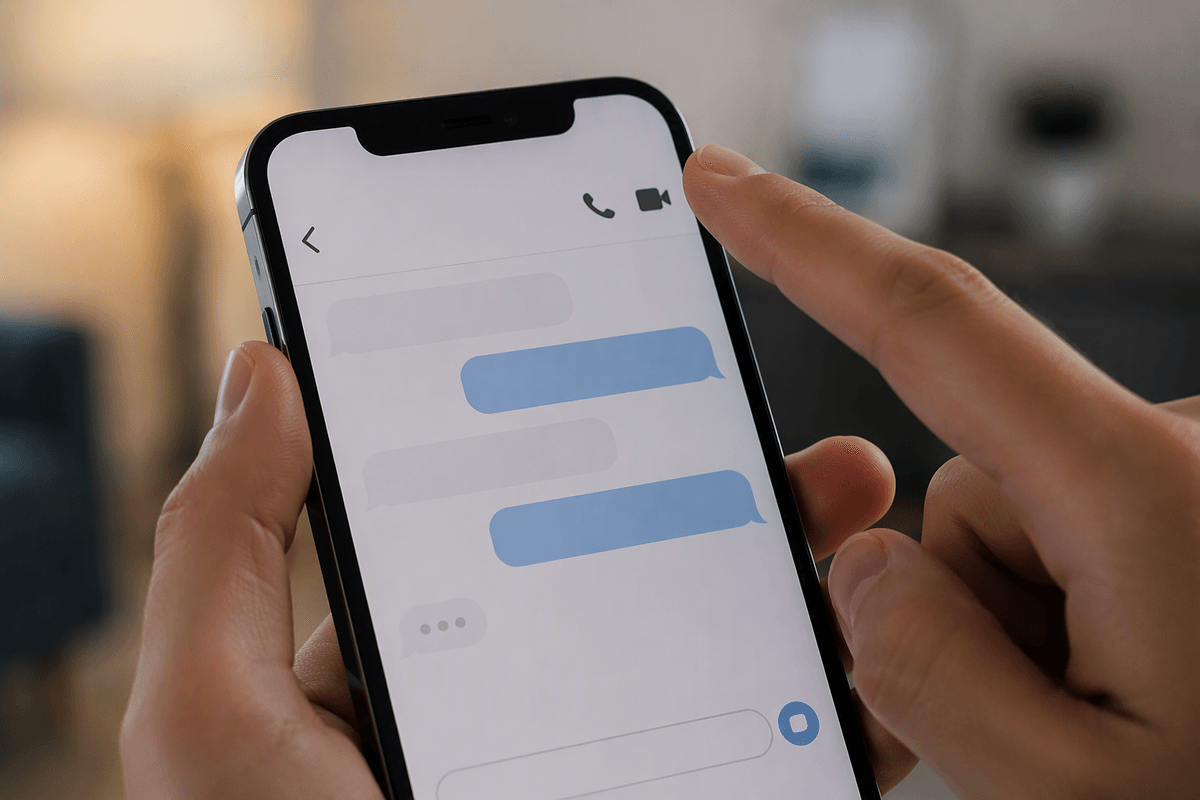
You’ll see a phone icon (voice) and a camera icon (video) at the top of most chats. Before you tap, do a quick check that you’re in the right conversation—calls start immediately, and it’s easy to hit video by accident. If you’re on cellular data, calls can use a noticeable amount of data and battery, so use Wi‑Fi when you can, or keep longer calls for when you’re plugged in. If a call sounds choppy, switch off video first; audio usually survives a weak connection better.
For fewer awkward moments, set your expectation up front: send a quick “Can you talk now?” message, especially across time zones. Treat unexpected WhatsApp calls like unexpected texts—if you don’t recognize the number, don’t pick up, and don’t call back just to “see who it is.”
Privacy, security, and settings you should adjust early
A common surprise is how much of your profile is visible by default. Open Settings and review Privacy: set “Last seen & online,” Profile Photo, About, and Status to “My Contacts” (or “Nobody” for Last seen if you prefer). Turn off read receipts if you don’t want the pressure to reply immediately—just know it also turns off your ability to see other people’s read receipts, and it doesn’t apply the same way in group chats.
For account safety, go to Account > Two-step verification and add a PIN (and an email you can access) so a stolen code can’t easily take over your number. Also check “Security notifications” so you’ll be alerted if a contact’s security code changes. Under Privacy, tighten Groups so random people can’t add you without approval. Finally, use Disappearing messages only when it fits your situation; it reduces clutter, but it can also hide context you may want later.
A simple daily routine for using WhatsApp confidently
A simple routine keeps WhatsApp feeling predictable. In the morning (or whenever you check messages), scan your Chats list and open only the ones that matter; archive anything you’re done with and mute any group that’s getting noisy. Before you reply or share, confirm the chat name at the top so you don’t send something to the wrong person. When you see an unknown number, don’t engage—block and report if it looks off.
Once a week, take two minutes to review Settings: confirm your Privacy choices still feel right, check two-step verification is on, and make sure media auto-download is still Wi‑Fi only if data costs matter.