What “connecting” means for iPhone and Windows 11
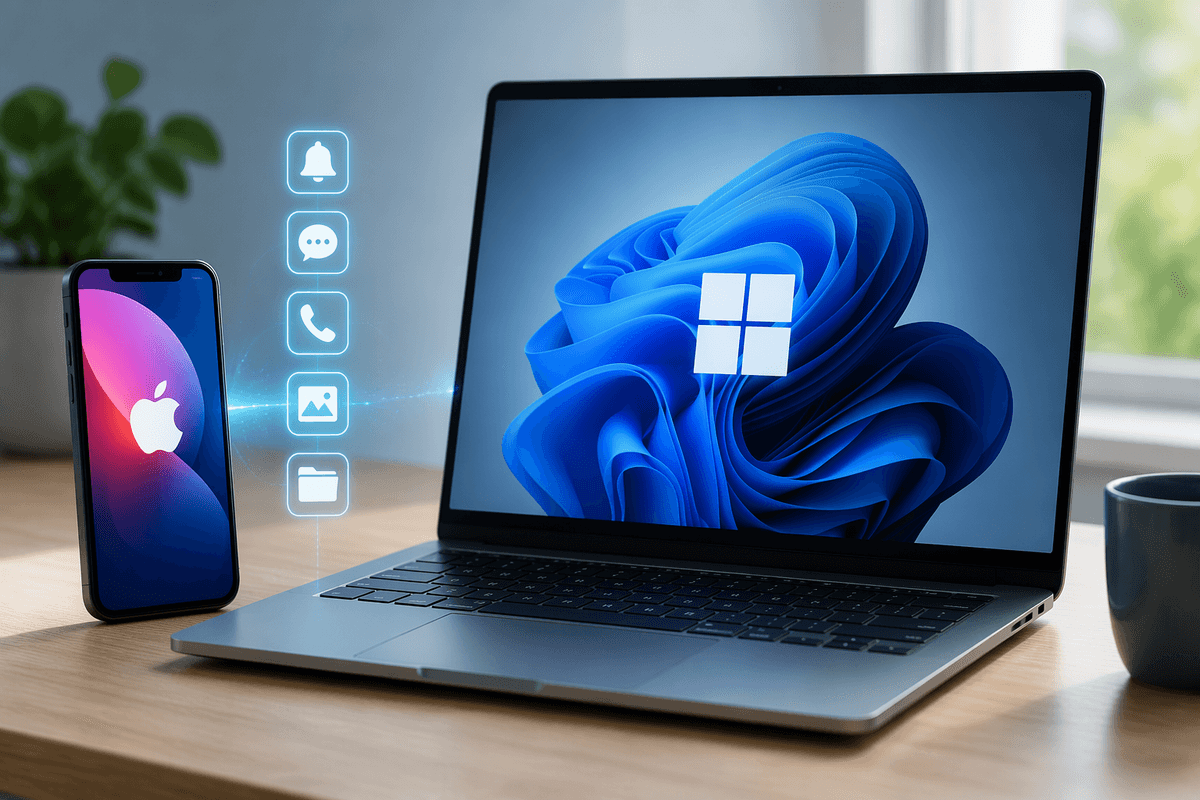
“Connecting” an iPhone to a Windows 11 PC can mean a few different things, and the right approach depends on what you expect to happen afterward. Some connections are about convenience—seeing phone notifications on your PC, taking calls from your laptop, or sending texts without picking up your phone. Others are about moving data—copying photos and videos, browsing iCloud files, or syncing passwords.
The key constraint is that Windows can’t “fully merge” with iOS the way a Mac can. The biggest expectation gap is messaging: Windows can’t natively sync iMessage end-to-end, so most setups focus on SMS/MMS, notifications, and photo/file transfer instead. You’ll usually pick one primary path (Phone Link, iCloud for Windows, USB, or Bluetooth) and accept small trade-offs in speed, features, or reliability.
Before you start: accounts, cables, and permission prompts
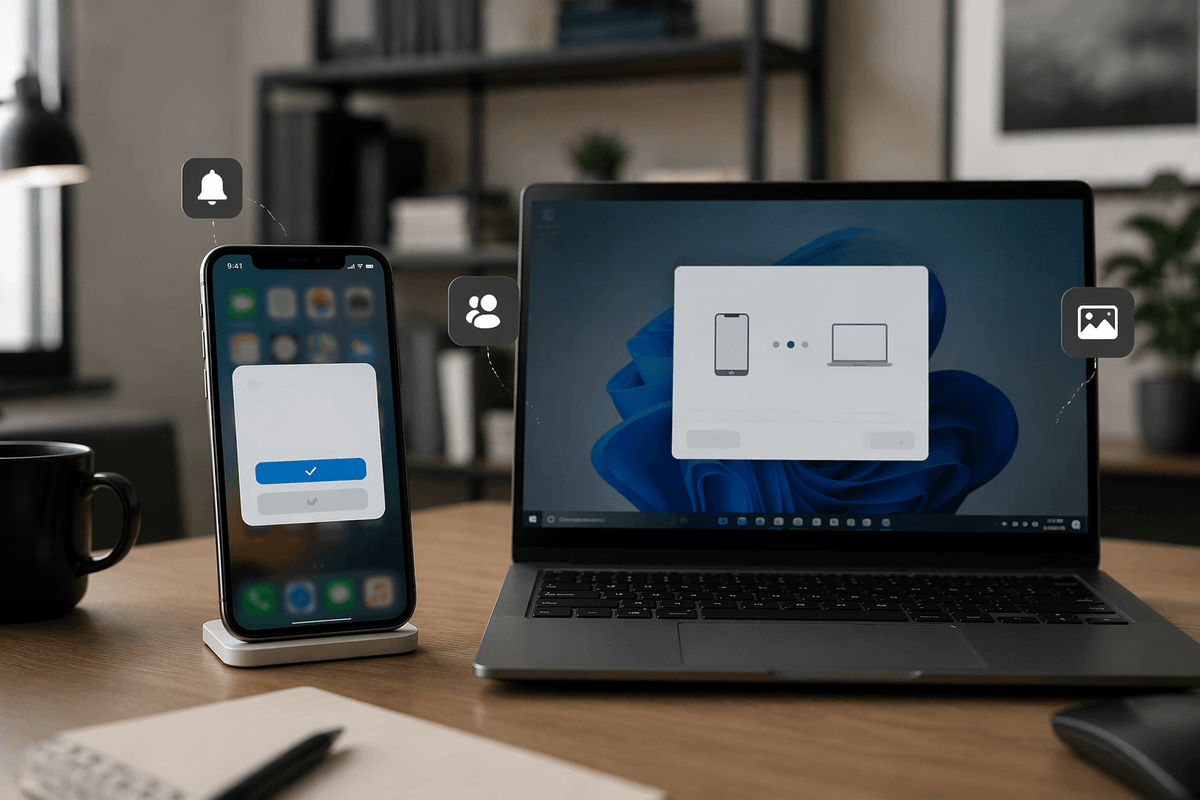
The setup usually fails for boring reasons: the wrong account, the wrong cable, or a permission prompt you dismissed once and forgot about. Have your Apple ID ready (and be able to complete two-factor authentication), because iCloud features on Windows depend on it. If you plan to use Microsoft Phone Link, you’ll also need a Microsoft account on the PC and a few minutes with your iPhone unlocked to approve pairing.
For USB transfers, use a reliable data cable—some “charging-only” cables won’t pass photos at all—and connect directly to the PC instead of a hub if things act flaky. Expect prompts on the iPhone like “Trust This Computer?” and permission requests for photos, Bluetooth, notifications, and contacts. Saying “Don’t Allow” doesn’t just block one feature; it can quietly break the whole flow until you re-enable it in Settings.
Use Microsoft Phone Link to sync notifications, calls, and messages
Most people start with Microsoft Phone Link because it targets the “day-to-day” friction: seeing incoming notifications on your PC, replying to basic texts, and sometimes handling calls from your Windows 11 desktop. The setup is straightforward but picky: install or open Phone Link on the PC, then pair from the iPhone using Bluetooth and the companion app steps, keeping the phone unlocked so iOS can show the right permission prompts.
The practical limitation is messaging. On iPhone, Phone Link generally maps to SMS/MMS and notification mirroring, not full iMessage sync with chat history across devices. If your group chats live in iMessage, expect partial coverage and some “I can see it, but can’t fully reply from the PC” moments. Reliability also depends on Bluetooth staying connected and Focus/notification settings not blocking banners. When something “randomly stops,” it’s usually one of three causes: Bluetooth dropped, notification permissions were revoked, or the iPhone’s Background App Refresh/Low Power behavior throttled the link.
Use iCloud for Windows to get photos, files, and passwords
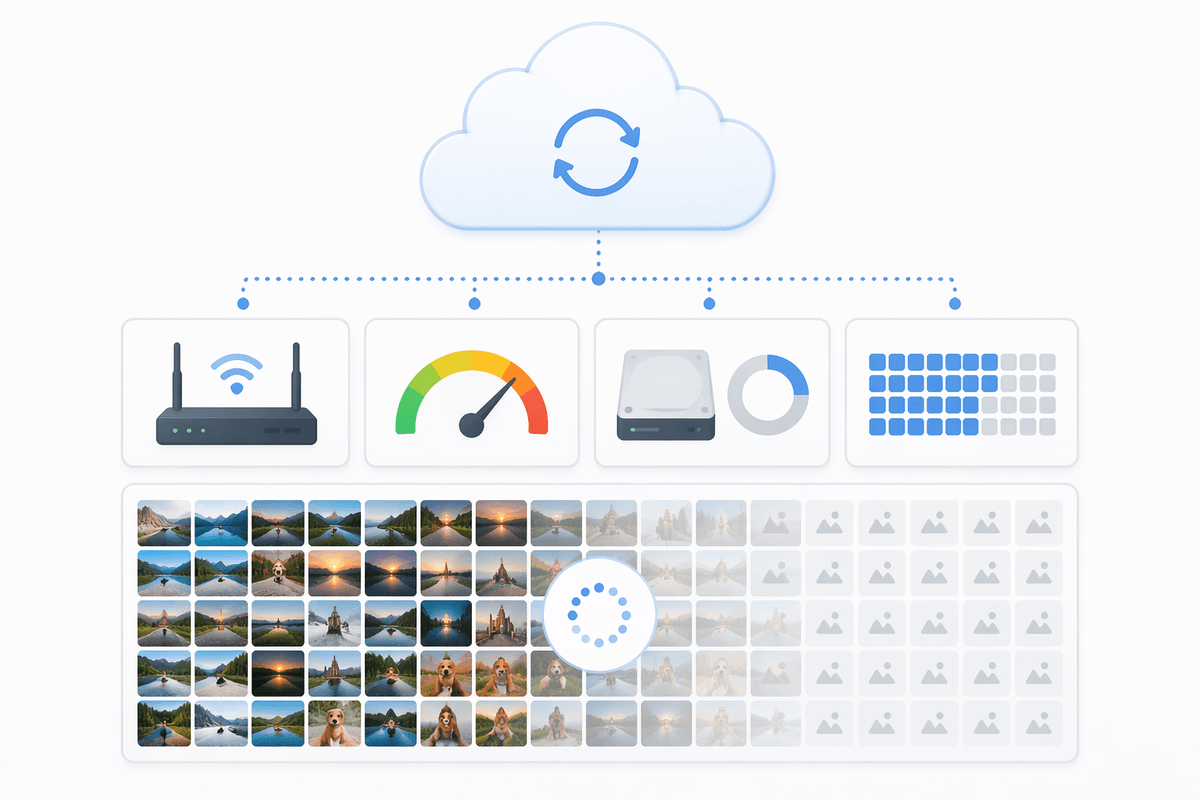
Most iPhone-to-Windows setups feel incomplete until you handle iCloud. If your photos, iCloud Drive files, and Safari passwords matter more than notifications, iCloud for Windows is the most direct “official” bridge. After installing it from the Microsoft Store and signing in with your Apple ID (including two-factor approval), you can turn on iCloud Photos and iCloud Drive so they appear in File Explorer. That’s the practical win: your iPhone’s cloud content shows up like normal folders you can browse, search, and drag into projects.
Passwords are the other sleeper feature. With iCloud Passwords enabled, Windows can autofill saved logins (typically through a browser extension and the iCloud Passwords app flow), which helps if you bounce between an iPhone and a Windows PC all day. The trade-off is that iCloud sync is only as fast and reliable as your network, and large photo libraries can take time to index. If you’re on a metered connection or low storage, you may need to limit what downloads locally.
Plug in with USB for direct photo and video transfers
USB is the “no cloud, no waiting” option when you just need photos and videos off your iPhone right now. Plug the iPhone into the PC with a known data-capable cable, unlock the phone, then tap “Trust This Computer” when iOS prompts you. In Windows 11, you can usually import through the Photos app, or open File Explorer and look for the iPhone under This PC to browse the DCIM folders.
The main advantage is predictability: a big batch of 4K video moves faster over a cable than over Wi‑Fi, and you’re not depending on iCloud sync timing. The practical downsides are real, though. iPhones don’t behave like normal USB drives, so you can’t always “drag everything” cleanly, and Windows imports can fail if the phone locks, the cable is charge-only, or a USB hub is underpowered. For stubborn transfers, connect directly to the PC, keep the screen awake, and retry the import instead of swapping apps mid-stream.
Bluetooth and hotspot: quick links when you don’t need full sync
Sometimes you don’t want a “system” between devices—you just need a quick link for a specific moment. Bluetooth is best for lightweight, low-friction tasks like basic audio, keeping Phone Link’s connection stable, or sharing a small file when AirDrop isn’t an option. It’s not a great fit for moving photo libraries or large videos; it’s slower, and Windows-to-iPhone file sharing can feel inconsistent depending on the app you use and whether iOS accepts the transfer.
Personal Hotspot is the other practical shortcut. If your Wi‑Fi is flaky (hotel, campus, or client site), tether the Windows 11 PC to your iPhone to keep iCloud downloads, email, and web apps working. The constraint is cost: hotspot usage can burn through cellular data quickly, and some carriers throttle speeds after a cap. If things won’t connect, check that the hotspot is enabled, the iPhone stays awake, and Windows is using the right network profile.
Fix the usual pairing and syncing problems without guesswork
It usually breaks in one of two places: the devices aren’t actually connected anymore, or they’re connected but blocked by permissions. If Phone Link stops showing notifications, start by toggling Bluetooth off/on on both devices, then remove the pairing on the iPhone and re-pair from Windows (stale pairings are common after iOS updates). On the iPhone, confirm Phone Link is allowed for Notifications and Bluetooth, and that Focus/Do Not Disturb isn’t hiding alerts. If it connects but goes “quiet” after a while, turn off Low Power Mode and allow Background App Refresh for the companion app so iOS doesn’t park it.
If iCloud Photos or iCloud Drive look stuck, assume it’s sync timing and storage before assuming corruption. Sign out/in of iCloud for Windows, confirm two-factor approval completed, and check Windows has enough free disk space for whatever is set to download locally. Large libraries can take hours to index on first run, and metered networks can pause downloads. For USB imports that fail mid-transfer, keep the iPhone unlocked, use a different port (direct to PC, not a hub), and retry with one tool (Photos app or File Explorer), not both.
Choosing the right setup for how you actually work
If you mainly want “phone stuff” on your PC—notifications, quick replies, and occasional calls—start with Phone Link and treat it as a convenience layer, not a full iMessage replacement. If your real goal is getting work assets onto the PC, iCloud for Windows is the default for ongoing access to Photos and iCloud Drive, while USB is the fastest, most reliable choice for large video batches or deadline transfers.
Bluetooth and hotspot are best as backups: Bluetooth for keeping a light connection, hotspot when the network is the bottleneck. The cost is complexity—running Phone Link plus iCloud plus USB workflows means more prompts, more settings to maintain, and more places a permission change can quietly break things.