What Xbox Cloud Gaming actually does (and doesn’t)
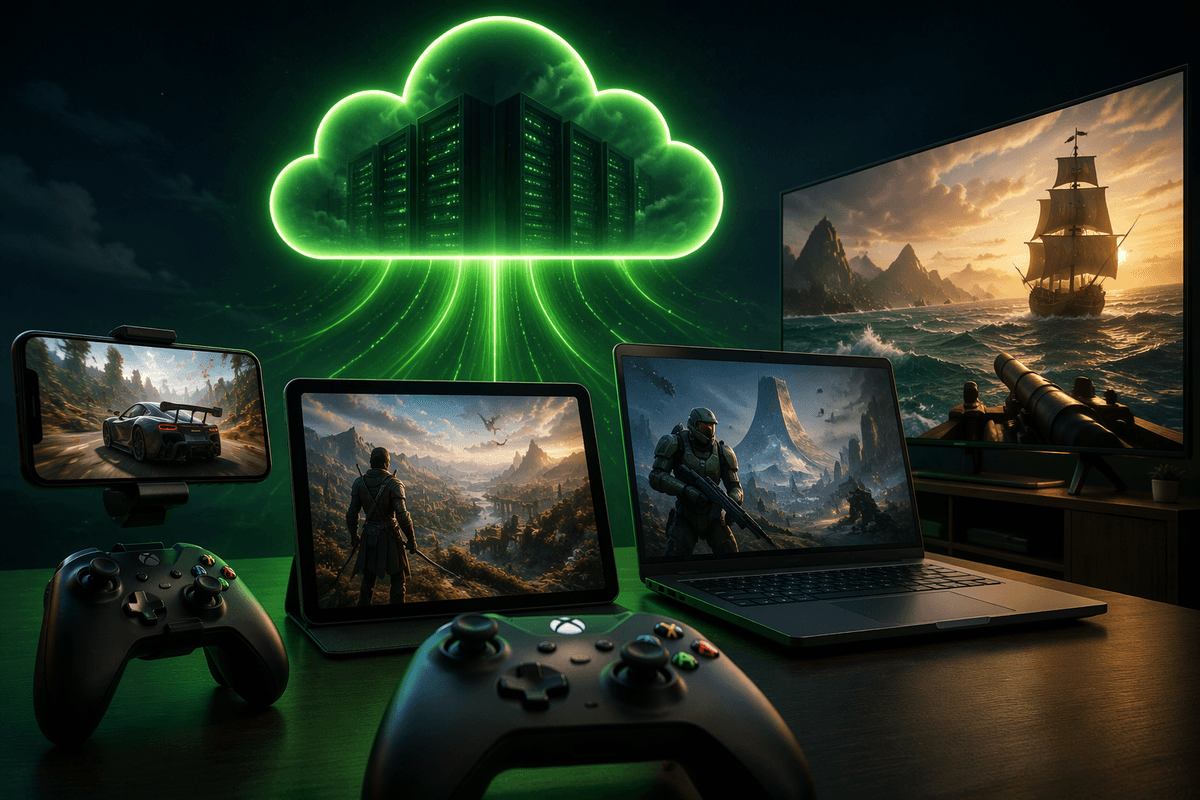
Xbox Cloud Gaming lets you play Xbox games that run on Microsoft’s servers and stream the video to your phone, tablet, PC, TV, or handheld—so your device is mostly just displaying the game and sending your inputs. That’s why it can feel “console-like” on modest hardware, and why you can jump between devices without moving a console.
It doesn’t turn every owned Xbox game into a streamable one, and it doesn’t remove the need for a solid connection. If your Wi‑Fi is weak or your internet is busy, you’ll notice input delay, softer image quality, and occasional drops. It also uses real data—so mobile hotspots and capped plans can get expensive fast.
Before you start: subscriptions, accounts, and supported regions
The most common setup snag is assuming cloud play is a separate app you can just “turn on.” In practice, you need an Xbox account and an active subscription that includes Xbox Cloud Gaming—typically Game Pass Ultimate. If you’re sharing Game Pass at home, double-check which account actually holds the subscription, because cloud access follows that account when you sign in on a phone, PC, or TV.
Region support matters too. Xbox Cloud Gaming isn’t available everywhere, and some countries have limited device support or longer queues at peak times. Before you buy a controller or plan a “no console” trip, confirm your account region and whether cloud gaming is supported where you’ll be playing. If you travel, hotel Wi‑Fi and public networks can also block or throttle game streaming, so it’s worth having a backup plan (like local downloads on a console or PC) for the games you care about most.
Choosing where to play: phone, tablet, PC, TV, or handheld
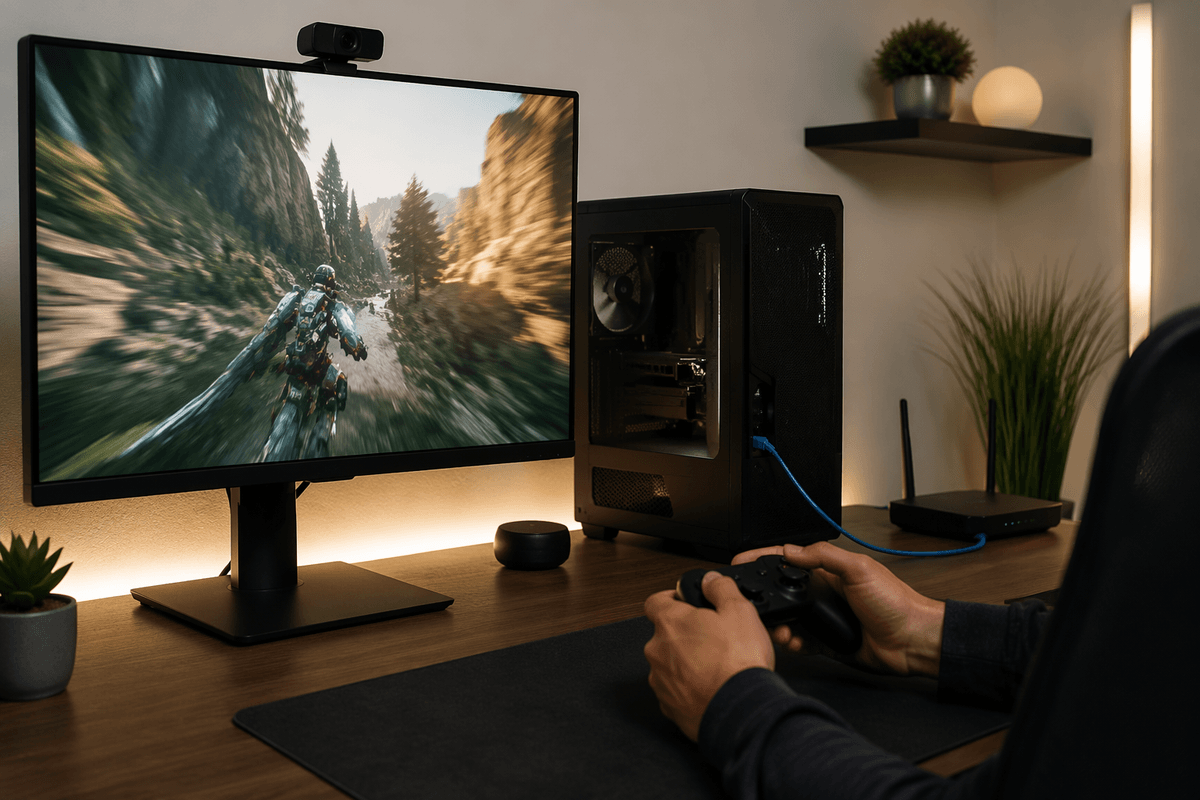
You’ll get the best experience on the screen you can sit close to with stable Wi‑Fi. Phones are the most flexible for quick sessions, but the smaller display makes menus and text harder to read, and playing comfortably usually means a controller clip or a small stand. Tablets hit a sweet spot for clarity and comfort, especially if you’re using a full-size controller and headphones.
On a PC, cloud gaming is great when your hardware can’t run a game well locally, or when you want to pick up a session without downloads. It’s also the easiest place to use wired Ethernet, which can noticeably reduce stutter and input delay. TVs feel the most “console-like,” but they’re also where weak Wi‑Fi and TV picture processing can add lag—sometimes you’ll need to enable a low-latency “Game Mode.” Handheld PCs and dedicated handhelds are convenient, but battery life can drop fast while streaming, and you’ll want to test your Wi‑Fi before relying on it away from home.
Setup walkthrough by device: fastest path to first game
You’ll save time by deciding two things up front: which device you’re starting on, and whether you’re using a controller. On iPhone/iPad and Android, install the Xbox app, sign in with the account that has Game Pass Ultimate, then look for Cloud Gaming and hit Play. Pair a Bluetooth controller in your phone/tablet settings first (Xbox Wireless Controller, DualSense, and many others work), then return to the Xbox app so the game sees it right away. Touch controls can work for slower games, but expect a little setup time getting comfortable with the on-screen layout.
On Windows, the fastest path is usually a browser: open Xbox Cloud Gaming on Edge or Chrome, sign in, pick a game, and press Play. The Xbox app on Windows can also work, but the browser is often simpler for a quick test. If you can, plug in Ethernet or sit near your router for your first session so you’re judging cloud performance—not your Wi‑Fi.
On a smart TV or streaming device that supports the Xbox app, install the Xbox app, sign in, pair your controller, then start a game. If the picture feels delayed, enable the TV’s Game Mode before troubleshooting anything else.
Controllers, touch controls, and audio: getting it comfortable
The quickest way to make cloud play feel “right” is to use a real controller. An Xbox Wireless Controller over Bluetooth is the most predictable option across phones, tablets, PCs, and many TVs, and a wired USB connection on PC (or some handhelds) can shave off a bit of input delay. If you play on a phone, plan for the ergonomics: a controller clip or compact grip makes longer sessions far less tiring than balancing the screen in your hands.
Touch controls are best treated as a convenience feature, not a default. They’re fine for turn-based games, slower adventure games, and menu-heavy titles, but fast shooters and parry-timing action games will feel harder to control. Spend a minute adjusting the on-screen button positions if the game supports it.
For audio, wired earbuds or low-latency Bluetooth headphones help with perceived lag, but some Bluetooth sets add delay. On TVs, keep Game Mode on and consider headphones to avoid echo or lip-sync drift.
Making streaming feel smooth: internet, Wi‑Fi, and latency fixes
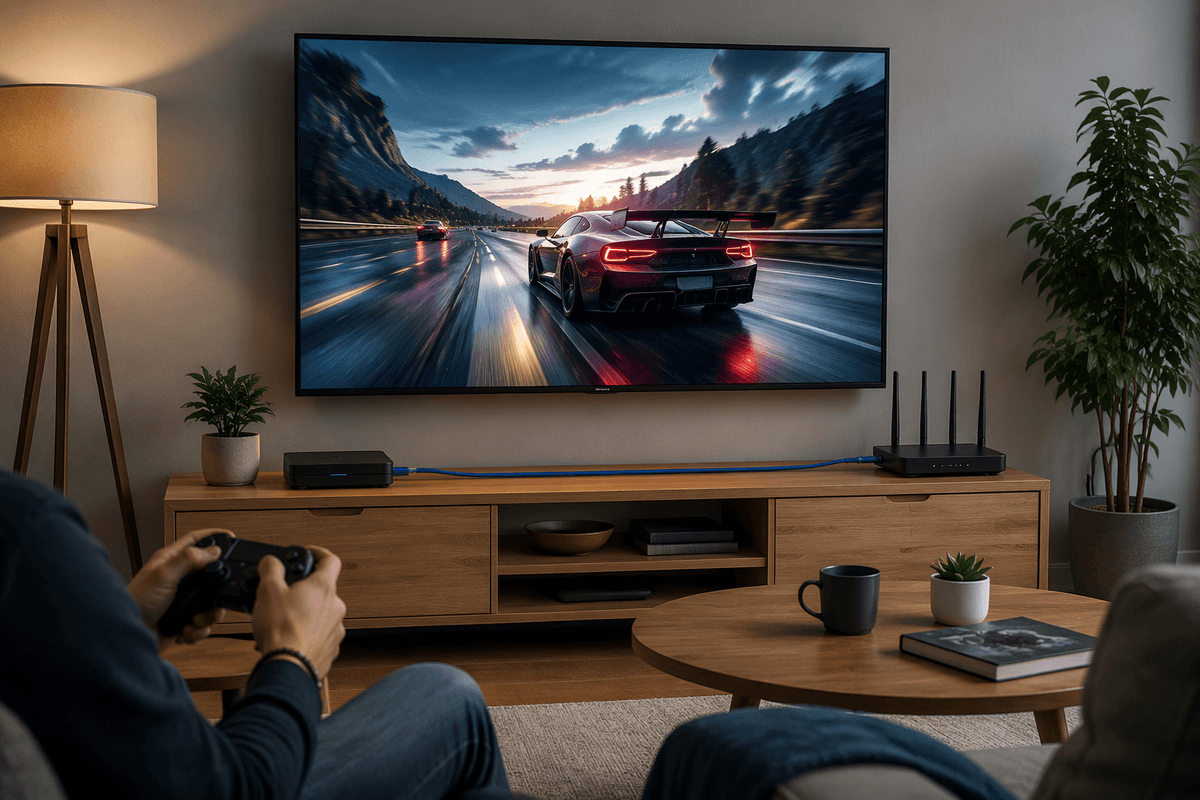
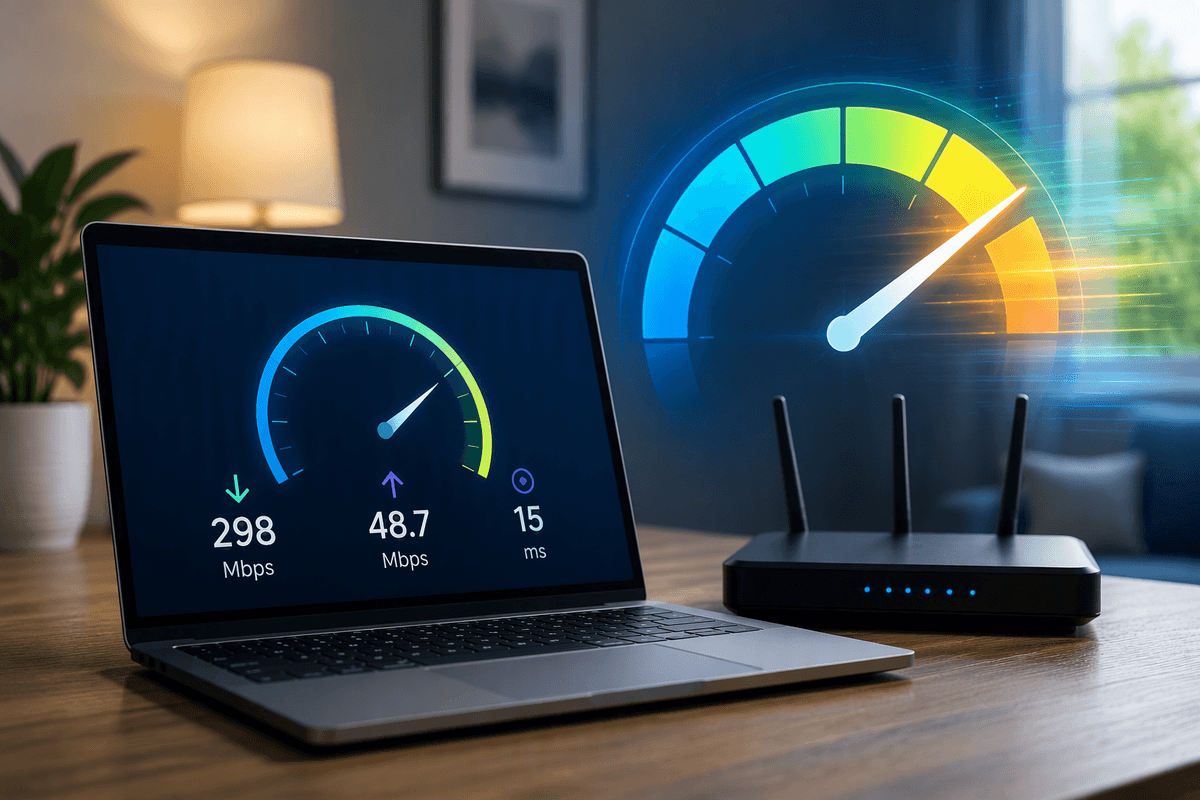
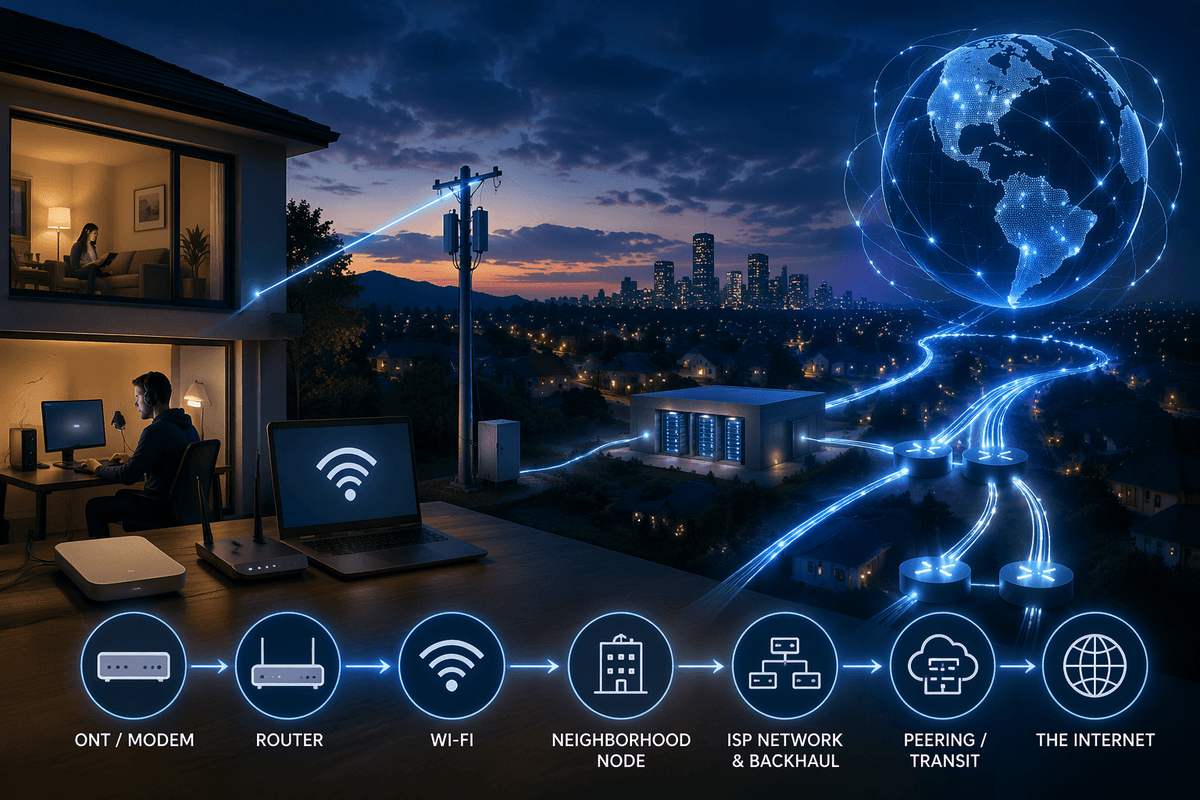
You’ll usually feel “cloud lag” for one of two reasons: your connection is inconsistent (micro drops and spikes), or something in your setup is adding extra delay. Start by taking the easiest win: avoid weak Wi‑Fi. If your device can use Ethernet (PC, some TVs/boxes), plug in. If you’re on Wi‑Fi, sit closer to the router and prefer 5 GHz (or 6 GHz on Wi‑Fi 6E/7) over 2.4 GHz, which gets crowded fast. If your router has separate network names, pick the faster band on purpose rather than letting your device “choose.”
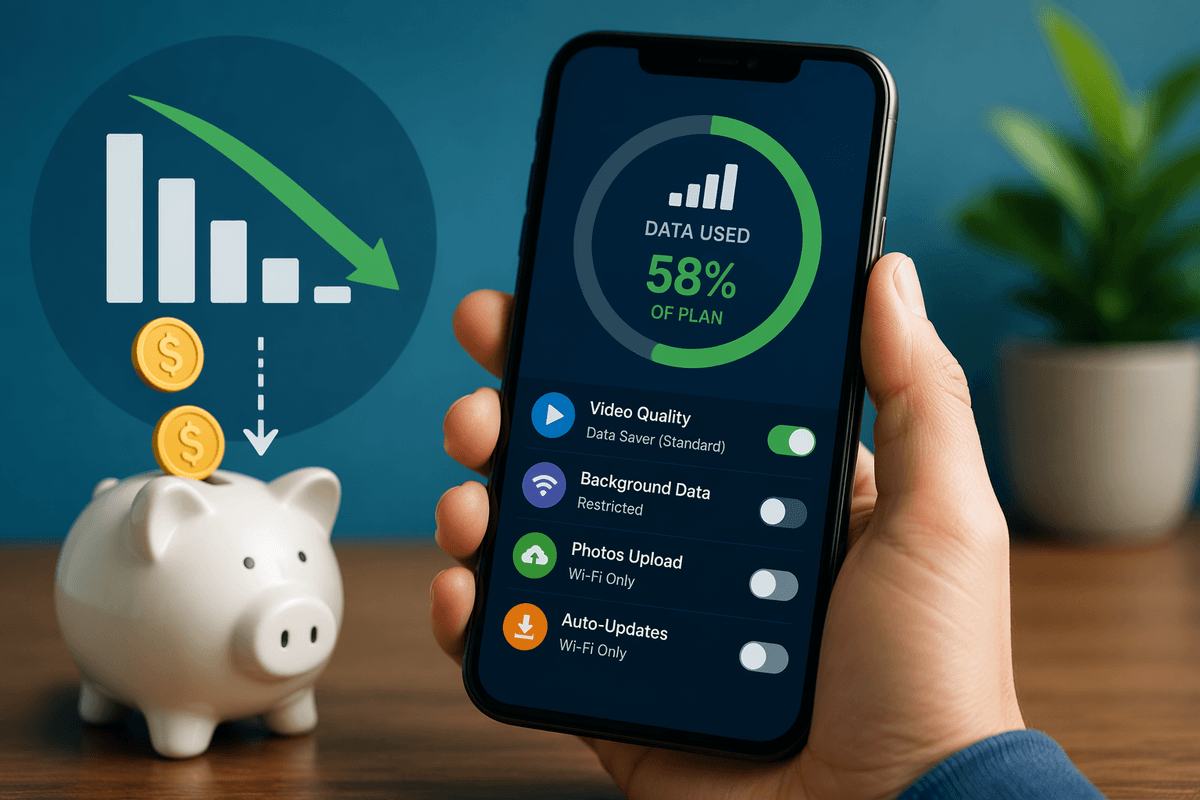
Then reduce competition. Game streaming hates bursts of uploads, so pause big downloads, cloud backups, and video calls on the same network. If your router supports QoS or “game” priority, it can help, but it won’t fix a slow or overloaded internet plan. Expect the stream to soften when your connection dips; that’s normal adaptation, not a broken app. Data use is also real—streaming can burn through a capped plan quickly—so avoid mobile hotspots unless you’ve tested your signal and limits.
If inputs feel delayed on a TV, turn on Game Mode and disable heavy picture processing (motion smoothing, noise reduction). On PC, try a wired controller and close VPNs or traffic-shaping apps. When it still feels off, test at a quieter time of day; evening congestion can be the hidden culprit.
What you can play, saves, and when cloud isn’t ideal
You’ll only be able to stream games that are currently in the Cloud Gaming catalog, which overlaps heavily with Game Pass but doesn’t include everything you own. The good news is that saves usually follow your account, so you can start on cloud and later continue on an Xbox console or PC version that supports the same save system—just give it a minute to sync before you quit or switch devices.
Cloud isn’t ideal for ranked shooters, fighting games, or anything where split‑second timing decides the match, and it’s a rough fit on strict data caps. It’s also not a great choice when you’ll be offline or stuck on unpredictable Wi‑Fi, so keep at least one “downloaded” option for trips and busy networks.