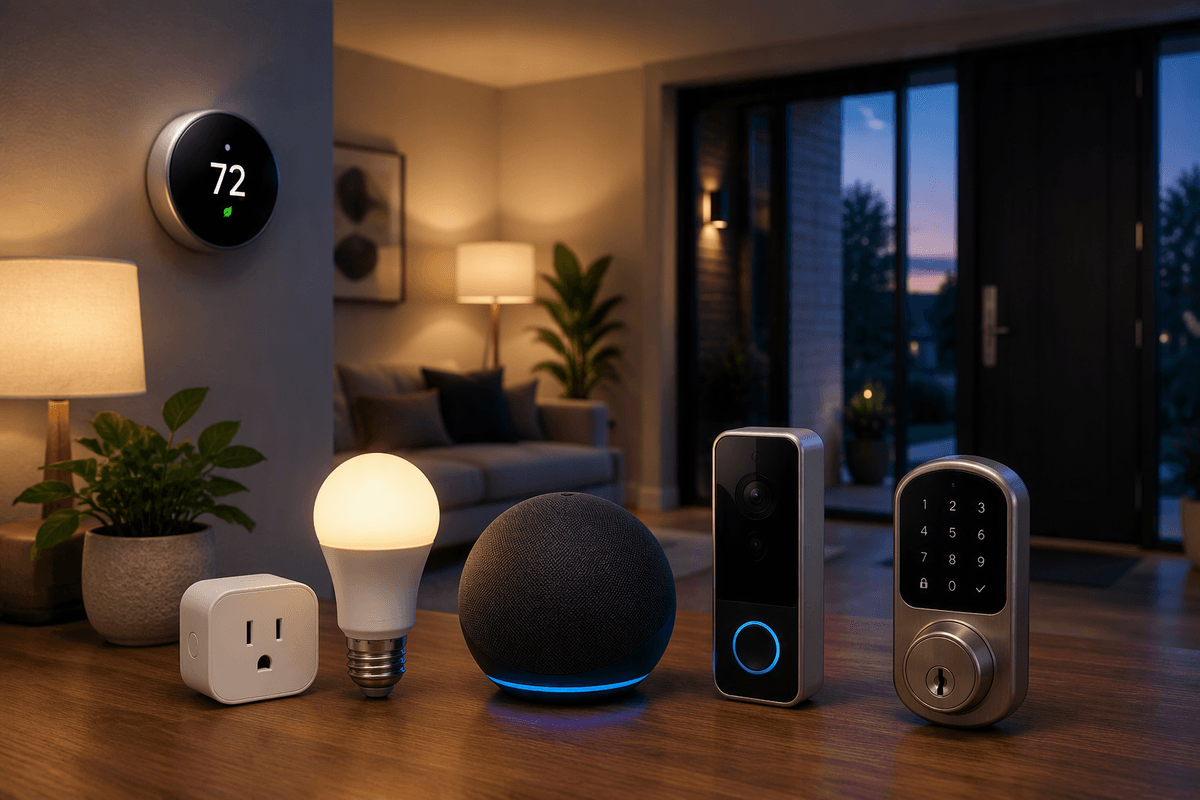
Your Chromecast is more than a “cast button”
You probably bought a Chromecast to tap a cast icon and get a show onto the TV. That’s the obvious win, but it’s not the only one. Depending on your model, it can also work like a lightweight streaming box with a home screen and remote, group with other speakers for synced audio, mirror your phone or a Chrome tab for quick demos, and let guests cast without handing them your phone.
The main requirements are simple but real: solid Wi‑Fi, supported apps (not every app casts well), and a little setup in Google Home. The payoff is fewer “where’s the remote?” moments and more ways to use the same TV screen without buying another gadget.
Everyday casting tricks that fix common annoyances fast
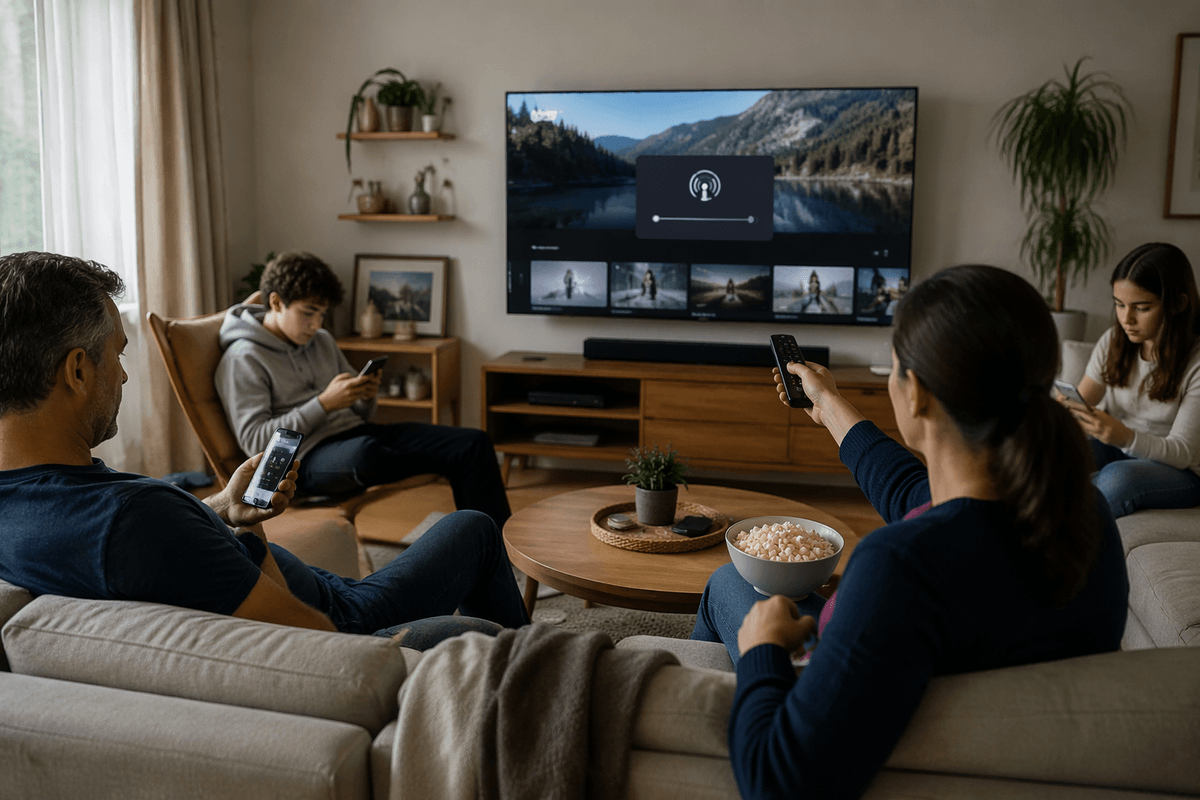
You know the little problems: audio and video don’t quite match, the stream starts in the wrong room, or everyone’s phone keeps yanking the TV away. Start with the “boring” fixes that save the most time. If lip-sync is off, open the Google Home app, pick your Chromecast, and look for audio delay controls (availability varies by model). If casting stutters, try switching your phone and Chromecast to the same Wi‑Fi band (often 5 GHz), or move the Chromecast to HDMI using a short extender so it’s not jammed behind the TV where reception is worse.
For household peace, set a default TV in Google Home so “cast” doesn’t guess. Turn down notification spam by using app-level casting controls (YouTube and Netflix are usually smoother than random web players). If people keep hijacking playback, use the on-screen “Stop casting” prompt and, on Google TV models, use separate profiles so your recommendations and watch history don’t get scrambled. Some of these steps cost a bit of time upfront, but they prevent daily friction.
Turn it into a whole-home audio and party tool
You’ve probably been in the “someone put on a playlist, but we keep drifting back to the TV room” situation. If you have Chromecast-enabled speakers (or Google/Nest speakers) around the house, you can group them in the Google Home app and cast music to the group so it follows people without anyone babysitting volume in each room. It’s great for cooking, cleaning, or a casual get-together because one phone becomes the “DJ,” but everyone hears the same track at the same time.
The practical catch is Wi‑Fi quality and speaker mix. Older speakers and crowded networks can introduce slight delay between rooms, and not every music app supports multi-room casting the same way. Keep expectations realistic: for parties, start with a smaller group (two or three rooms), test a song, then expand once it stays in sync.
Control the TV without touching your phone much
When you’re cooking or you’ve finally sat down, grabbing your phone just to pause or turn subtitles on gets old. If you have a Chromecast with Google TV (or any Android TV device with built-in Chromecast), treat it like a normal TV source: use the physical remote for play/pause, seek, captions, and switching apps. If your model supports it, set up voice control so “pause,” “resume,” or “play the next episode” works without opening an app.
Even on phone-driven Chromecasts, you can reduce phone babysitting. Use the TV’s on-screen playback controls when they appear, and enable HDMI-CEC on your TV so your existing TV remote can handle basic playback and volume for many apps. Expect some friction: CEC names vary by brand and it sometimes gets flaky after power outages, so you may need to toggle it off and back on once in a while.
Guests, travel, and sharing without giving away everything
When friends are over, the fastest way to ruin the vibe is passing phones around or giving out your main Wi‑Fi password. In Google Home, turn on Guest Mode (on supported models) so nearby people can cast without joining your network, and consider using a separate “guest” Wi‑Fi if your router offers it. On Google TV models, Guest Mode/profiles help too: people can sign into a streaming app temporarily without mixing their watch history with yours, then you can sign them back out after.
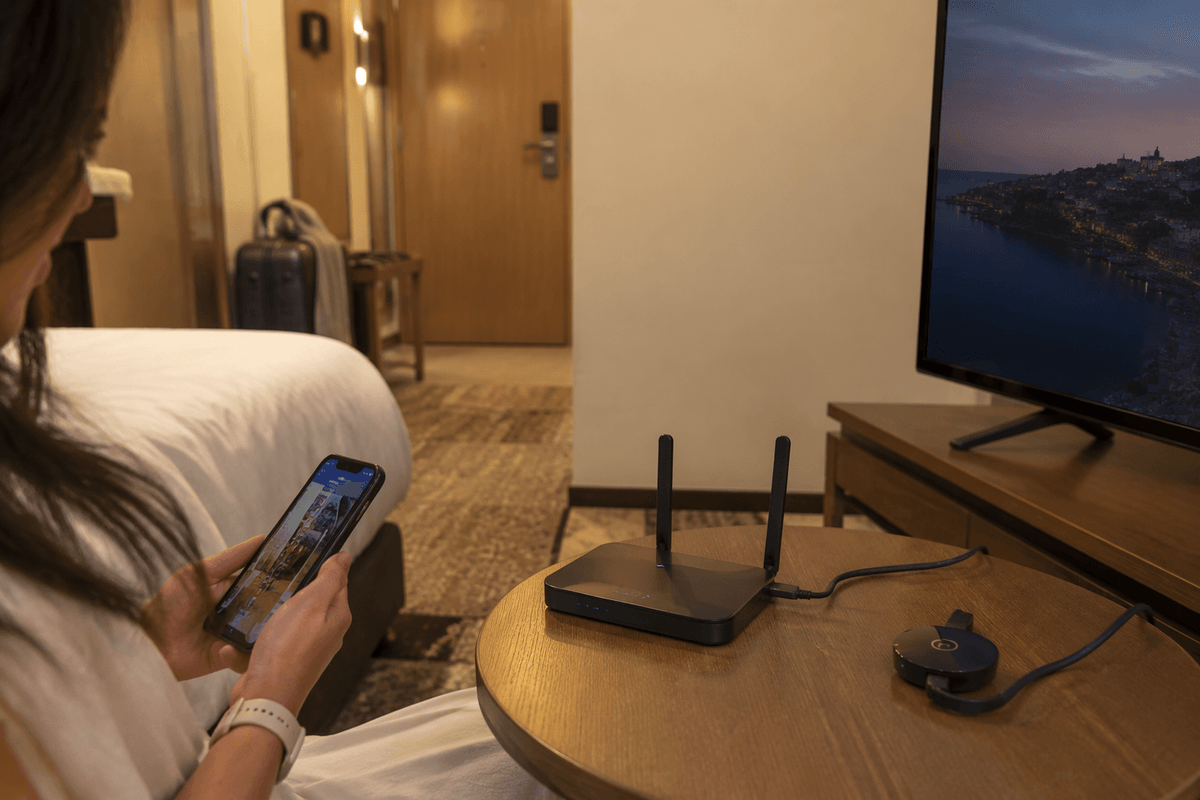
For travel, a Chromecast works best when you can control the network. Hotels and dorms often block casting because of captive portals and device isolation. A small travel router (or a phone hotspot, if your plan allows it) gives you a private Wi‑Fi bubble that your phone and Chromecast can share. The trade-off is extra gear and sometimes lower video quality if the connection is weak.
Power-user moves: mirroring, tabs, photos, and gaming
You’ve probably had a moment where the thing you want to show isn’t in a “cast-friendly” app: a receipt, a map, a slideshow, a weird video player. That’s when mirroring helps. On Android, look for Screen Cast/Smart View (wording varies) and pick your Chromecast; on a laptop, Chrome’s “Cast…” can send a single browser tab so you don’t accidentally show notifications or your whole desktop. Expect a little lag, and don’t be surprised if mirrored video looks softer than native casting—Wi‑Fi and your device’s power matter.
Photos are the low-effort win: cast from Google Photos, or set Google TV/Ambient Mode to rotate an album so the TV becomes a digital frame. For gaming, keep it simple: turn on Game Mode on the TV to reduce input lag, then either mirror casual mobile games or use cloud gaming apps available on Google TV (where supported). The constraint is real: fast action games can feel delayed over mirroring, so treat it as “party and couch co-op” more than competitive play.
Privacy, limits, and quick fixes that prevent headaches
A common surprise is realizing how “public” a Chromecast can feel on a shared network. If roommates or guests can see your Chromecast name, they can try to cast to it. Rename each device clearly (like “Living Room TV”) and turn off Guest Mode when you’re not using it. On Google TV models, use separate profiles so your watch history and recommendations don’t get mixed, and periodically check which apps are signed in. If you ever sell or move the device, do a factory reset so your accounts and Wi‑Fi details aren’t left behind.
Know the hard limits so you don’t waste time: iPhones can’t truly mirror the whole screen to Chromecast without extra apps, and some streaming services block casting or mirroring for licensing reasons. When casting gets weird, the fastest “un-stuck” routine is: stop casting, toggle Wi‑Fi off/on on your phone, reboot the Chromecast (or unplug for 10 seconds), then reopen the app. If it still flakes out, update the Google Home app and the streaming app before you dig into anything deeper.
Pick three features to try today and build from there
Pick three things that match how you actually use the TV. If you watch a lot, start with HDMI-CEC (TV settings) so your normal remote can handle volume and basic playback, then test it by casting YouTube and pausing from the TV remote. If you host or share a space, set up Guest Mode or a guest Wi‑Fi and rename the device so it’s obvious which screen is safe to cast to. If you want the biggest “new use,” create a two-room audio group and cast a playlist while you cook. Give each change one evening—some tweaks need a reboot to stick.