Why personal data leaks happen to everyday people
You don’t have to be “important” to get caught in a data leak. Most exposure happens at scale: a store you bought from, a doctor’s office portal, a delivery app, or a marketing vendor gets breached and your email, phone number, address, and sometimes partial payment details get copied. Attackers then reuse that data to guess passwords, trick you with realistic phishing messages, or take over accounts through password resets.
The hard part is you can do everything “normally” and still be affected, because your risk depends on the security practices of dozens of companies you barely remember signing up for. The practical goal isn’t perfection—it’s making your accounts hard to reuse and easy to recover.
Tip 1: Make passwords boring, long, and unique
Most account takeovers still start with the same boring move: someone tries passwords leaked from one site on your email at another. The fix is equally boring: long, unique passwords everywhere that matters. Aim for 14–20 characters, and don’t “improve” a base password by swapping a number or symbol at the end—attackers expect that. A password manager is the practical way to do this, because nobody can memorize dozens of strong passwords without reusing patterns. If you can’t use a manager yet, use a long passphrase (four or five random words) and reserve truly unique passwords for your email, banking, and shopping accounts. The small cost is setup time and occasional lockouts if you don’t keep recovery options updated.
Tip 2: Turn on multi-factor authentication where it matters most
You’ve probably seen “add a second step” prompts and clicked past them to save time. That second step is multi-factor authentication (MFA), and it’s one of the best ways to stop a stolen password from turning into a takeover. Start with the accounts that can reset everything else: your primary email, your cell carrier, and your password manager. Then do banking, credit cards, and any shopping account that stores a saved card.
Prefer an authenticator app or a security key over SMS codes when you can, since text messages can be intercepted if someone convinces your carrier to move your number. The practical downside is friction: you’ll occasionally be blocked when traveling or switching phones, so save backup codes and make sure recovery options are current.
Tip 3: Treat your email and phone number like master keys
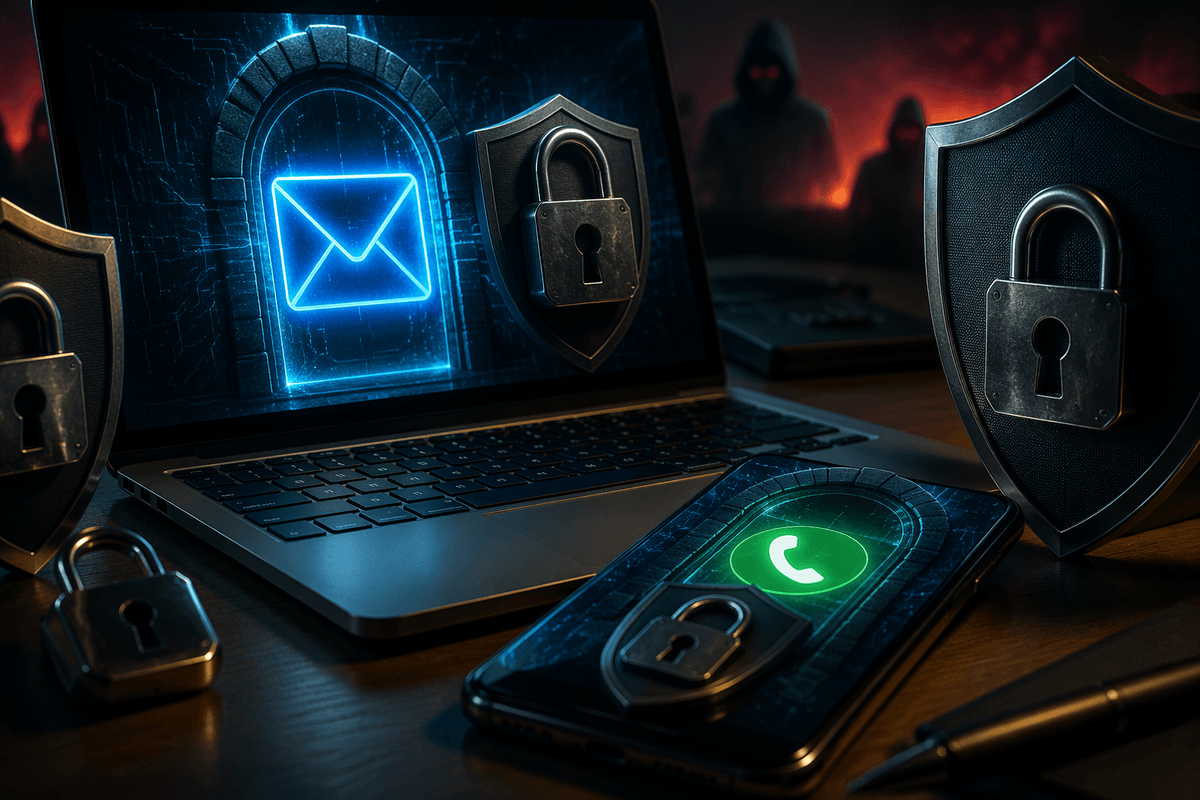
You feel it when you lose access to your email for even an hour: everything else starts failing. That’s because your email inbox and phone number are the default “reset my password” and “verify it’s me” channels for most services. If someone gets into your email, they can request resets for banking, shopping, and social accounts and clean up the alert emails afterward. If someone takes control of your phone number (often by convincing a carrier to move it), they can intercept SMS codes and reset links.
Lock these down like you would your wallet. Use your strongest unique password and MFA on your primary email, remove old recovery emails/phone numbers, and turn on login alerts. Add a carrier PIN/port-out lock, and consider a secondary email used only for recovery. The cost is extra setup and a little inconvenience when you change phones.
Tip 4: Reduce what you share and what apps can collect
You’ve probably installed an app “just to try it” and clicked Allow on a few prompts so it would stop asking. Those small choices add up. Extra data (contacts, location history, microphone access, full photo library, ad tracking) creates more ways to be profiled, more realistic scam messages, and more damage if an account is breached.
Do a quick cleanup: delete apps you don’t use, remove old accounts you no longer need, and turn off permissions an app doesn’t truly require. A flashlight app doesn’t need your contacts; a store app rarely needs “always” location. Use “only while using” and “selected photos” where available. Limit what you post publicly (birthday, address, travel dates) because it feeds password resets and impersonation. The practical trade-off is inconvenience: some features will break until you re-enable a permission on purpose.
Tip 5: Keep devices and home networks hardened by default
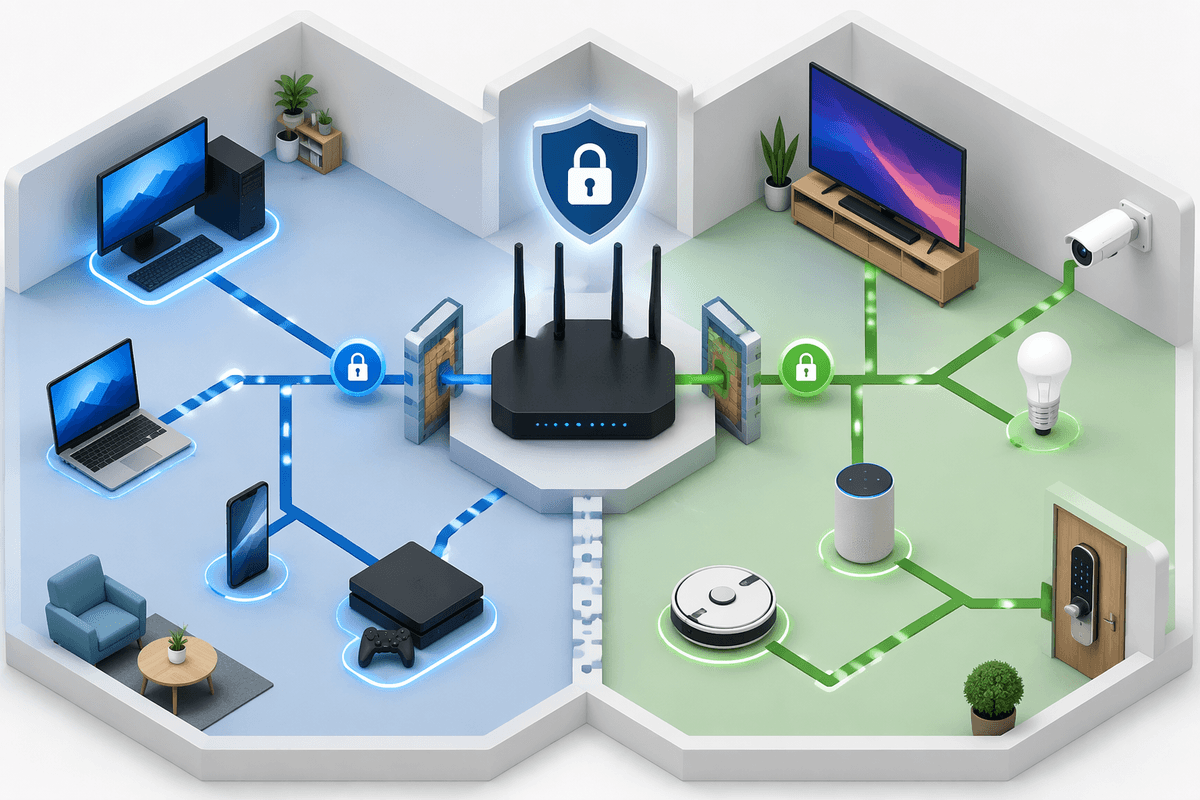
You’ve done the account work, but a compromised device or flaky home Wi‑Fi can still hand attackers an easy path in. Keep your phone, laptop, browser, and router on auto-update, and replace anything that no longer gets security patches (older routers are common weak points). Turn on full-disk encryption and a screen lock with a real PIN (not 1234), and enable “Find My”/remote wipe so a lost device doesn’t become a data leak.
At home, change the router’s default admin password, use WPA2/WPA3 with a strong Wi‑Fi password, and disable WPS if it’s on. If your router supports it, put smart TVs, cameras, and cheap “smart” gadgets on a guest network. The trade-off is time: updates reboot devices, and router settings take a focused 20–30 minutes to do right.
If your data is compromised: act fast, in order
You notice something small first: a password reset email you didn’t request, or a bank login alert at 3 a.m. When that happens, don’t start by changing everything at once. Start with the accounts that can unlock the rest. Secure your primary email and cell carrier first (change passwords, confirm MFA, remove unknown recovery options, sign out other sessions). Then reset passwords on banking, payment apps, and any shopping account with saved cards, using new unique passwords.
Move quickly on money. Call your bank or card issuer using the number on the back of the card, review recent transactions, and ask about temporary freezes, new card numbers, or a fraud claim. If you suspect identity theft (new accounts, loans, or bills), freeze your credit with all major bureaus; it’s free, but it takes time and you’ll need to unfreeze later when you apply for credit. Keep screenshots, dates, and confirmation numbers so you can prove what happened.
Finally, clean up the “quiet” damage. Check forwarding rules and filters in email (attackers hide alerts there), scan devices for unwanted extensions/apps, and tell close contacts you were compromised so they don’t trust new messages. If a service offers “download your data” or “recent logins,” use it to confirm you’re back in control.
Build a simple routine that keeps you protected
Most people don’t need more tips—they need a rhythm. Once a week, spend five minutes clearing obvious risk: update devices, review your password manager for reused passwords, and delete apps or browser extensions you don’t recognize. Once a month, scan your primary email’s recent logins and forwarding rules, then check your bank and card transactions for anything small and unfamiliar. Once a year (or when you switch phones), refresh recovery options, save MFA backup codes, and change the router admin and Wi‑Fi passwords if you’ve never done it. Put credit monitoring alerts on, but don’t outsource judgment to them; they lag.