Why deleting Threads feels tied to Instagram
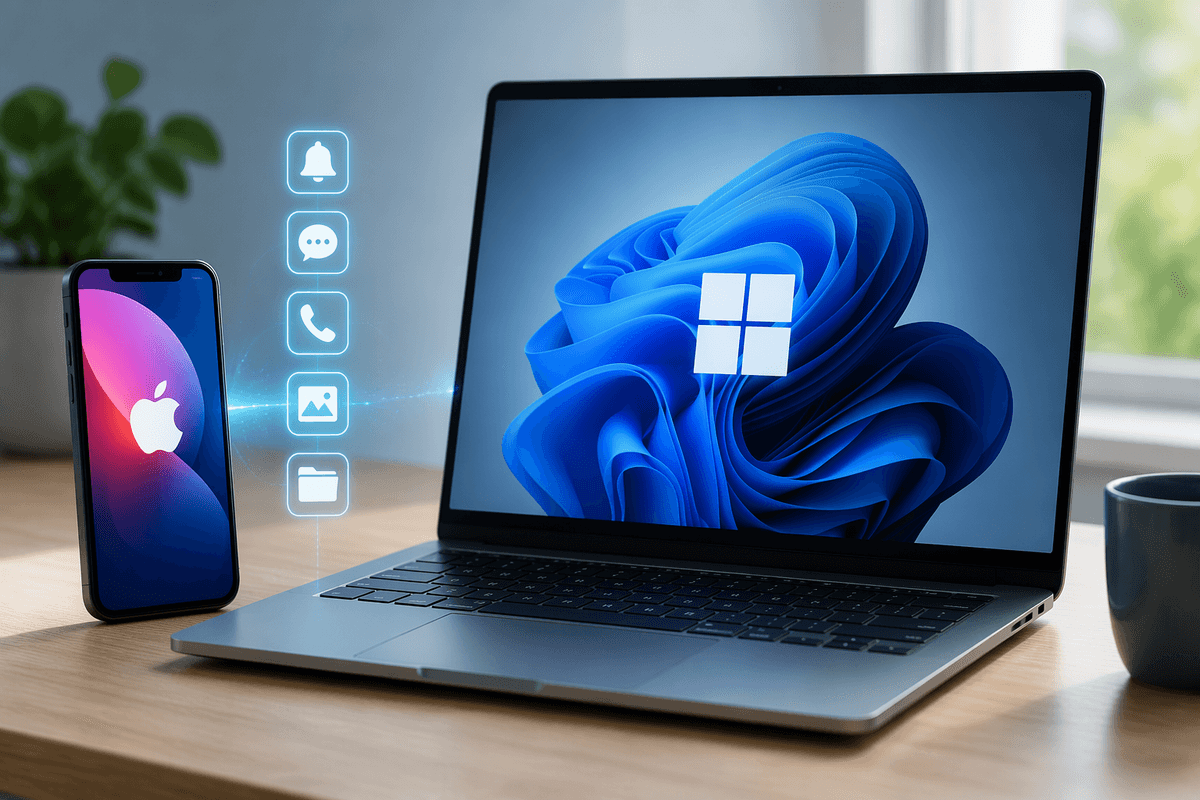
You open Threads, go to delete it, and immediately hit Instagram screens, logins, or account settings. That’s not a trick—it’s how Threads was built. Threads uses your Instagram account as its identity layer, so your username, profile basics, and sign-in are shared even if the apps feel separate day to day. That design makes setup easy, but it also makes “delete Threads” feel like it should affect Instagram.
The practical tension is that you’re trying to remove one profile without breaking the other. Depending on the option you choose, you may be removing only your Threads presence (posts, profile visibility) while Instagram stays intact, or you may be asked to confirm broader account actions. The safest path is knowing which controls apply to Threads alone and which touch your Instagram account.
Know the difference: delete profile, deactivate, or uninstall
Most confusion comes from three actions that feel similar but do very different things. Uninstalling Threads only removes the app from your phone; your Threads profile, posts, and visibility can remain, and you can still be found by others. Deactivating (or disabling) Threads usually means your Threads profile becomes hidden and people can’t interact with it, but it’s not the same as deletion—you’re choosing “pause” rather than “remove.” Deleting your Threads profile is the closest thing to a clean exit: it’s meant to remove the profile and its content rather than just hiding it.
The trade-off is convenience versus finality. Deactivation is quick and reversible if you’re unsure, but it won’t reduce your data footprint as much. Deletion can have waiting periods, confirmation steps, or missing options depending on where you’re signed in and which app version you’re using.
What happens to your Instagram account and data
If you delete or deactivate your Threads profile, your Instagram account stays active and usable. Your Instagram photos, messages, followers, and settings aren’t deleted just because you’re removing Threads. The main “tie” that remains is identity: Threads is built on your Instagram login and basic profile info, so you may still see Threads-related entry points inside Instagram even after you stop using Threads.
Data-wise, deactivation is closer to hiding: your Threads profile and posts stop being visible, but the content is generally kept so it can reappear if you log back in. Deletion is the more final route, but it’s usually not instant—there’s typically a waiting/grace period (often 30 days) where the profile is hidden and you can undo it by signing back in. That delay is a practical cost if you expected same-day cleanup.
Before you delete: quick checklist to avoid surprises
You’ll save yourself the most frustration by doing a quick “what do I actually want?” check before tapping anything. If you might come back, deactivation is usually the safer first move because it hides your profile without starting a countdown you could accidentally cancel by logging in. If you want a cleaner break, plan around the grace period: deletion often isn’t same-day, and signing back into Threads during the waiting window can undo the request.
Also check what you’ll lose access to inside Threads itself. If you care about specific posts, replies, or followers, assume you won’t be able to “pick and choose” later—deletion is typically all-or-nothing. Finally, make sure you’re signed into the correct Instagram account and you can pass any login checks (password, two-factor codes). Failed verification is a common, very practical roadblock when you’re trying to delete quickly.
Step-by-step: delete your Threads profile, keep Instagram
Start inside Threads (not Instagram), because the delete control is usually framed as a Threads-only action even though it routes through Instagram’s account system. Open Threads, tap your profile icon, then the menu (often two lines) and go to Settings. Look for an option named Account (or Account settings), then choose Deactivate or delete profile. If you see both, pick Delete profile (not Deactivate) and read the confirmation screen closely—what you want is language that says your Instagram account will remain active while your Threads profile is removed.
You’ll typically be sent through Meta’s Accounts Center to finish. Confirm you’re logged into the right Instagram account, complete any verification (password or two-factor), then submit the deletion request. Expect a waiting/grace period rather than instant removal; during that window, avoid logging back into Threads, because signing in can cancel the deletion and bring your profile back. If you only want to disappear quickly without starting that countdown, choose Deactivate instead and uninstall the app after—deactivation hides you, uninstalling just reduces temptation. One practical constraint: menu names and placement can shift by app version, so updating Threads/Instagram first can save time if the option seems to be missing.
If you can’t find the option or it fails
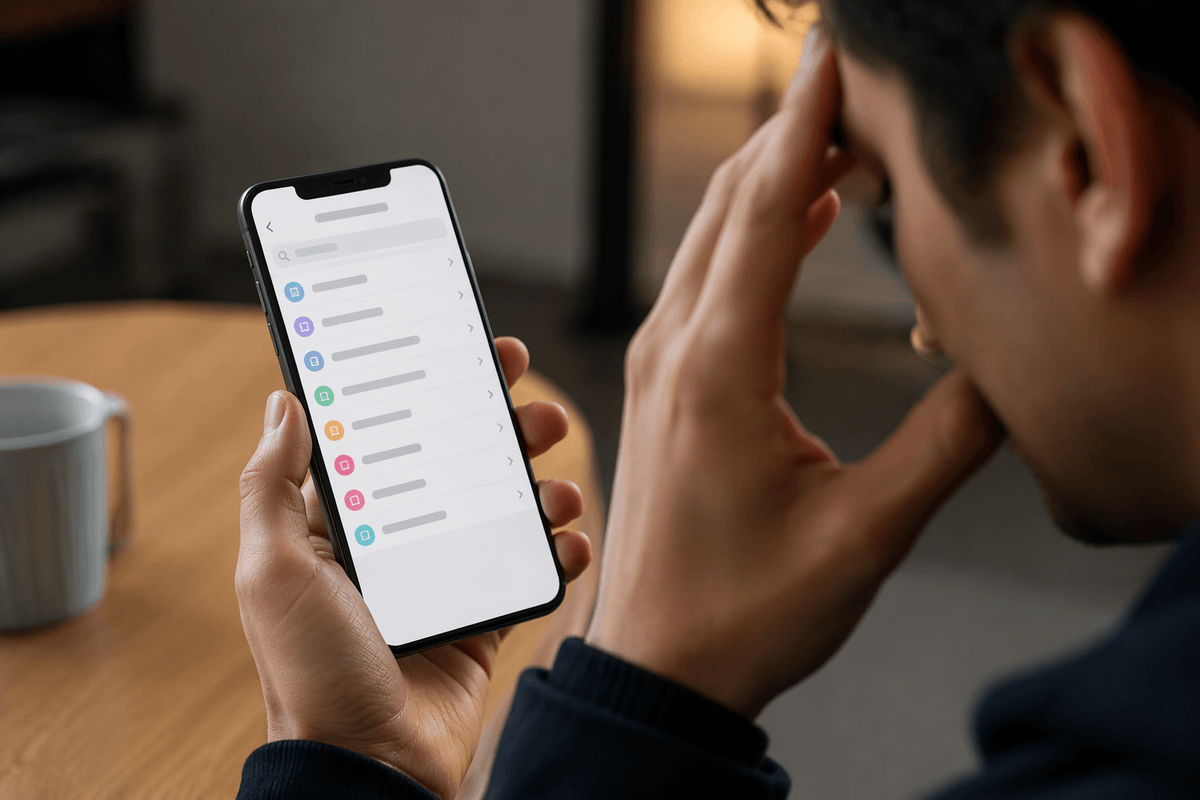
You may not see “Deactivate or delete profile” if you’re in the wrong place (Instagram settings instead of Threads), signed into a different Instagram account than the one that created your Threads profile, or using an older app build. Start by updating both Threads and Instagram, then reopen Threads and try the path again from your Threads profile menu. If the option still doesn’t appear, go through Meta’s Accounts Center from Instagram (Settings and privacy → Accounts Center) and look for a Threads/Profiles entry tied to your Instagram login; sometimes the control is surfaced there first.
If deletion fails, treat it like a verification problem before assuming it’s “broken.” Turn off ad blockers, switch from Wi‑Fi to cellular (or vice versa), and make sure you can complete password and two-factor prompts without delay. If you’re stuck with repeated errors, deactivating Threads is the practical fallback: it hides your profile immediately, while you try deletion again later when the app or account system is behaving.
After deletion: how to confirm and what to do next
After you submit deletion, confirm it in two places: search your Threads username from another account (or in a private browser) and check whether your profile and posts are no longer visible, and then open Instagram’s Accounts Center to see whether Threads shows a “deletion requested” or similar status. Don’t rely on the app icon being gone—uninstalling doesn’t prove anything.
During the grace period, treat Threads sign-ins like a cancellation button. If you need to keep reducing exposure while you wait, set your Instagram profile to limit discoverability (for example, hide story replies from non-followers), and remove Threads-related links from your Instagram bio. If your profile still appears after the stated window, retry from Accounts Center on a stable connection.