Your calendar is a system, not just a schedule
You probably think of a calendar as a place to store meetings, classes, and appointments. In practice, it’s the control panel for how you make commitments, protect focus time, and coordinate with other people. The app you choose quietly sets rules: how fast you can add something, whether you trust reminders, how you handle travel time, and what happens when two priorities collide.
That’s why “which calendar is best” is usually the wrong question. The real question is which system you can run consistently across your devices and relationships. Switching isn’t free: migrating events, redoing notifications, retraining muscle memory, and risking missed invites during the transition all add friction.
Start by mapping your real planning problems
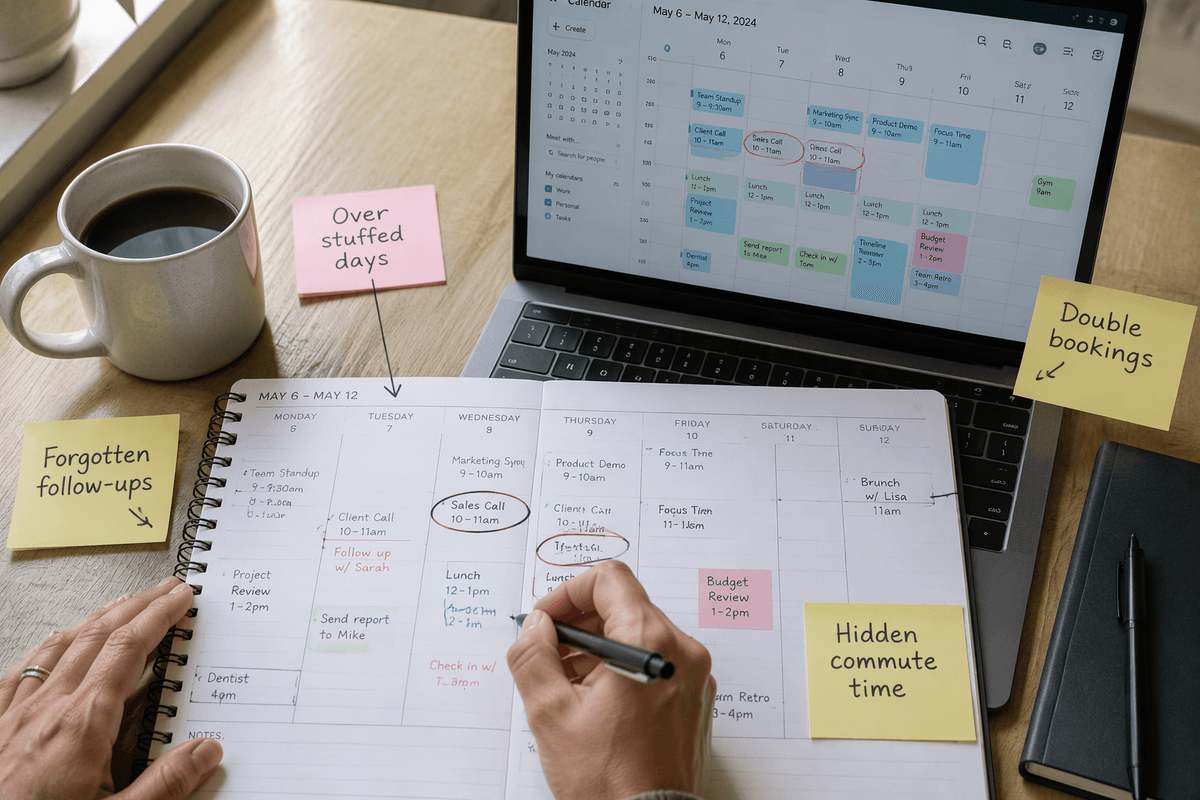
You can narrow the field quickly by writing down the specific moments when planning breaks down for you. Look at the last two weeks and note patterns: double-bookings, forgotten follow-ups, overstuffed days, or “free” time that wasn’t actually free because of commute, prep, or recovery. If you regularly bounce between work and personal commitments, the problem might be visibility (separate calendars that don’t reconcile) or boundaries (no protected blocks). If you coordinate with clients, teammates, or family, the problem might be sharing and scheduling (finding overlap, avoiding back-and-forth, handling time zones).
Turn those patterns into a short list of requirements and constraints. Examples: “I need reliable reminders that work on my phone and laptop,” “I need to see two calendars overlaid,” “I need scheduling links,” or “I need offline access during travel.” Also name your switching risk: if you can’t afford a week of missed invites, you’ll want the easiest migration path and the fewest moving parts.
Decide how you’ll capture tasks versus time blocks
You’ve also got to decide what belongs on the calendar versus what belongs on a task list. A calendar is best for commitments with a real time and consequence: meetings, classes, calls, deadlines that trigger work, and anything where being late creates problems for someone else. Tasks are better for flexible work that can move within the day: “draft proposal,” “read chapter,” “submit expense report.” If you try to cram every task into events, your calendar becomes noisy and you stop trusting it; if you keep everything as tasks, you end up with “someday today” and no protected time to do the work.
Pick one capture path you’ll actually follow under pressure. Option A is two tools: a task manager for what to do, and a calendar for when you’re committed, with a daily habit of pulling 1–3 tasks into time blocks. Option B is one tool: a calendar that supports tasks (or task-like entries) so you can drag work into open slots. The trade-off is friction versus clarity: two tools can be cleaner, but syncing, duplication, and notification settings take real setup time.
Choose the scheduling style that matches your day
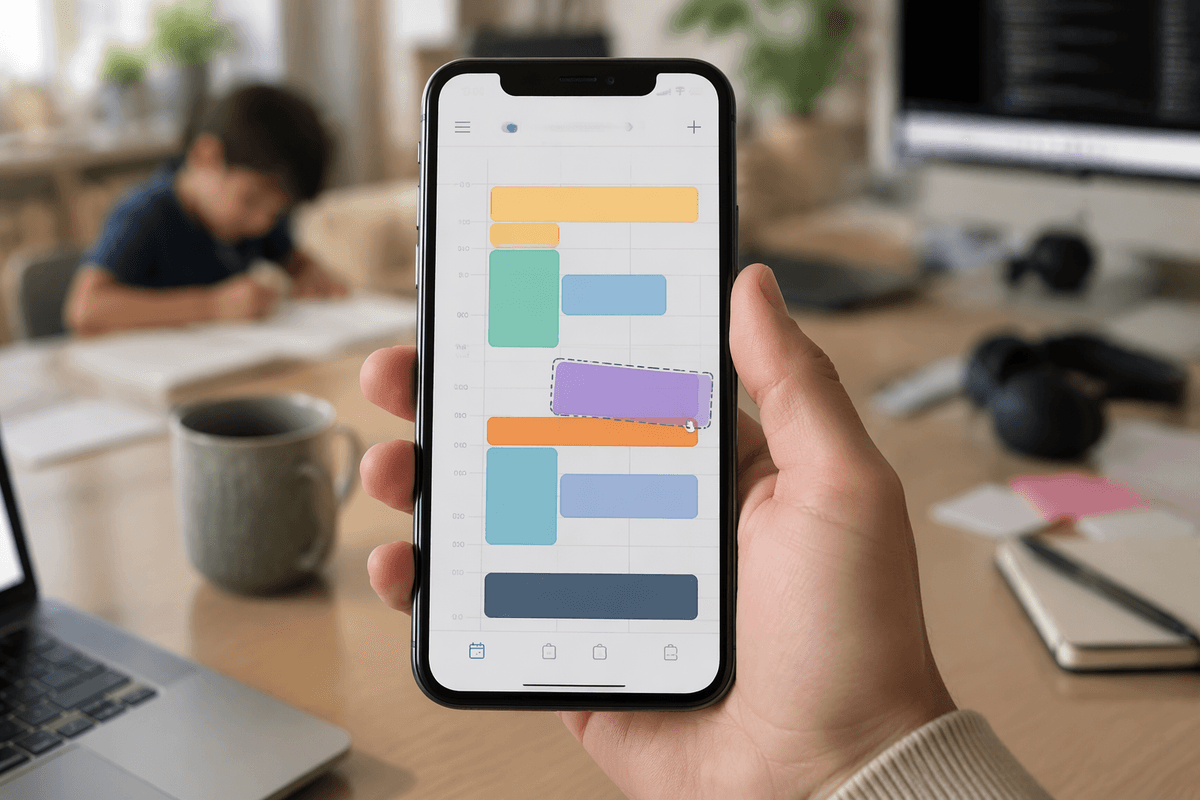
You can usually tell the right calendar “style” by noticing what kind of day you actually have. If your day is mostly meetings, lean into an appointment-first setup: short default event lengths, buffers between calls, and a clean week view that highlights conflicts fast. If your day has big chunks of self-directed work, time blocking tends to work better: block project work the same way you’d block a meeting, and treat the block as a real commitment so it doesn’t get eaten by “quick chats.”
If your schedule changes constantly (client work, on-call responsibilities, caregiving), use a lighter structure: a few anchor blocks (start-of-day planning, lunch, shutdown), plus flexible “float” blocks you can drag around. Students often do well with a hybrid: fixed classes and labs, plus recurring study blocks tied to specific courses. The practical limitation is upkeep: the more detailed your blocks, the more often you’ll need to adjust them when something runs late, so pick a level of precision you can maintain on a busy week.
Check integrations and platform fit before you fall in love
You can like an app’s design and still end up fighting it every day if it doesn’t match where your work actually happens. Start with platform fit: do you need a strong web version for shared computers, a desktop app for heavy keyboard use, or mobile-first speed for life on the go? Then check the “must-not-break” integrations: work email and invites (Exchange/Microsoft 365 or Google Workspace), video links, conferencing room booking, and whatever your collaborators actually use. If your team lives in Outlook and you pick something that only “sort of” syncs, you’ll spend time fixing duplicates, missing updates, or replying to invites from the wrong account.
Also look at the boring details that create switching costs. Can you keep separate work and personal calendars with clear visibility controls? Does it handle time zones reliably when you travel or schedule across regions? Are reminders consistent across phone and laptop, or do you get double pings? If you rely on scheduling links, check whether they pull real availability from all calendars and respect buffers. A great feature set isn’t worth it if it creates fragile sync rules you have to babysit.
Evaluate features that actually reduce planning friction
You feel planning friction in the small moments: adding something quickly, confirming where to be, and trusting you’ll get nudged at the right time. Prioritize features that remove those failure points. Fast event creation (natural language input, templates, and a good keyboard flow) matters more than fancy views because it reduces the odds you “add it later” and forget. Strong conflict detection and a clear week view help you catch overbooking without thinking. Smart defaults—your usual meeting length, location, video link behavior, and buffer time—quietly prevent mistakes every day.
Then look for follow-through features that work across devices: consistent notifications, travel time, and location-based reminders if you move between places. Sharing features should match your real coordination pattern: permissioned shared calendars for families or teams, and simple availability sharing for clients so you stop emailing time options. The constraint: many of these “friction reducers” require upfront setup (notification tuning, default buffers, calendar permissions). If an app makes that setup confusing, you’ll keep paying the cost in missed cues and extra back-and-forth.
Test your top two apps with a one-week pilot
You can’t really judge a calendar app by screenshots, because the pain shows up in motion: when you’re rushing, rescheduling, or trying to coordinate with someone who uses a different system. Pick your top two options and run them in parallel for one week. Keep your existing calendar as the “source of truth,” then subscribe or sync it into each app so you’re mostly observing behavior rather than migrating everything at once. During the week, force the real test cases: accept and propose invites, create recurring events, add buffers, schedule across time zones if that’s relevant, and do a few fast adds from your phone while walking between things.
Use a simple scorecard you can fill out in two minutes each day: capture speed, reminder reliability, rescheduling friction, sharing/availability accuracy, and whether you felt confident trusting the view without double-checking. Pay attention to costs, not just features—setup time, duplicate notifications, odd sync delays, and anything that makes you hesitate before adding an event. At the end of seven days, choose the app that produced fewer “calendar babysitting” moments, even if the other one looked more impressive.
Commit to a simple setup you’ll keep using
You’re done shopping. The goal now is a setup that survives busy weeks, not a perfect dashboard. Lock in one “source of truth” calendar, then keep the structure minimal: a small set of calendars (work, personal, maybe one shared), consistent color rules, and two or three default reminder timings you trust. Set meeting buffers and travel time once, then stop tweaking unless something is repeatedly breaking.
Make adoption practical: put the calendar on every device you use, pin the widget or shortcut you’ll actually tap, and turn off duplicate notifications from secondary apps. If you’re migrating, choose a quiet day to move recurring events and re-check invite behavior with a few real people. The cost of over-customizing is maintenance; the best system is the one you don’t have to babysit.