Start with what you want your home to do
Most people start by buying a “cool” device and then spend weeks trying to make it fit their life. Flip that. Write down three moments you want to improve: arriving home with full hands, waking up on dark mornings, or wondering if you left something on. Pick goals that save steps, reduce worry, or make a routine smoother. Then decide what “done” looks like in plain terms, like “lights turn on in the hallway after 9pm” or “the thermostat drops when we go to bed.” Keep it small at first; every extra feature adds setup time, notifications, and another place things can break.
Check your Wi‑Fi, power, and room-by-room realities
The fastest way to get frustrated with a smart home is a weak network or a room that can’t support what you’re trying to do. Walk your space with your phone and check Wi‑Fi where devices will live: front door, bedroom nightstands, garage, patio. If a video doorbell or camera only gets one bar, plan on improving coverage first (often a mesh node, sometimes just moving the router). Also note what kind of Wi‑Fi you have—many smart devices still prefer 2.4GHz, so you may need a separate 2.4GHz network name.
Then look at power and switches. If you rent, you may not be able to replace wall switches, and some smart switches require a neutral wire that older homes don’t have. In each room, count outlets, check if lamps are controlled by a wall switch, and notice “manual” habits—like turning off a lamp at the socket—that will break automations. A 30‑minute walkthrough can save $200 in wrong gear.
Pick your control center: Alexa, Google, Apple, or Matter
You’ll get better results if you pick one “control center” first, even if you plan to expand later. Alexa is usually the broadest for device support and budget-friendly speakers; Google is great if you already live in Google Home and like strong voice recognition; Apple Home (HomeKit) is the smoothest for iPhone households and tends to prioritize on-device privacy, but hardware can cost more and you’ll want a HomePod or Apple TV for full remote access and automations.
Matter isn’t a brand so much as a compatibility layer: it helps devices work across ecosystems so you’re less locked in. It’s real, but it’s not magic—product boxes can be confusing, and some features still depend on the app you choose as “home base.” A practical rule: choose the ecosystem that matches the phones in your house, then only buy devices that clearly list that ecosystem (and Matter, if available) on the packaging.
Choose a few beginner devices that feel instantly useful
The easiest wins are the ones you feel every day without changing your house. Start with a couple of smart plugs for lamps or a coffee maker, plus a few smart bulbs for places you want dimming or warmer light at night. They install in minutes, they’re renter-friendly, and they teach you the basics of naming, rooms, and schedules without touching wiring.
Then add one “anchor” device that reduces friction: a video doorbell if packages are a pain, or a smart lock if you’re always juggling keys. Both cost more and can be fussier—locks need correct door alignment and good batteries, and doorbells often expose weak Wi‑Fi at the front door—so it’s normal if you spend an afternoon getting them reliable.
If you want comfort automation, a thermostat is great, but only if your HVAC is compatible. Skip the temptation to buy sensors everywhere. One motion sensor in a hallway or one contact sensor on the front door is enough to start building habits that actually stick.
Set up the first device cleanly and name everything well
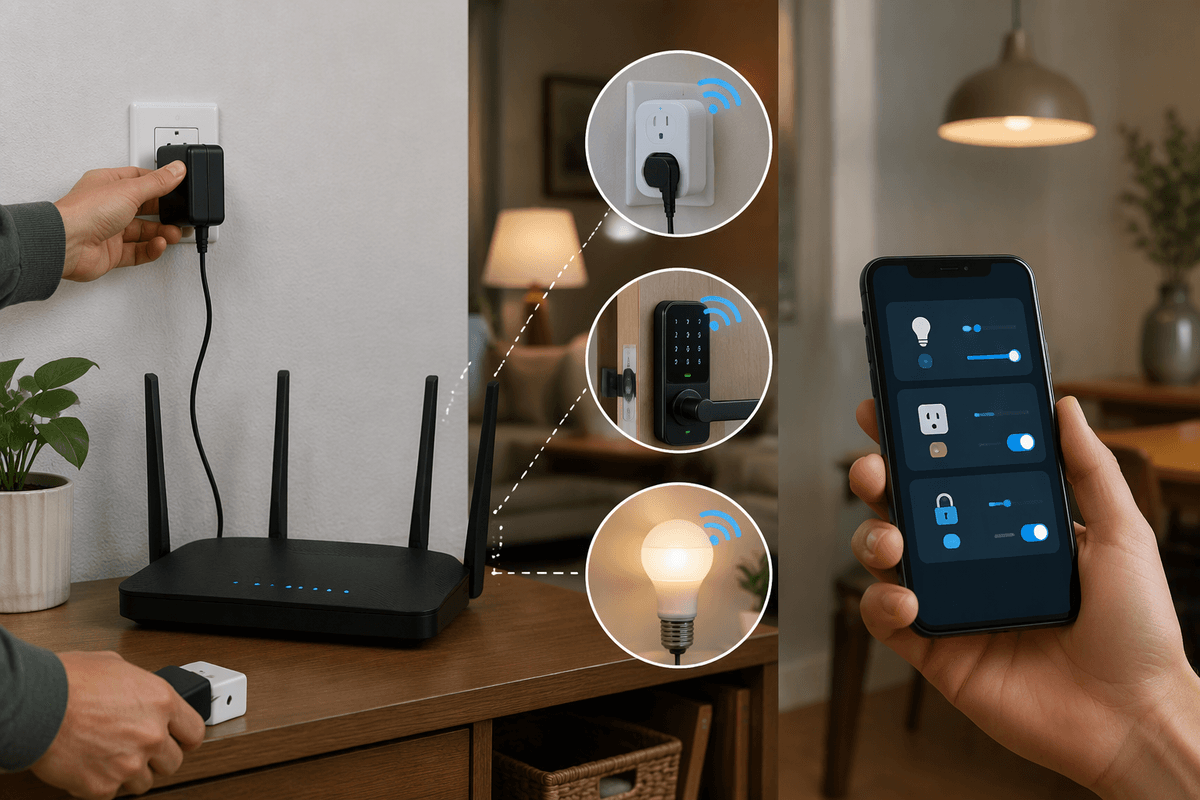
The first setup is where you earn future sanity. Before you install anything, update the device firmware and the hub app, then connect the device to the same home and Wi‑Fi you’ll keep long-term (don’t use a temporary hotspot “just for now”). Place it where it will actually live and test the boring stuff: does it reconnect after you reboot the router, and does it respond quickly from the app and by voice?
Naming matters more than people expect. Use a simple pattern: Room + Thing + Purpose. “Hallway Light,” “Bedroom Lamp Left,” “Front Door Lock.” Avoid cute names that your family won’t remember and voice assistants mishear. Keep “Light” for lights, “Plug” for plugs, and don’t reuse names across rooms. It feels picky, but renaming later breaks automations and takes real time.
Create simple automations that don’t annoy you later
You’ll be tempted to automate everything at once. Don’t. Start with two or three rules that have a clear trigger and a clear “off” path, like “Hallway Light on when motion is detected after 9pm, off after 3 minutes” or “Bedroom Lamp on at sunset, off at 11:30pm.” Time windows prevent the classic problem of lights firing in the middle of the night, and auto-off keeps you from building a house that slowly turns into a Christmas display.
Favor predictable triggers over “smart” guesses. Motion is great in hallways and laundry rooms, but it can be annoying in living rooms where people sit still. Door sensors are reliable for “entry lights,” but pets can false-trigger motion sensors. If your platform supports it, add one simple condition like “only when someone is home,” but avoid stacking five conditions until you’ve lived with the automation for a week.
Budget for a little tuning time. Even good automations need a couple of evenings of adjustments to match real life.
Secure your smart home and plan for guests
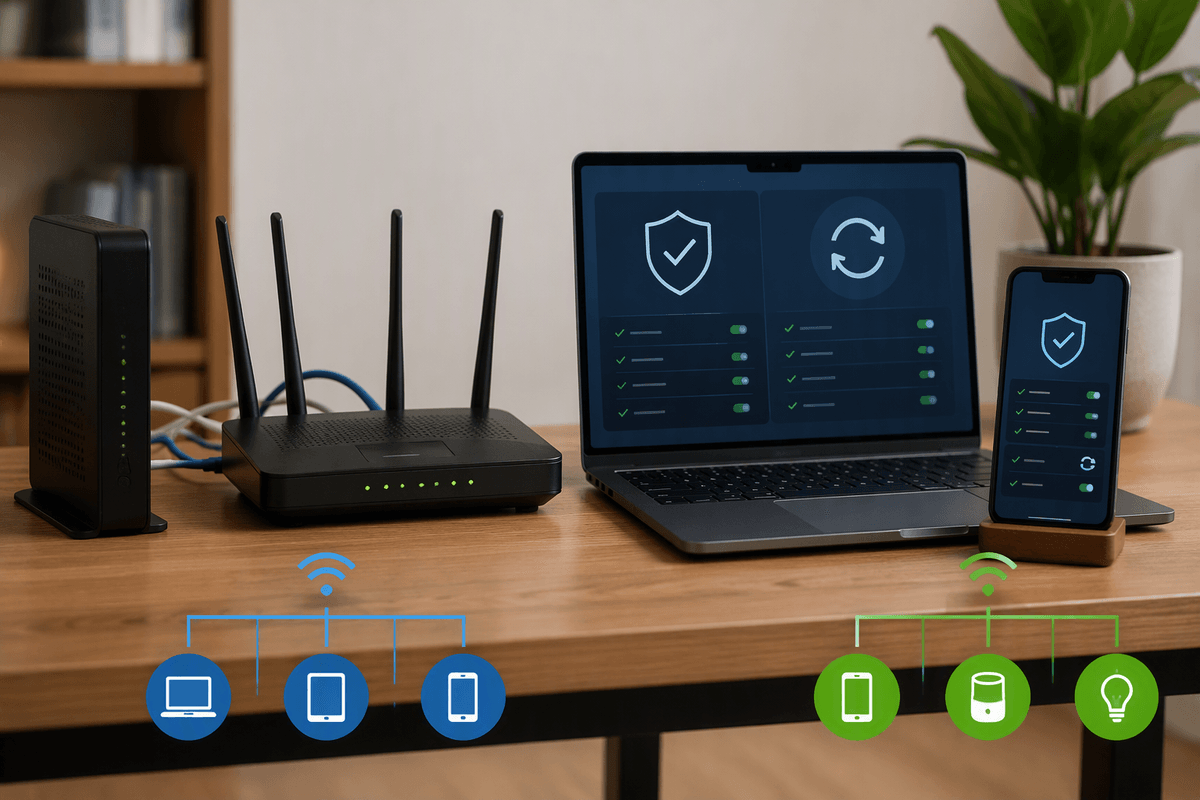
You’ll notice the first time a device asks for a “cloud” login that your smart home is also a set of accounts. Treat it that way. Use a password manager, turn on two-factor authentication for your main ecosystem account, and keep device sharing tight—especially for locks, cameras, and garage controllers. Put your router on auto-updates if it supports it, and don’t reuse your old Wi‑Fi password from three apartments ago. If you add a camera, place it so it watches a doorway or room, not a neighbor’s yard, and learn the mute/privacy options before you need them.
Guests are where messy setups show up. Create a guest Wi‑Fi network for visitors and smart devices you don’t fully trust, and avoid giving house-sitters your primary account login. For smart locks, use temporary codes or time-limited access; it costs a few minutes to set up, but it’s far easier than changing a lock or untangling shared accounts later.
Grow your system without redoing everything
After a few weeks, you’ll know what’s missing: a dark staircase, a too-hot bedroom, a “did we close it?” door. Add one device at a time and keep the same standards: compatibility you can explain, solid signal where it will live, and names that match your pattern. When you expand, prioritize devices that use Thread/Zigbee (or Matter over Thread) so your Wi‑Fi doesn’t get crowded with dozens of tiny connections. Expect some real-world costs: more batteries to manage, a few bulky bridges, and occasional “works in the app, not by voice” debugging.
Before you buy the next thing, ask one question: will this still make sense if you switch platforms later? Lights, plugs, and sensors usually port cleanly; cameras and doorbells are where you can get stuck in one app. Keep your automations simple and local when possible, document what you changed (even a notes app list helps), and treat every new category—locks, cameras, climate—as its own small project instead of a weekend shopping spree.