Why your internet feels slow (and what a speed test can prove)
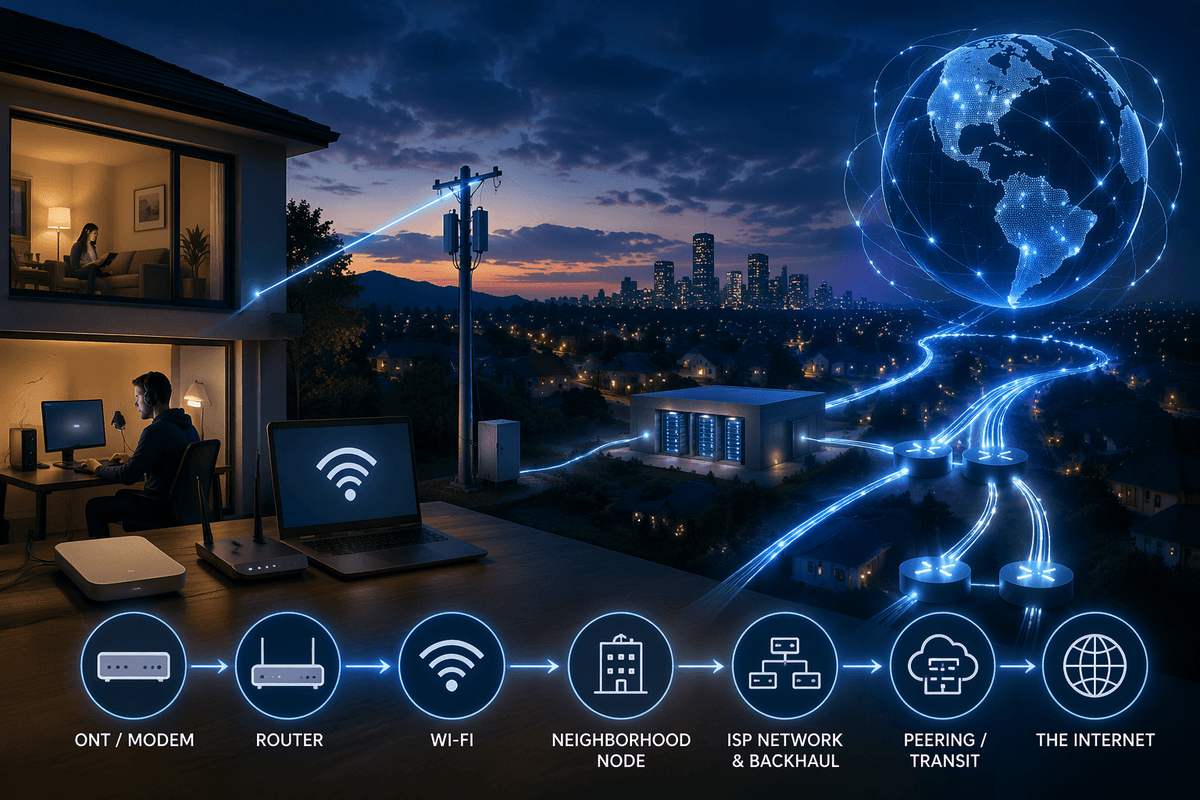
You notice it when a video drops to blurry, a work call gets choppy, or a game “lags” even though the Wi‑Fi icon looks full. That feeling can come from different problems: your plan might be too slow, your connection might be fine but unstable, or your Wi‑Fi might be struggling in one room while the internet line itself is okay.
A speed test helps separate those cases. It can show whether your download and upload are close to what you pay for, and whether delays (ping) are high enough to hurt calls and gaming. It won’t prove everything—busy neighborhood hours and one overloaded device can skew results—but it gives a concrete baseline you can retest and use as evidence.
Before you test: quick setup that prevents misleading results
Most “bad” speed tests happen because something else is using the connection. Pause any large downloads, cloud backups, game updates, and streaming on every device you can find. If you’re not sure, a quick check is to look for a TV playing, a console updating, or a laptop syncing photos.
Use one device for the test, and close tabs and apps that might refresh in the background. Reboot your modem and router if they haven’t been restarted in weeks, then wait a few minutes for them to settle. Finally, confirm you’re on your normal Wi‑Fi network (not a guest network or phone hotspot). This takes five minutes and can save you an hour of chasing the wrong problem.
Picking a speed test tool: browser, app, or router test?
You’ll see three common ways to test: a browser test, a dedicated app, or a test run from your router. A browser test is the fastest and good for a quick reality check, but results can vary a bit by browser extensions, background tabs, or how that site connects to nearby servers. An app (often from the same speed test company) can be slightly more consistent because it runs with fewer browser layers in the way.
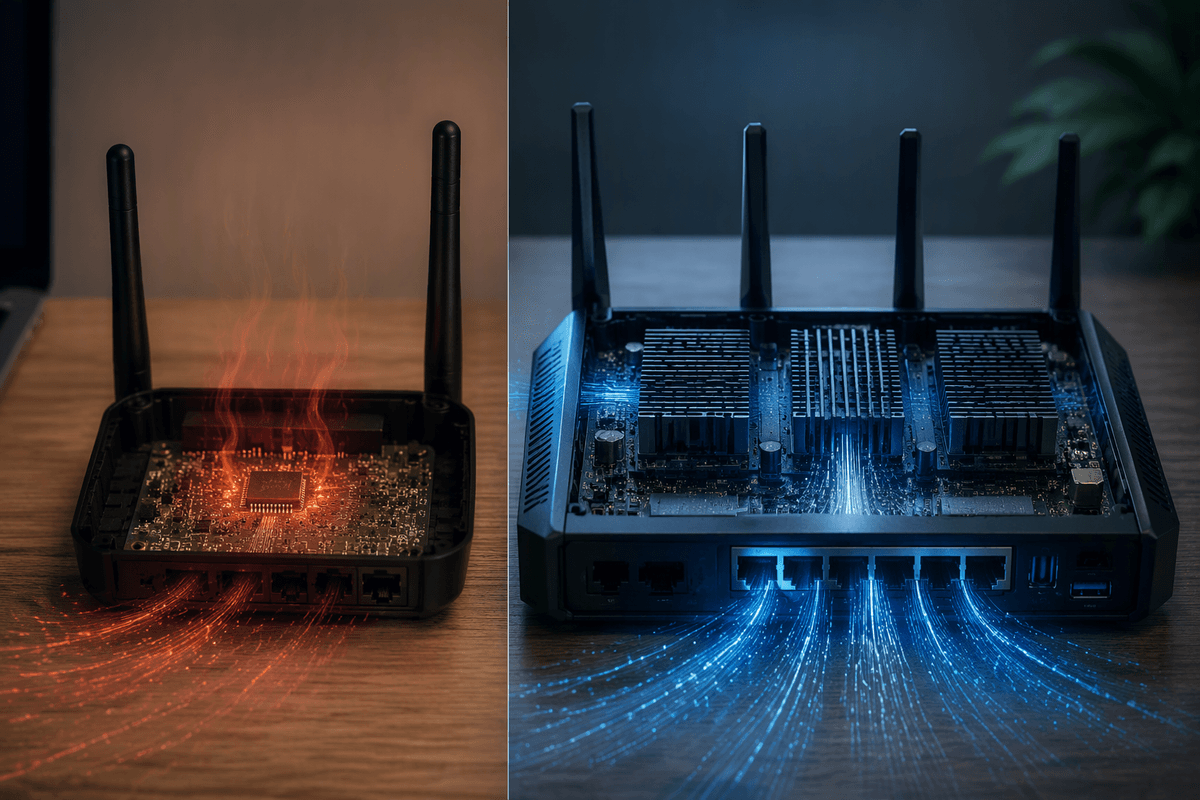
A router-based test is the most useful when you’re trying to separate “internet line” from “Wi‑Fi in this room.” It measures speed from the router to the internet, so it won’t be slowed by your laptop’s Wi‑Fi signal. The catch: not all routers support it, and some cheaper models run tests slowly or inaccurately because their hardware is limited.
Run the test the right way: Ethernet vs Wi‑Fi and repeat checks
Run at least one test on a wired Ethernet connection if you can. Plug a laptop or desktop directly into the router (not a Wi‑Fi extender), then run the test and save the result. This is your “best case” for what your ISP line can deliver. If wired looks close to your plan but Wi‑Fi looks much worse, you’re dealing with a home network issue—distance, walls, interference, an older device, or an overworked router—not the internet coming into the house.
Then test on Wi‑Fi the way you actually use it: from your usual room, on your usual device, on the same network name you normally join. Do three runs, about a minute apart, and look for a pattern rather than one lucky or terrible number. If results swing wildly, that’s a stability problem (often congestion or interference), even if the “best” run looks fine. Plan for a small time cost here: a reliable set of checks takes 10–15 minutes, but it saves you from troubleshooting based on a one-off blip.
Understanding the numbers: download, upload, ping, and jitter
The download number (Mbps) is how fast data comes to you. It mostly affects streaming, web browsing, game downloads, and big file transfers. If you pay for 300 Mbps and your wired test is around 260–320 Mbps, that’s usually “close enough” because speed tests have overhead and real networks aren’t perfect. Upload (also Mbps) is how fast you send data out. It matters more than people expect for video calls, sending attachments, cloud backups, and security cameras. A household can feel “slow” with great download if upload is low and someone is backing up photos.
Ping (ms) is delay, not speed. Lower feels more responsive for gaming, video calls, and remote desktop. Jitter is how much that delay jumps around from moment to moment. A call can sound robotic even when download looks strong if jitter is high.
If results are bad: isolate the cause in a few steps
You run the test and the numbers look off. Start by separating “the line” from “the room.” If a wired test at the router is close to your plan but Wi‑Fi is much lower, the ISP is probably fine and the bottleneck is Wi‑Fi: try the same Wi‑Fi test standing a few feet from the router, then again from the problem room. A big drop with distance usually means walls, interference, or an overloaded/older router. If both wired and Wi‑Fi are bad, you’re likely looking at an ISP-side issue, a modem problem, or a bad cable connection.
Then do two quick sanity checks. First, repeat at a different time (evening congestion can cut speeds without anything “broken”). Second, swap one thing at a time: try a different device, change from 5 GHz to 2.4 GHz (or vice versa), and reboot modem/router once. Keep notes or screenshots; the practical cost is a bit of time, but it turns frustration into a clear pattern you can act on.
Turn test results into action: upgrades, settings, or a support call
When the wired test at the router is consistently close to what you pay for but Wi‑Fi is not, spend effort inside the home: move the router higher and more central, switch busy devices to Ethernet, and consider a mesh system if one room is always weak. If your router is more than a few years old, upgrading can be the cheapest “speed boost” you’ll actually feel, but it still costs money and setup time.
When both wired and Wi‑Fi are consistently far below your plan (especially across multiple times of day), call your ISP with dates, screenshots, and whether the test was wired. Ask them to check signal levels, the modem, and the line. If you’re on a low upload plan and calls suffer, a plan change may matter more than higher download.