Google Duo vs Google Meet: what you’ll use now
If you’re looking for “Google Duo” on your phone, you’re not missing it—it was folded into Google Meet, and Meet is now the app you’ll use for the same kind of quick, personal video calls. When friends or family say “let’s Duo,” they usually mean “start a Meet call” the way Duo used to work.
Google Meet can do two different things: fast calls (the old Duo-style) and scheduled meeting-style links (the work vibe). For a family or friends group chat, you’ll typically use the calling experience: pick people and start the call right away, without anyone needing to understand “meeting codes.” Some older Duo extras have been retired, so don’t be surprised if a few familiar fun features aren’t there anymore.
Before you start: devices, accounts, and permissions
The most common reason a group call feels “hard” is that one person is missing a basic prerequisite. Everyone should have the Google Meet app installed (Android or iPhone), be signed in to a Google account, and have a reasonably current version of the app so the calling options match. If someone insists they “have Duo,” ask them to open Meet instead—on many phones Duo is gone or redirects.
Before your first call, confirm permissions: Meet needs access to your camera and microphone, and you’ll want contacts access if you plan to pick people by name (you can still invite by link without it). A quick practical check helps: switch on Wi‑Fi if it’s available, plug in if your battery is low, and use headphones if you’ll be in a noisy room. Group video is heavier than a one-on-one call, so older phones may heat up or lag.
Create a group call from the app in under a minute
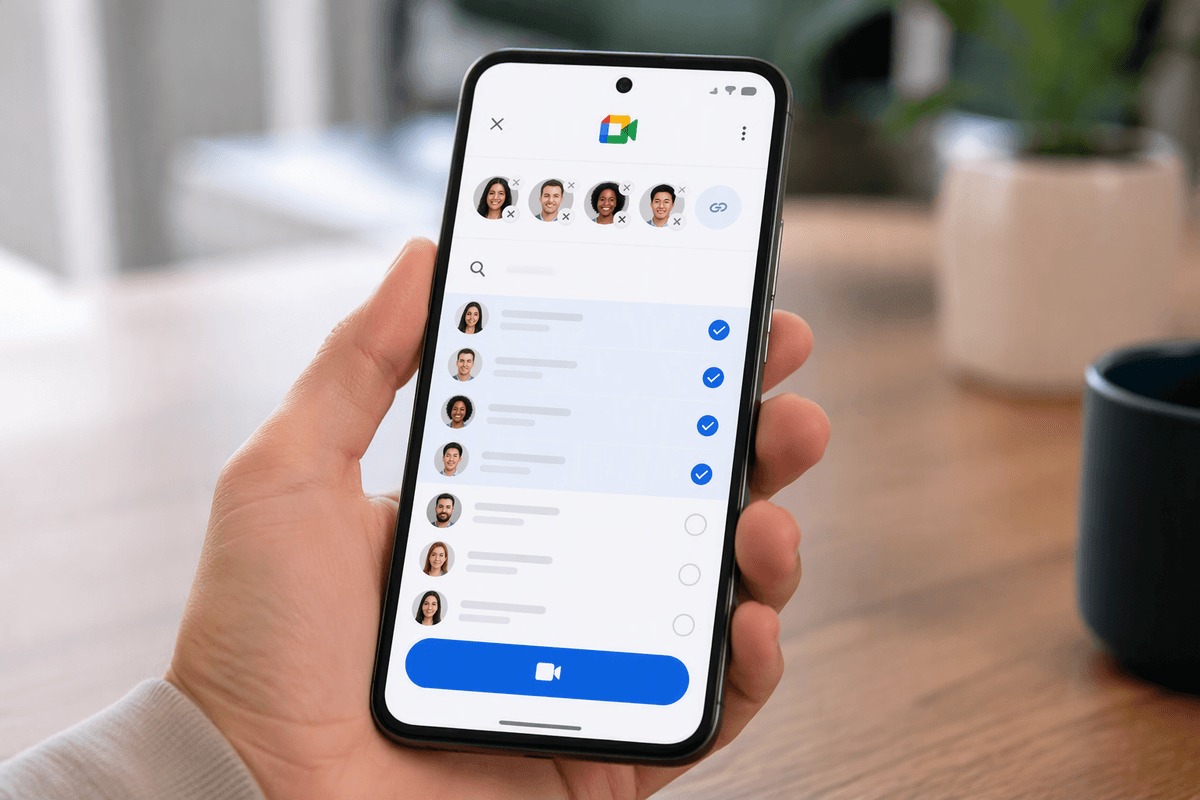
Open Google Meet and make sure you’re on the calling side (not “Meetings”). Tap New (or New call), then choose Group call. You’ll see a picker where you can search by name or number; tap each person you want, then hit Start. If you don’t see someone you expected, it’s usually because Meet doesn’t have Contacts permission yet, or that person is saved under a different email/number than the one they use on their phone.
Once the call starts, give it a five-second “sanity check” before you start talking: look for your mic and camera icons, confirm you’re not muted, and rotate your phone if your picture looks sideways. If you’re on cellular, expect more delays as the group grows—video quality will step down to keep the call alive, and older phones can heat up fast. If the app asks to “switch to Wi‑Fi,” do it.
Invite people who aren’t in your contacts yet
You’ll eventually run into the “I don’t have them saved” problem—especially with cousins, new neighbors, or a friend’s new number. In Google Meet’s calling experience, the simplest move is to create the call first, then use the invite option to share a link through whatever everyone already checks (text, WhatsApp, Messenger, email). Ask the person to open the link on their phone, then choose Meet when prompted; if they land in a browser, have them install or open the Meet app and try the link again.
Two practical constraints matter here: links are easy to forward, and they can end up in the wrong group chat, so only share them where you’d be comfortable with extra eyes. Also, some people can’t join smoothly until they’re signed into a Google account on their device, so if someone keeps bouncing, that’s the first thing to confirm.
During the call: controls that actually matter
You’ll have the most control if you treat the first 20 seconds like you’re setting the room up. Tap the microphone to mute when you’re not talking (especially if you’re cooking, driving as a passenger, or have kids/pets in the background). Tap the camera button to turn video off if your connection is struggling or you need privacy for a moment; audio-only is often the difference between “choppy and frustrating” and “totally fine.” If you’re hearing echo, the quickest fix is for one person to lower speaker volume or put in headphones, not for everyone to keep talking louder.
Use the camera flip when you need to show something (a new haircut, a broken sink, the view), but don’t do it repeatedly—older phones can stutter or briefly freeze. If you’re the host, keep an eye on who’s muted and who isn’t; it’s usually faster to say, “You’re muted—tap the mic icon,” than to troubleshoot anything else. When you’re done, end the call instead of just closing the app, since some phones will keep the microphone active in the background for a few seconds while it disconnects.
Common problems: joining, audio, video, and dropped calls
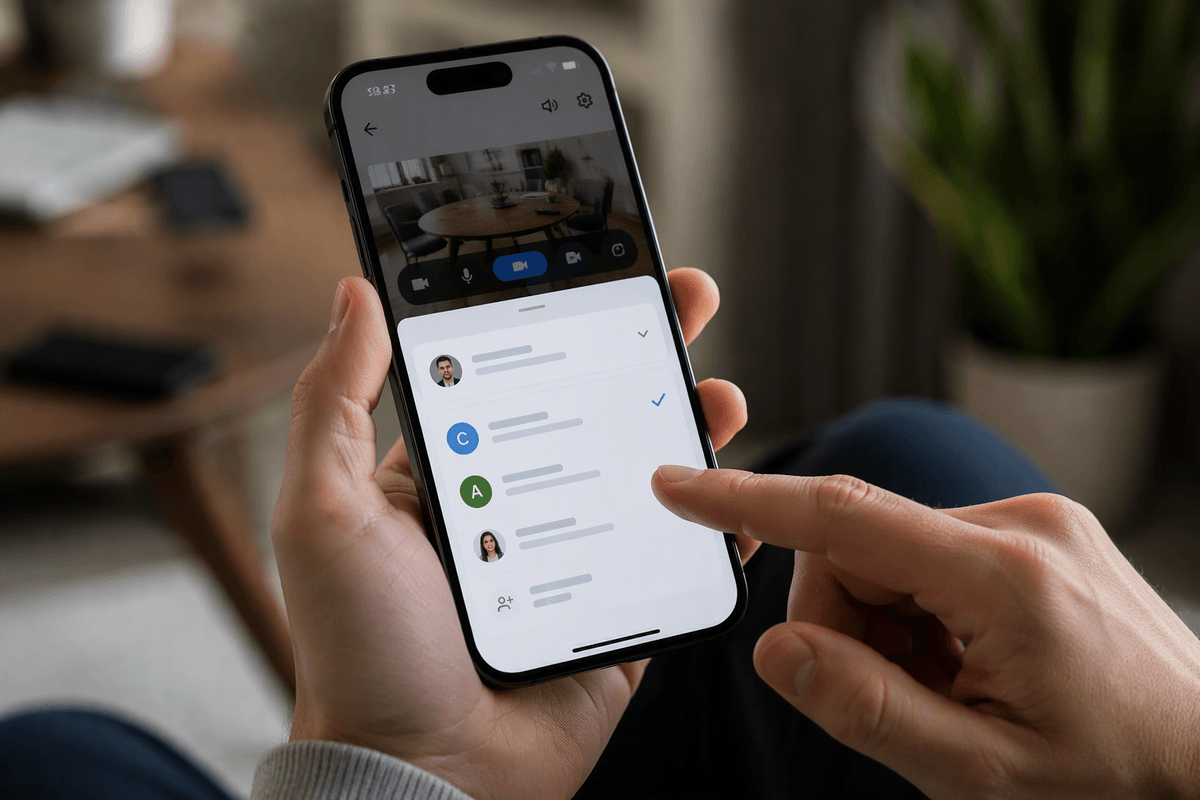
The most common “can’t join” problem is simple mismatch: the person is tapping the link on one device but signed into a different Google account (or not signed in at all) on that phone. Have them open the Meet app first, confirm they’re signed in, then tap the link again. If they keep landing in a browser, tell them to choose “Open in app” (or install Meet, then retry). If someone says they “don’t see the call,” ask them to check notification permissions and Do Not Disturb—both can hide the incoming prompt.
For audio: echo usually means two people are on speaker in the same room, or someone’s volume is too high. Fix it with headphones, lower volume, or have one person mute. If you can’t hear someone, have them tap mute twice (to reset), then switch from Bluetooth to phone speaker and back—Bluetooth gets “stuck” more often than people realize. For video: a black screen is often camera permission, another app using the camera, or Low Power Mode. Dropped calls are usually Wi‑Fi roaming or weak cellular; turn video off, move closer to the router, or switch to a stable network before trying again.
A simple checklist for hosting better group calls
You don’t need a “perfect setup,” but a small routine makes group calls smoother. Before you hit Start: get on stable Wi‑Fi if you can, plug in if you’re under 30%, and close anything that’s using the camera (Instagram, FaceTime, Zoom). Right after people join: do a quick roll call (“Can everyone hear me?”), then ask anyone not speaking to mute.
Keep the invite link in one place so you’re not hunting for it mid-call. If someone’s connection is weak, have them switch to audio-only instead of repeatedly rejoining. Plan for one practical limitation: bigger groups will push older phones and weaker networks harder, so keep the call simple—less camera flipping, fewer people talking at once, and don’t multitask on the same phone.