What Genmoji is—and when it’s worth making one
You’ve probably had the moment where no emoji quite matches what you mean—your dog’s specific goofy face, a “proud but exhausted” vibe, or a birthday message that needs something more personal than 🎉. Genmoji is Apple’s built-in way to generate a custom emoji-style image from a short description (and, in some cases, a person-based version you approve), then use it like you’d use an emoji or sticker in conversations.
It’s worth making a Genmoji when you’ll reuse it: a signature reaction, a recurring joke in a group chat, or a few “go-to” moods that feel like you. It’s not as helpful for one-off ideas if you’re in a hurry, because generating can take a few seconds, results can be slightly different each time, and you may need to tweak your wording to get something you actually want.
Check your device, region, and Apple Intelligence setup first
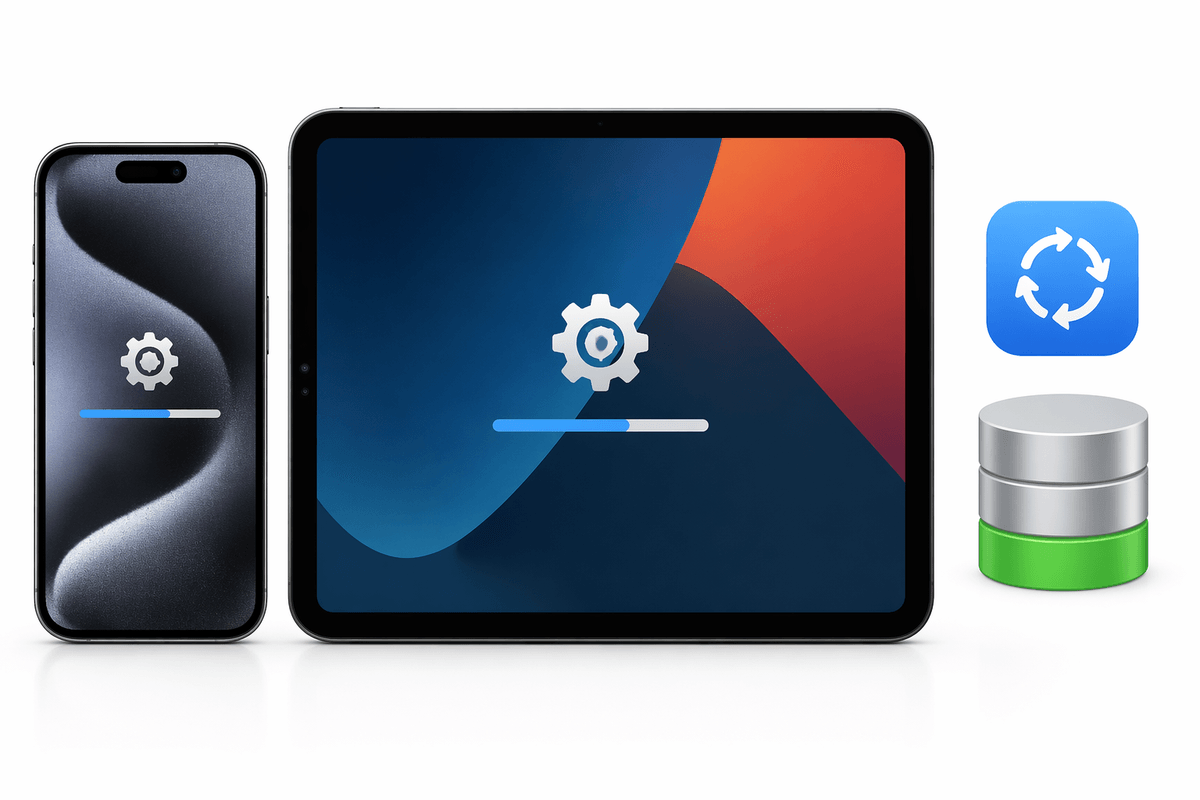
The most common “Genmoji isn’t showing up” situation is simply that Apple Intelligence isn’t available on your device yet. Genmoji runs through Apple Intelligence, which requires a compatible iPhone (iPhone 15 Pro/Pro Max, iPhone 16 or later) or an iPad with M1 or later (plus iPad mini with A17 Pro), and iOS/iPadOS 18.1 or later—updating to the latest version is the safest bet.
Then check the setup pieces that quietly block it. Go to Settings > Apple Intelligence & Siri and make sure Apple Intelligence is turned on. Your device language and Siri language must match and be set to a supported language. Also plan for a practical hiccup: Apple’s on-device models download after you update, which can take a while and needs about 7 GB of free storage—leave your iPhone/iPad on Wi‑Fi and power. Availability also varies by region; Apple Intelligence doesn’t currently work for supported devices purchased in mainland China.
Create a Genmoji from the emoji keyboard, step by step
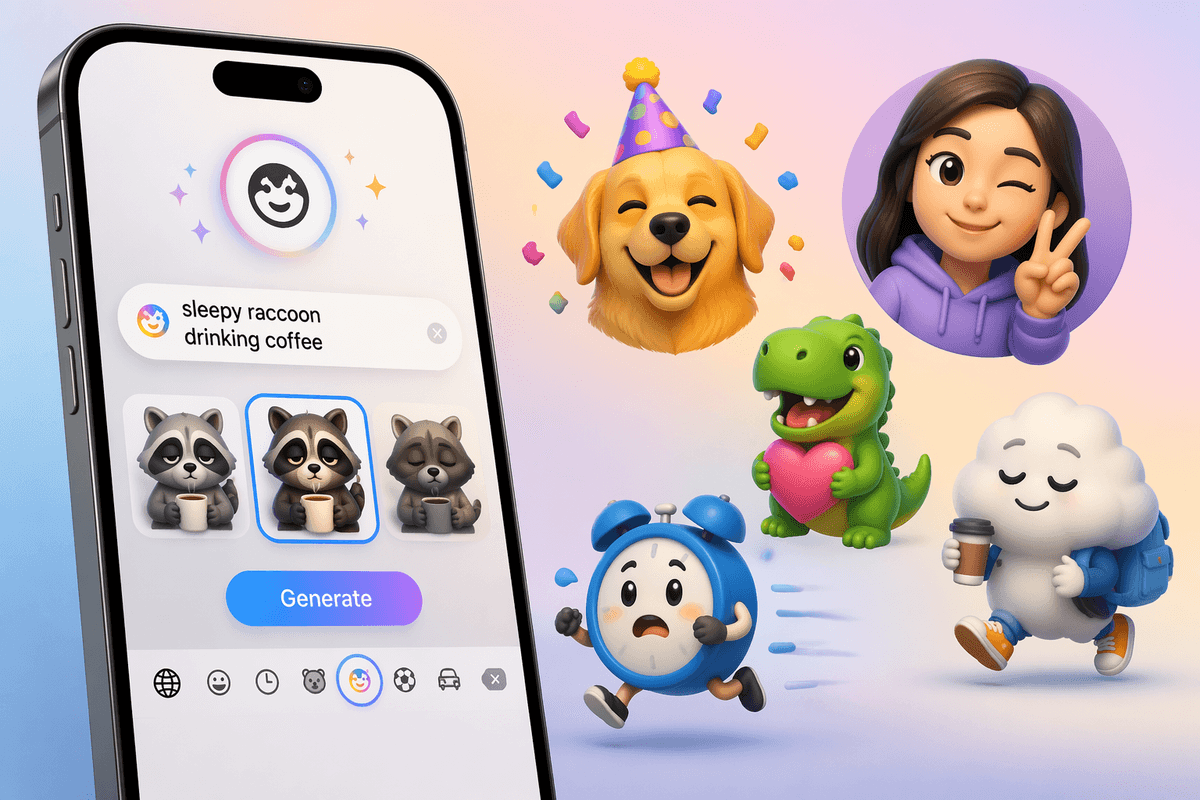
Open the app where you want to use it (Messages is the easiest place to start), tap into the text field, then tap the emoji/globe key to bring up the emoji keyboard. Look for the Genmoji option (it usually appears as a “Genmoji” label or a small face-with-sparkles style button near the emoji search area). Tap it, type a short description like “sleepy raccoon drinking coffee,” then tap Generate. You’ll see a few variations—swipe through, pick the closest match, and tap Add or Insert to drop it into your message.
If you want a person-based Genmoji, start the same way but choose the option to base it on a person photo when prompted. Use a clear, front-facing photo, confirm the person, then describe the scene or expression you want. Expect a small delay the first time (and sometimes later) while it generates; if it feels stuck, stay on Wi‑Fi and keep the app open until results appear.
Get better results with prompts that describe style and details
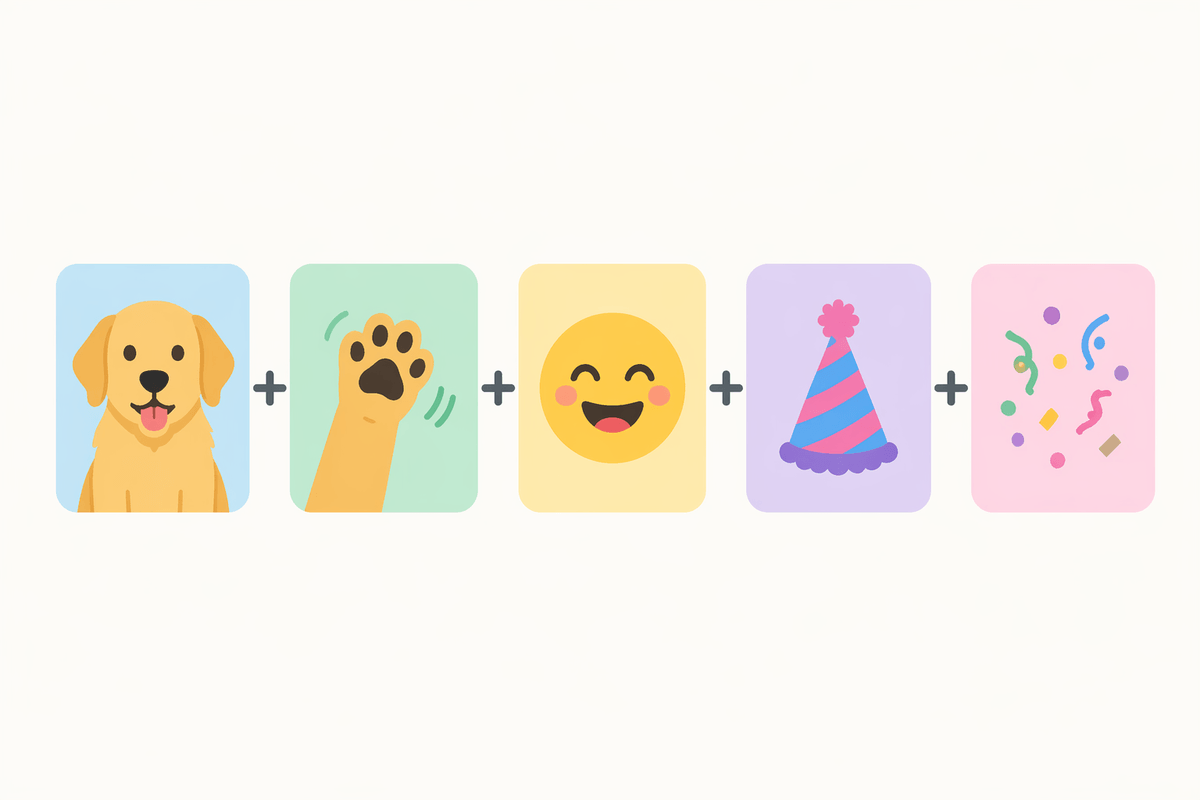
You’ll get better Genmoji when your prompt reads like a quick description someone could sketch. Start with a subject (“golden retriever”), then add an action (“waving”), an emotion (“excited”), and one or two concrete details (“party hat,” “confetti”). If the result feels off, change one piece at a time instead of rewriting everything—swap “angry” for “annoyed,” or “jumping” for “leaning,” and generate again.
Style words matter, too. If you want it to sit nicely next to standard emoji, say “emoji-style,” “simple,” “clean,” or “flat.” If it keeps adding extra objects, explicitly limit it: “just the face,” “no text,” “plain background.” You can also nudge proportions (“big eyes,” “tiny paws”) or framing (“close-up,” “full body”). The practical catch is that very long prompts don’t always help; after a point, it may ignore details, so prioritize the two or three things you care about most.
Use photos and people safely: what happens when you personalize
You’ll notice Genmoji gets more interesting the moment you base one on a real person—but that’s also where you want to slow down. When you choose a photo-based option, your device uses that face as the “reference” and then applies your prompt (expression, outfit, action) to generate variations. Use a clear, recent, front-facing photo with good lighting; busy backgrounds and sunglasses often lead to weird eyes or mismatched skin tones, which means more re-generating to get something usable.
Keep it respectful and consent-based. If the person isn’t you (especially kids), ask first, and avoid prompts that could embarrass them if the Genmoji gets forwarded. Also remember the practical constraint: photo-based Genmoji can take longer to generate, and you may not be able to recreate the exact same look later, so save the versions you like and reuse those instead of assuming you can “make it again.”
Where your Genmoji can be used—and where it can’t
You’ll mostly “feel” Genmoji living inside the emoji keyboard. In Messages, you can insert it in the text field like a normal emoji, or use it as a sticker-style reaction in conversations. You can usually do the same anywhere that brings up Apple’s emoji keyboard—Mail, Notes, and many chat apps—though the experience depends on the app. Some apps treat it like an image sticker, which can make it bigger than you expect or place it on its own line.
Expect a few practical limits. Genmoji isn’t a new universal emoji character, so it won’t behave like plain text: you can’t always search for it the same way, copy/paste can be inconsistent, and it may not show perfectly on non-Apple devices (it might arrive as an image, or look different). Also, if you’re on an older iPhone/iPad that can’t run Apple Intelligence, you can still receive Genmoji from someone else, but you won’t be able to generate new ones on that device.
Troubleshooting: missing feature, slow generation, or odd outputs
If Genmoji is missing, start where it usually breaks: you’re not on a compatible device, you’re not updated far enough, or Apple Intelligence isn’t fully enabled. Confirm iOS/iPadOS is 18.1 or later, then go to Settings > Apple Intelligence & Siri and make sure it’s turned on and your device language and Siri language match. If you recently updated, leave the device on Wi‑Fi and power for a while—those Apple Intelligence downloads can take time, and you’ll want several GB of free storage.
If generation is slow or “stuck,” try simpler prompts (fewer details), close and reopen the app, and toggle Airplane Mode off/on to reset network. Photo-based Genmoji is often slower, especially on weaker Wi‑Fi. For odd outputs, don’t fight the whole sentence—change one word (“crying” to “teary,” “realistic” to “emoji-style”), add constraints like “plain background” or “no text,” and regenerate. If a person-based result looks wrong, switch to a clearer, front-facing photo with better lighting and no sunglasses.
A simple workflow to make Genmoji you’ll actually reuse
You’ll get the most value from Genmoji when you treat it like a tiny set of “favorites,” not an endless generator. Start by making 5–10 basics you’ll reuse: a hello, a thanks, a laugh, an apology, a “running late,” and two or three moods. For each one, generate three variations, pick the best, and immediately send it to yourself in a Messages thread so it’s easy to find later.
When you want something new, begin with an emoji-style prompt plus one key detail, then refine once (“plain background,” “just the face,” “no text”). If it takes more than two rounds to look right, save your time and move on—Genmoji can be a few seconds slow, and chasing perfection in the moment usually isn’t worth it.