Why Control Center matters (and how to open it fast)
You use Control Center when you need something right now: turning on Wi‑Fi at a hotel, lowering brightness in a dark room, starting a timer while cooking, or quickly recording your screen. It saves you from hunting through Settings, but only if you can open it on muscle memory.
On iPhone with Face ID, swipe down from the top-right corner. On iPhone with a Home button, swipe up from the bottom edge. On iPad, swipe down from the top-right corner as well. If you keep triggering it by accident (or can’t open it while using apps), check Settings > Control Center and make sure “Access Within Apps” matches how you actually use your device.
Find the controls you actually need on iPhone and iPad
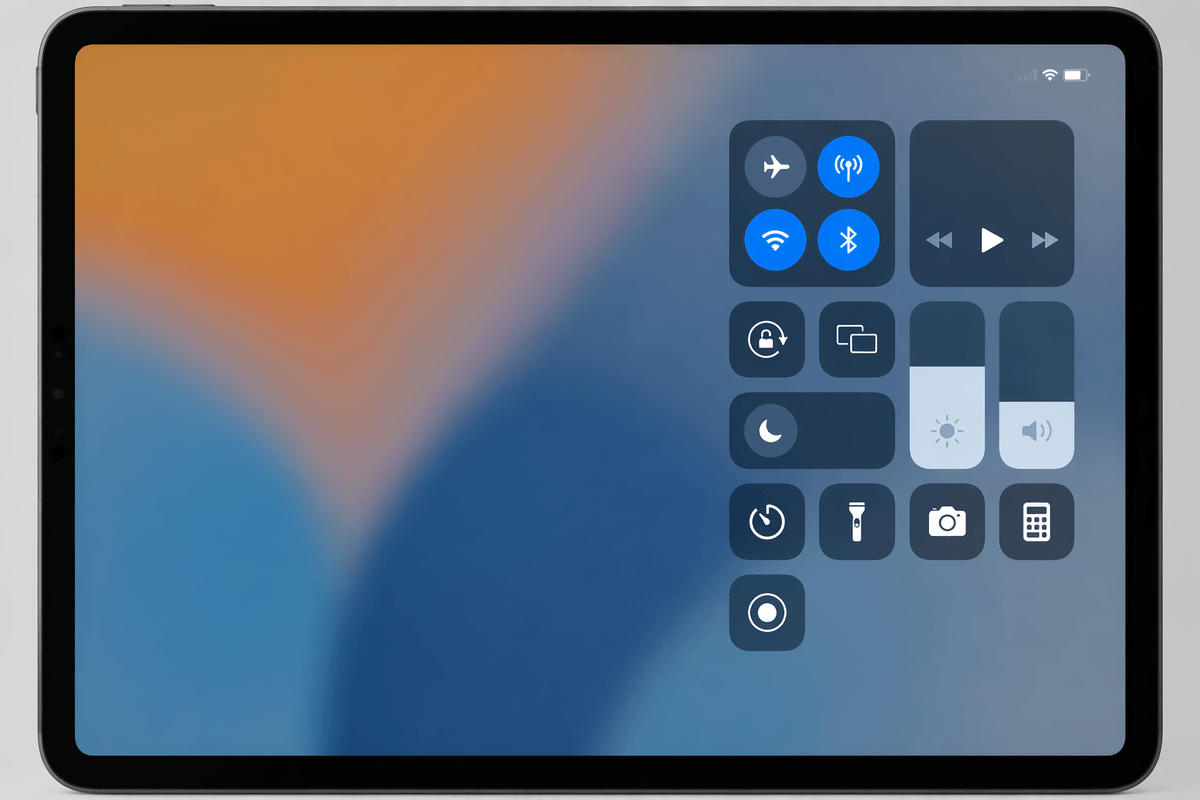
The quickest win is knowing which Control Center tiles are worth your thumb space. Start with the network cluster (Airplane Mode, Cellular, Wi‑Fi, Bluetooth). A common surprise: tapping Wi‑Fi or Bluetooth doesn’t fully turn them off—it usually disconnects until later—so use a long-press (or press and hold) to open the expanded panel when you need to switch networks or manage connections.
Brightness and Volume are the other daily drivers; press and hold either slider for finer control, and you’ll also find tools like Dark Mode and Night Shift nearby on many setups. For routines, look for Timer, Flashlight, Camera, Calculator, Screen Recording, and Focus. If you use an iPad with a keyboard, Rotation Lock and Stage Manager (when available) can save real time, but packing in everything makes Control Center slower to scan, so keep only what you reach for weekly.
Customize iPhone and iPad Control Center without clutter
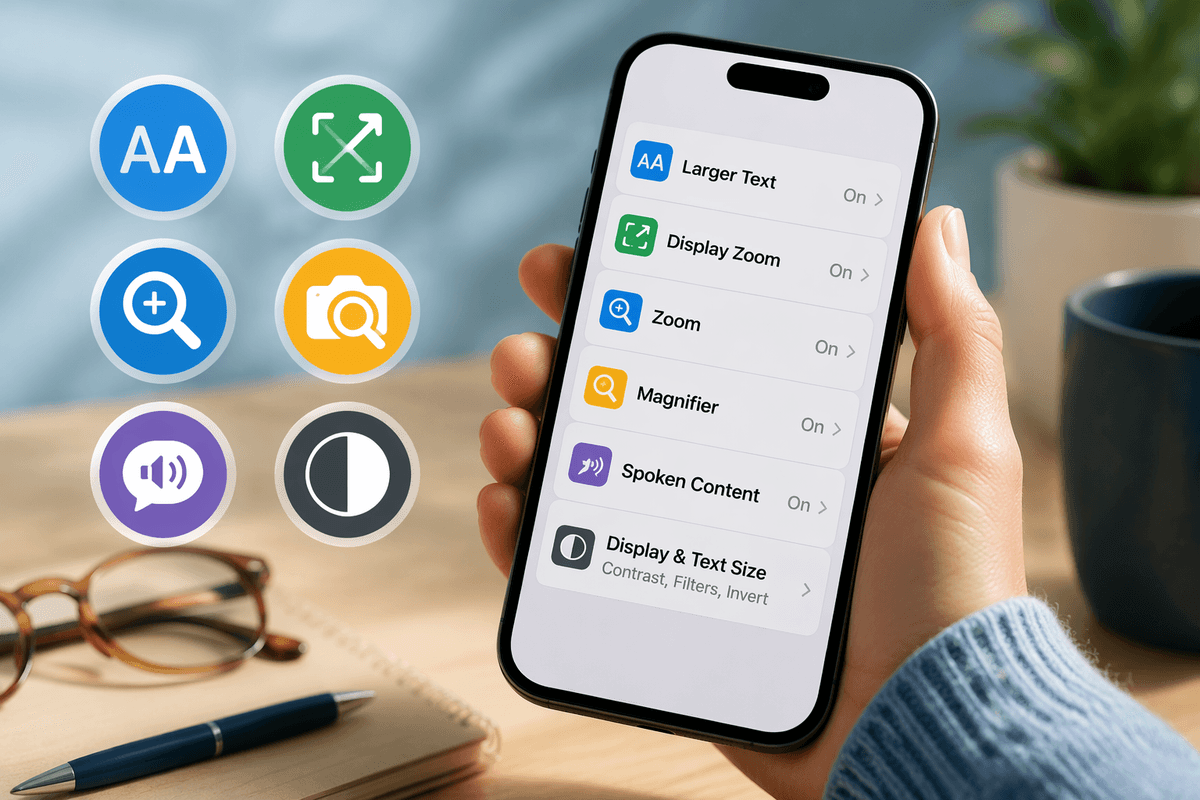
Most people clutter Control Center by adding “nice to have” buttons and then missing the ones they actually use. Go to Settings > Control Center and start by removing anything you haven’t tapped in the last couple of weeks. Then add only the controls that replace a repeat trip into Settings: Low Power Mode, Screen Recording, Magnifier, Hearing, and Apple TV Remote are common candidates, depending on your routine.
Order matters more than quantity. Put your top three actions closest to the top so they’re reachable without scrolling, and group similar tasks (for example: Timer next to Stopwatch, or Notes next to Quick Note on iPad). A practical constraint: some controls only appear when the feature is set up (like Hearing requiring connected audio devices, or Home showing up only if you use HomeKit), so if a tile seems “missing,” check the related app or feature first.
Use the "hidden" power moves: expanded controls and quick actions
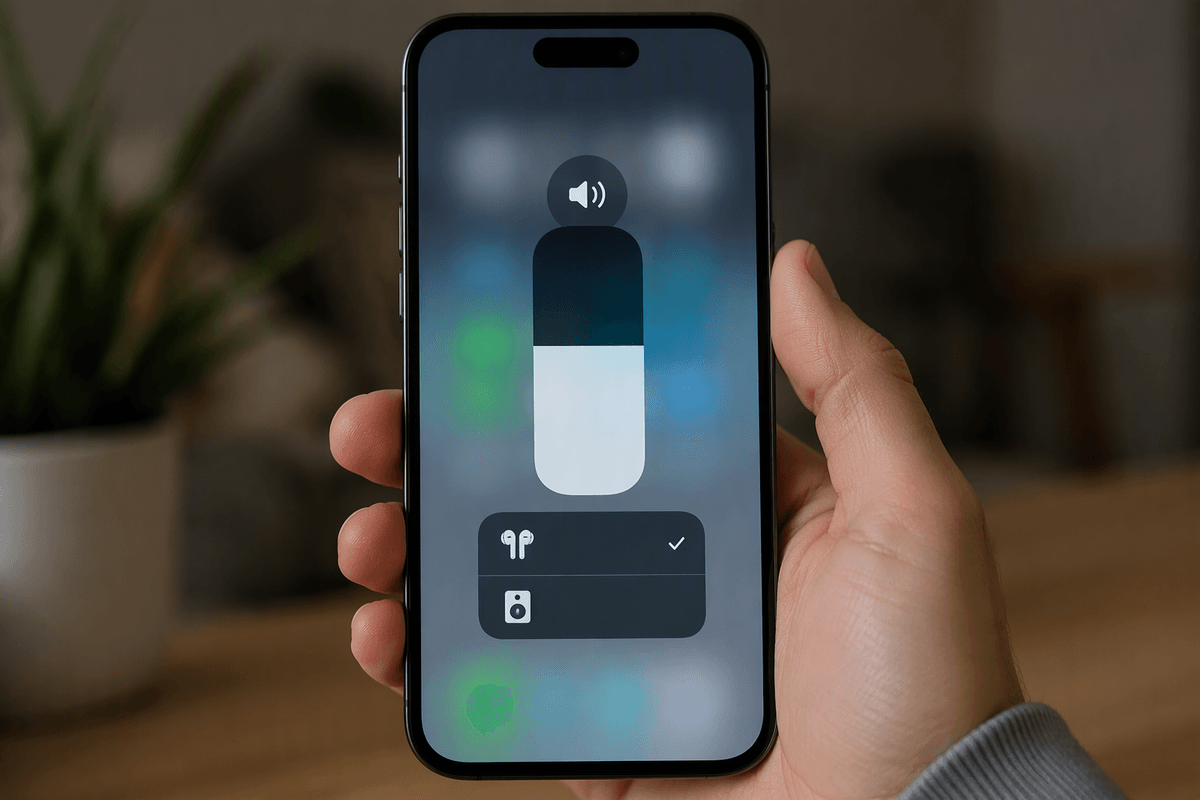
Control Center’s fastest tricks show up when you press and hold. Long-press the network cluster to jump straight into AirDrop, Personal Hotspot, and available Wi‑Fi networks without opening Settings. Do the same on the brightness slider for Dark Mode, Night Shift, and True Tone (when your device supports it), and on the volume slider for quick audio output changes—handy when your sound keeps routing to the wrong earbuds or speaker.
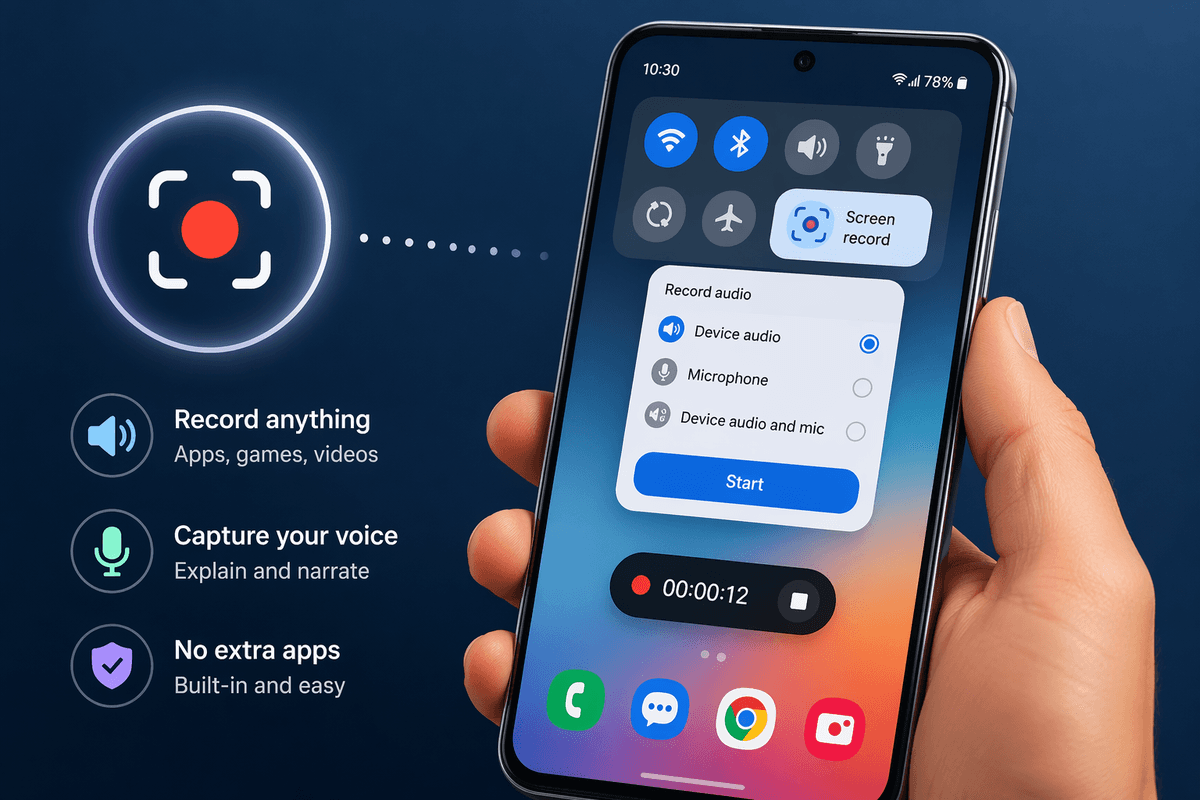
Many tiles have secondary actions, too. Press and hold Flashlight to change beam intensity, Timer to pick a common duration, and Screen Recording to toggle microphone audio before you start. On iPad, Quick Note is a “use it everywhere” move: one press and hold can drop you into a note without context-switching apps. The trade-off is speed versus precision—press-and-hold takes a beat longer than a tap—so reserve these expanded panels for moments when the extra control saves you a trip into Settings.
When Control Center won’t behave: fixes and common gotchas
It’s normal for Control Center to feel inconsistent when a setting is being managed somewhere else. If you can’t open it in certain apps, go to Settings > Control Center and turn on “Access Within Apps.” If you keep pulling down Notification Center instead, aim for the very top-right corner (especially on iPad) and swipe straight down—cases and screen protectors can make that edge gesture less forgiving.
When a tile seems “missing,” it’s often because the feature isn’t available or set up: Hearing needs compatible audio devices, Home needs HomeKit, and some iPad controls (like Stage Manager) only appear on supported models. If Wi‑Fi or Bluetooth “won’t turn off,” remember the Control Center button usually disconnects rather than fully disables; use Settings for a true off. If things look stuck, restart the device—quick, boring, and still one of the best fixes.
Control Center on Mac: what’s there and what you can change
On a Mac, Control Center lives in the menu bar. Click the Control Center icon (the two slider switches) to get quick access to Wi‑Fi, Bluetooth, AirDrop, Focus, keyboard brightness (on some models), Display (brightness, True Tone/Night Shift when supported), and Sound. Unlike iPhone, it’s less about “tiles” and more about fast status changes without opening System Settings.
To change what shows up, open System Settings > Control Center. You can choose which items appear inside Control Center versus sitting in the menu bar full time (Wi‑Fi and Bluetooth are common “always visible” picks). You can also add handy extras like Accessibility Shortcuts, Battery percentage, or Fast User Switching. The practical limit: not every Mac shows every control—some depend on hardware (like a built-in keyboard backlight) or features you’ve enabled—so if an item isn’t offered here, it usually can’t be forced on.
Make it consistent across devices (and keep it private)
The easiest way to make Control Center feel consistent is to pick a “core set” you use everywhere: Wi‑Fi/Bluetooth, Focus, Brightness, Volume, and one or two actions (Timer, Screen Recording, or Remote). Then mirror that idea on each device: iPhone/iPad in Settings > Control Center, and Mac in System Settings > Control Center (and the menu bar options). You can’t fully sync layouts across iPhone, iPad, and Mac, so you’ll spend a few minutes setting each one up.
For privacy, treat Control Center like a lock-screen dashboard. On iPhone/iPad, decide whether you want it available when locked (Settings > Face ID/Touch ID & Passcode). Leaving it on is convenient; turning it off prevents quick toggles and access to certain controls when your phone is on a table.