Why defragmentation still comes up in modern operating systems
You’ll still hear “try a defrag” because people notice the same symptom—slower boots, longer app launches, sluggish file opens—and assume the cause is the same as it was on older hard drives: scattered data forcing lots of extra seeking. That mental model isn’t totally wrong, it’s just incomplete. Modern operating systems hide a lot of storage behavior behind caching, background maintenance, and smarter allocation, so performance changes can be real while the root cause shifts between fragmentation, free-space layout, indexing, antivirus scans, and plain disk-full conditions.
Defragmentation also keeps coming up because the tools never disappeared; they changed names and goals. Windows still runs scheduled “Optimize Drives,” which may defragment HDDs but will do SSD-friendly actions like TRIM instead of shuffling blocks. On Linux and macOS, the conversation often surfaces when workloads create many small files or when a nearly full volume starts to feel jumpy. The practical constraint is that any heavy reorganization work competes with user I/O, so even “safe” maintenance can mean noticeable slowdown or downtime if you run it at the wrong time.
What fragmentation actually costs: I/O patterns, not just “speed”
You notice it most when a routine task suddenly turns “bursty”: opening a mailbox archive, scanning a code repo, unpacking updates, loading game assets, or enumerating a directory full of tiny files. Fragmentation isn’t a single penalty called “disk is slower.” It changes the I/O pattern. Instead of longer, predictable reads and writes, the OS ends up doing more separate operations, more metadata lookups, and more waiting for the storage device to finish each request. On an HDD, the classic cost is physical seeking; on any device, it also means lower queue efficiency and less effective readahead.
It also hits writes indirectly. When free space is chopped up, extending a file can require allocating new extents elsewhere, and background services (search indexing, antivirus, backups) amplify the churn because they touch many small regions. The hard part is that defrag-like work can “fix” locality while creating a big spike in I/O and cache evictions, so users may feel the system get worse before it gets better—especially on busy desktops or small servers.
HDDs vs SSDs: when defrag helps, hurts, or is pointless
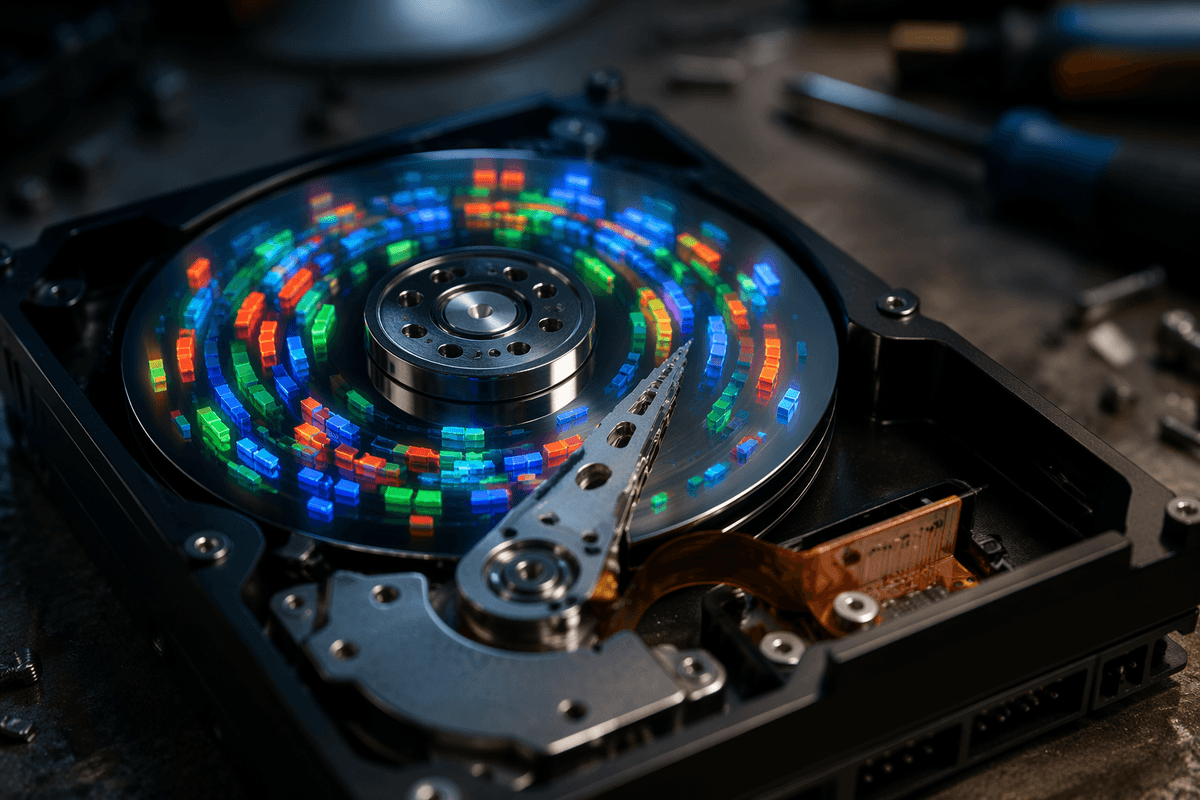
On HDDs, fragmentation is still the classic “death by a thousand seeks.” When a large file is split into many extents, the head spends more time moving than reading, so throughput drops and latency spikes during workloads that should be mostly sequential (VM disk images, large PST/mbox files, backups, media, game installs). A well-timed defrag can claw back real performance, but it’s also one of the most I/O-intensive things you can do to a volume, so running it on a busy machine can cause user-visible stalls and long maintenance windows.
On SSDs, the same file being in pieces usually doesn’t carry the same penalty, because there’s no mechanical seek. Defragmenting an SSD mostly turns into extra writes, which consumes endurance and can trigger more background garbage collection—sometimes making short-term responsiveness worse. What you typically want instead is TRIM (or “discard”) so the drive can recycle blocks efficiently; modern Windows “Optimize Drives” and many Linux setups handle this automatically. Defrag on SSD is usually pointless, except for narrow cases where the OS is optimizing metadata or consolidating extremely fragmented structures without massive shuffling.
File systems differ: how NTFS, ext4, APFS, and Btrfs behave
A common desktop pattern is “same SSD, different results” after a reinstall or when switching OS. A lot of that comes down to how the file system allocates space and how much it can self-heal without a classic defrag pass. NTFS tends to fragment more under heavy churn (large files that grow, lots of installs/uninstalls), and Windows leans on scheduled optimization to keep file extents and metadata reasonably tidy—helpful on HDDs, limited on SSDs. ext4 usually behaves well if there’s headroom, because it uses extents and delayed allocation to place data more contiguously; when a volume stays 90%+ full, locality falls apart and “defragging” is more about freeing space than running e4defrag.
APFS and Btrfs are copy-on-write designs, which changes the trade-off: updates often write new blocks elsewhere instead of overwriting in place. That can spread data over time, but it enables snapshots and safer updates. The practical cost is write amplification and background cleanup; forcing “defrag-like” rewriting can collide with snapshots and free-space pressure, so planning around capacity and snapshot retention matters more than chasing perfect contiguity.
System constraints that change the best approach
You can have “the same” storage and file system on paper and still get different outcomes because the constraints around it change. A laptop on battery, a small server hosting a VM, or a desktop doing real-time antivirus scans all have less spare I/O budget for reorganization work. If the disk is already pegged by backups, Windows Update, log rotation, or a busy database, a defrag/optimize run competes with foreground reads and can turn normal tasks into long stalls. Thermal limits matter too: sustained SSD writes can trigger throttling, so an “optimization” can look like a slowdown for hours, not minutes.
Capacity is the other big constraint. Once a volume lives near full, every allocator has fewer good placement choices, snapshots become harder to clean up, and free-space fragmentation rises. At that point, buying time often means reclaiming space (or moving data) rather than shuffling it. There’s also a simple operational cost: defrag-like work increases wear on SSDs and creates longer maintenance windows on HDDs, so the best approach is usually the one you can schedule safely and repeatably.
Measuring before acting: what to check and what to ignore
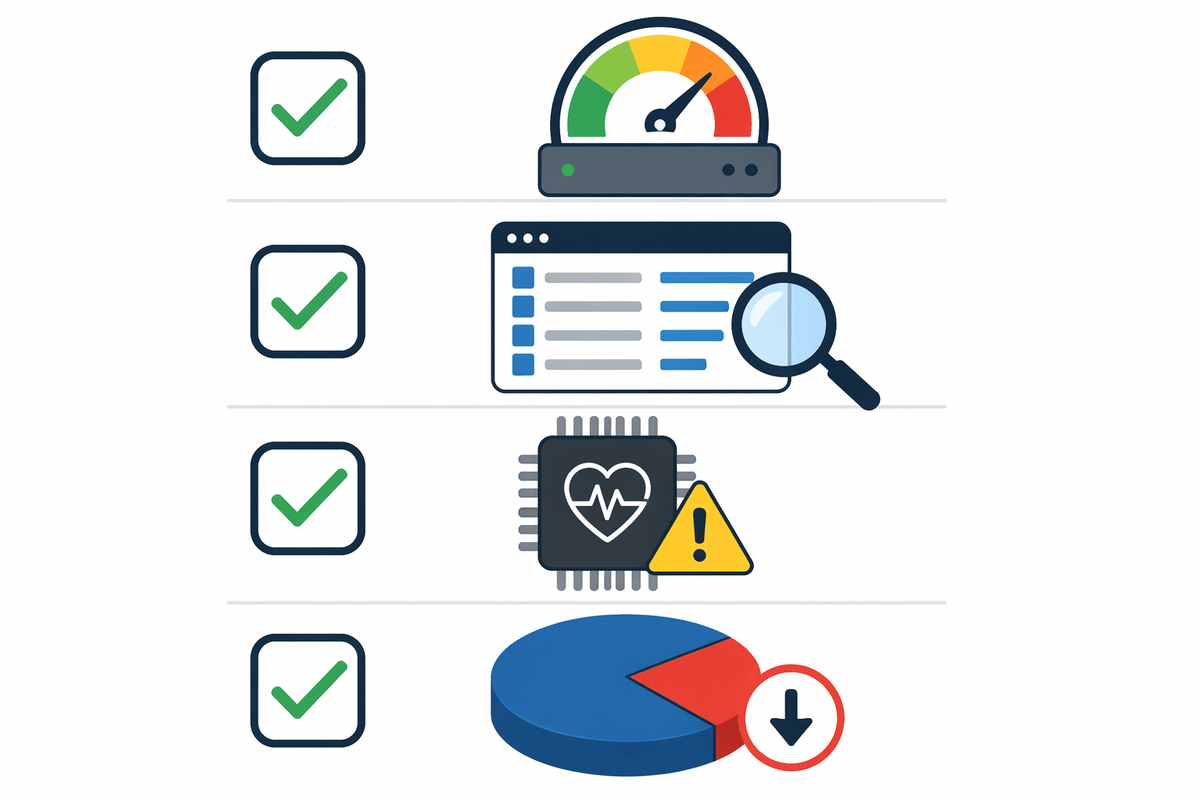
You’ve probably seen a drive “% fragmented” number and treated it like a verdict. It isn’t. Start with what the system is telling you: Task Manager/iostat for sustained high disk active time, Resource Monitor for which files and processes are driving I/O, and SMART for reallocated sectors or rising media errors (those are “replace the drive” signals, not “defrag it”). Check free space first; under roughly 15–20% free, allocator choices collapse and everything gets noisier. On Windows, look at Optimize Drives to confirm whether the volume is treated as HDD or SSD, and whether TRIM is succeeding.
What to ignore: one-off slow boots right after updates, temporary spikes during indexing/AV scans, and “fragmentation” on SSDs as a performance headline. Also don’t chase perfect contiguity on copy-on-write file systems; if snapshots are piling up or the volume is near full, the measurable fix is usually capacity and retention policy, not block shuffling.
Safe maintenance patterns: scheduling, automation, and exceptions
The safest pattern is to treat optimization as a scheduled, low-priority background job, not a manual “fix it now” button. On Windows, leave Optimize Drives enabled, but verify it’s doing the right action per volume (defrag for HDD, TRIM for SSD) and schedule it outside peak hours; on small servers, align it with backup windows so you don’t stack random I/O-heavy tasks. On Linux, prefer periodic fstrim (timer/cron) over “discard” on every delete if you’re chasing predictable latency, and only reach for e4defrag when a specific file or workload is measurably suffering.
Exceptions matter. Skip defrag when the disk is throwing SMART errors, when free space is critically low, or when the machine is thermally constrained (laptops, fanless minis) because sustained writes can throttle performance for longer than the “maintenance” run. For copy-on-write setups with snapshots, set retention and keep headroom first; rewriting data to “tidy it up” can increase churn and stretch maintenance windows.
Conclusion: a decision checklist instead of a default routine
If you’re deciding what to do, use a checklist instead of a habit: (1) What media is it—HDD or SSD? (2) Is free space healthy (aim for 15–20%+), and are snapshots/logs eating it? (3) Are you seeing sustained disk queue/active time tied to real workloads, not just post-update noise? (4) Are SMART and filesystem health clean? If it’s an HDD with measurable seek-heavy slowdown, schedule a defrag off-hours and expect a long I/O window. If it’s an SSD, prioritize TRIM/fstrim, headroom, and workload tuning; avoid rewrite-heavy “cleanup” that trades short-term tidiness for wear and stalls.